
Customize ALEKS Student Display Options
Adjust ALEKS student display options to support accessibility and learning preferences.
- Customer Support
- PreK-12
- School Student
- School Parent
- Elementary School
- Middle School
- High School
- Direct Login & Auto-Rostering
- Direct Login & Manual-Rostering
- SSO & Auto-Rostering
- SSO & Manual-Rostering
- Supplemental
- Math
- ALEKS
- Dashboard & Navigation Overview
- Student Resources


View the demo in a separate tab.
View the Spanish version of the demo.
1. SSO or log in at my.mheducation.com.
2. Launch ALEKS.
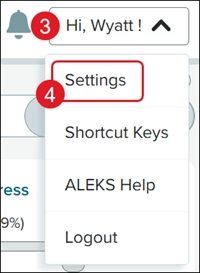
3. Click on your name at the top-right.
4. Click on Settings from the menu.
5. Toggle on Accessibility.
6. Select the preferred radio button.
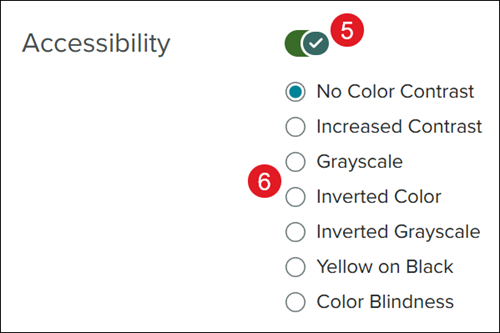
After selecting the Color Contrast option, students can choose from six different options for their preferred color setting. Students see their screen change immediately after making a selection.
- No Changes (default setting): Standard color settings are applied to the student's screen.
- Increased Contrast: Changes the screen to use high-contrast colors (e.g., green, blue, white) to conform to specific ratios specified by WCAG AA.
- Grayscale: Changes objects on the screen to shades of gray, black, and white. The grayscale display setting is an alternative high contrast/low contrast setting for accessibility.
- Inverted Color: Replaces a color with its opposite color. For example, black becomes white and white becomes back.
- Inverted Grayscale: Works in the opposite of the Grayscale option. Replaces a color with its opposite color.
- Yellow on Black: Changes objects on the screen to shades of yellow and black.
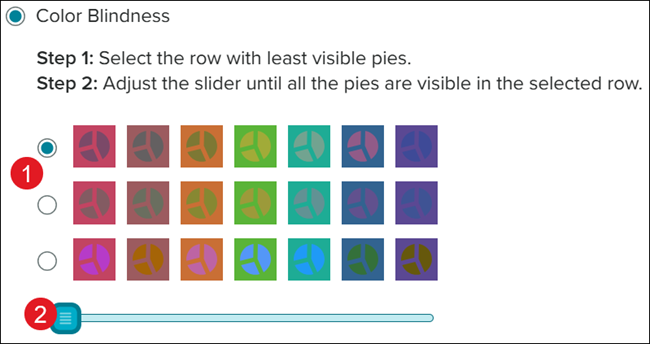
After selecting the Color Blindness option, students complete a two-step process to choose their preferred color setting.
1. Select the radio button next to the row with the least visible pies.
2. Click and drag the slider until all the pie images are visible in the selected row.
The selected options will be saved automatically.
