
Print Temporary Passwords for Students Who Use ALEKS
Print temporary student passwords for students who use ALEKS or ALEKS Adventure for initial login or recovery.
- Customer Support
- PreK-12
- Classroom Teacher
- Elementary School
- Middle School
- High School
- Direct Login & Manual-Rostering
- Supplemental
- Math
- ALEKS
- ALEKS Adventure
- Log-In & Passwords
- User Management
- Account Management


Direct Login and Manual Rostering
This article applies to Direct Login and Manual Rostering districts.
Direct Login means that teachers, students, and administrators log in at my.mheducation.com.
Manual Rostering means that teachers redeem their own program content and roster their own classes.
Not sure which Access Service your district uses? View the Access Service Descriptions article to learn more about the four Access Services that we support.
View the demo in a separate tab.
View the Spanish version of the demo.
You can create temporary passwords for your students’ initial login from your student roster for ALEKS and ALEKS Adventure. You can also use this feature if a student has forgotten their password. Students are prompted to set a permanent password once they sign in with the temporary password. You will not be able to see or print permanent passwords.
Note: You do not want to give them a temporary password if you set a permanent password for them, as the temporary password will override the permanent password.
1. Sign into your account at my.mheducation.com.
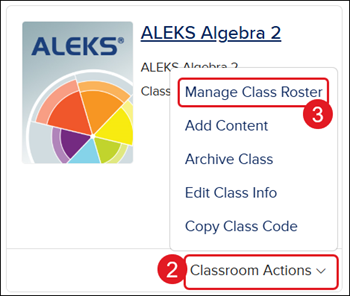
2. Click on Classroom Actions.
3. Click on Manage Class Roster from the menu.
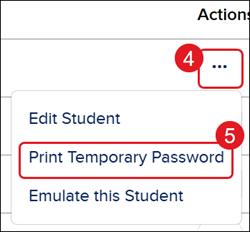
4. Click the Options icon in the Actions column to the right of the student.
5. Click Print Temporary Password from the menu.
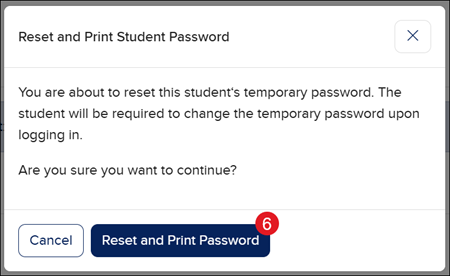
6. On the Reset and Print Student Password pop-up, click the Reset and Print Password button.
To print the temporary passwords for the entire class, click the Reset and Print Student Passwords (key icon) button.

Both options will download a CSV file.
