
Set Student Text Settings in Actively Learn
Adjust student text settings in Actively Learn to customize the reading experience.
- Customer Support
- PreK-12
- School Student
- School Parent
- Elementary School
- Middle School
- High School
- Direct Login & Auto-Rostering
- Direct Login & Manual-Rostering
- SSO & Auto-Rostering
- SSO & Manual-Rostering
- Supplemental
- Literacy
- Science
- Social Studies
- Actively Learn
- Student Resources
- Grades & Assignments
- Online Assessments


Students have the ability to customize how they experience texts on Actively Learn. In their workspace and in their assignments, students can change text settings to better suit their working environment.
Note: PDFs do not have text setting options.
1. Click on an assignment tile.
2. Click on Settings in the toolbar.

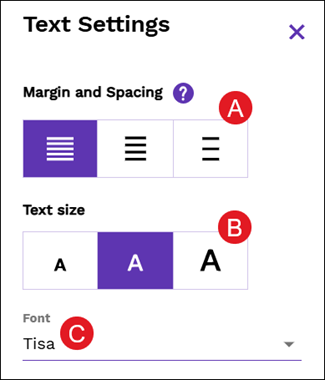
Margin and Spacing (A) in particular - but also Text size (B) and Font (C) - can affect how quickly and fluently you read. Experiment to find a combination that works well for you.
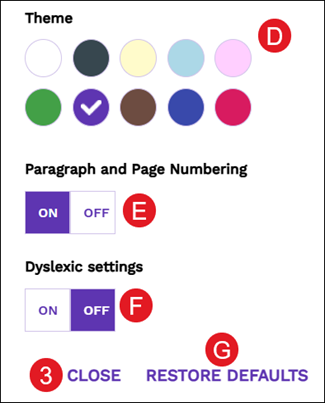
D. Students can change the background color or the color of the their question boxes and buttons by selecting a colored circle in the Theme section.
The top row of colors change the background while the bottom row of colors change the question boxes and buttons.
E. Click On/Off to view or not view the Paragraph and Page Numbering within the text.

Actively Learn offers dyslexic settings, which use a font created to increase readability for readers with dyslexia.
F. Click On/Off for the Dyslexic settings to auto-adjust the font and spacing of the text.
G. Click the Restore Defaults button to change all settings back to the original Actively Learn selections.
3. Click the Close button to save any changes made.