Use Actively Learn Student Reading Aids
Explore student reading aids in Actively Learn that support comprehension and accessibility.
- Customer Support
- PreK-12
- School Student
- School Parent
- Elementary School
- Middle School
- High School
- Direct Login & Auto-Rostering
- Direct Login & Manual-Rostering
- SSO & Auto-Rostering
- SSO & Manual-Rostering
- Supplemental
- Literacy
- Science
- Social Studies
- Actively Learn
- Student Resources
- Grades & Assignments
- Online Assessments


Students have many reading aids available to them and can be accessed by highlighting a portion of the text which will then bring up a menu to select from or turning on the closed captions for video assignments.
Article Contents
Hear It and Read Aloud
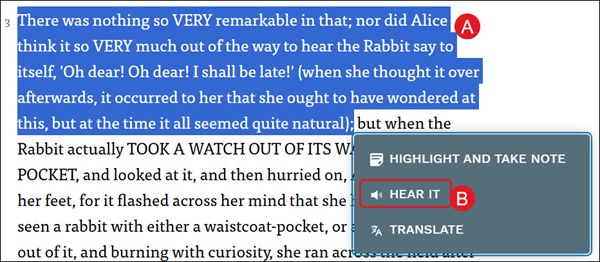
The Hear It option is slightly different from the Read Aloud option. The Hear It option only reads aloud the text that has been selected while the Read Aloud option reads all of the assignment aloud.
For the Hear It option, select the text (A) that you want to hear read aloud and select Hear It (B) from the menu that pops up.
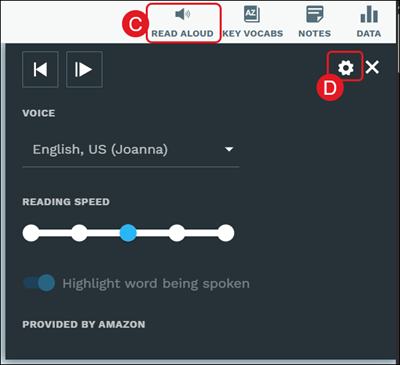
For the Read Aloud option, click the Read Aloud button (C) at the top-right of the page.
Click the Settings (D) for both the Hear It and Read Aloud options to change the Voice, Reading Speed, and turn on/off the Highlight word being spoken option.
Define
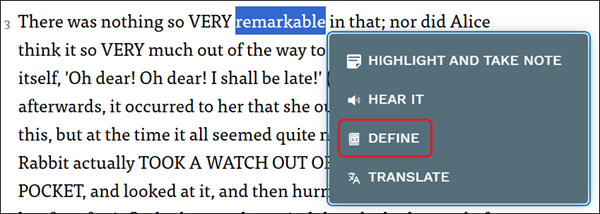
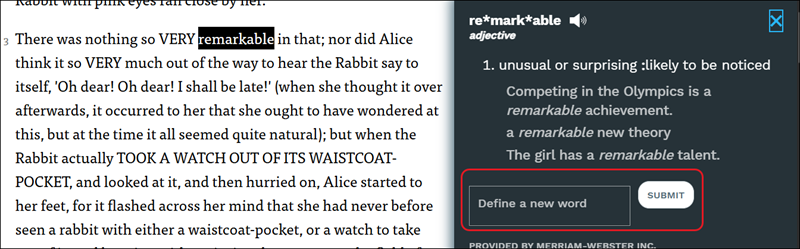
When a single word is selected within a text, students can click Define from the pop-up menu to view the definition of the selected word.
Students can click in the Define a new word field and click Submit to view a new definition.
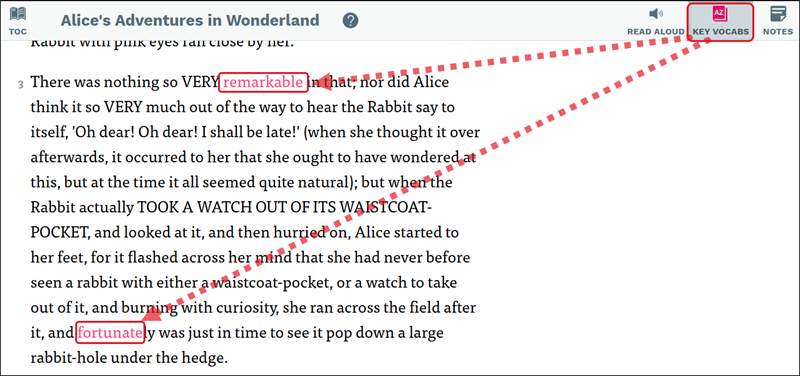
Click the Key Vocabs button to activate the key words within the text. Any key vocabulary words will be highlighted in bright pink.
Translate
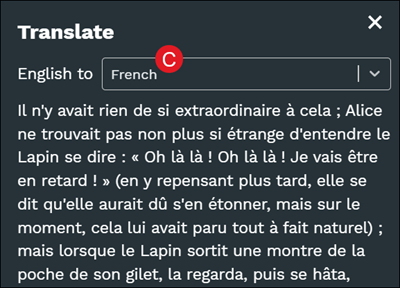
Students have the option to translate the text to another select language by Google Translate if needed.
Note: Any texts published by Simon & Schuster will not have a translation option available.
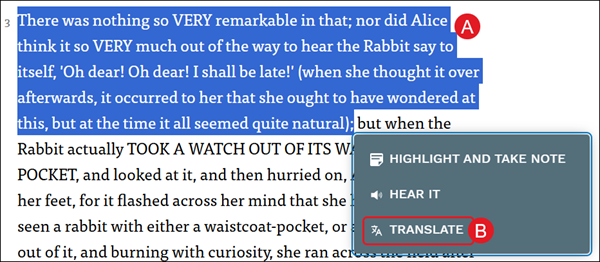
The translate option is available by highlighting a selection of text (A) and selecting Translate (B) from the pop-up menu.
Click on the English to drop-down to select the preferred language.
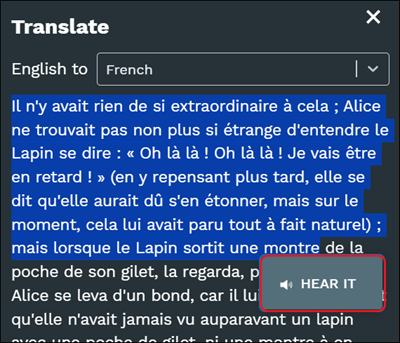
Students can also hear the translated language aloud by highlighting the text in the Translate panel and clicking Hear It from the pop-up menu.
Closed Captions
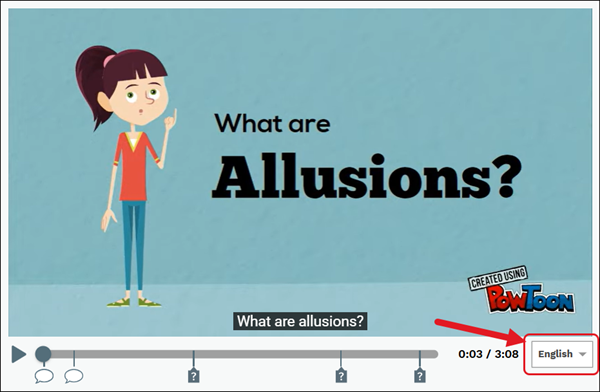
The majority of the videos that are available for students have the Closed Captions option. At this time, the only option is for the captions to be in English.
On the video, click the drop-down at the bottom-right (by the video timer) to toggle the captions on/off.