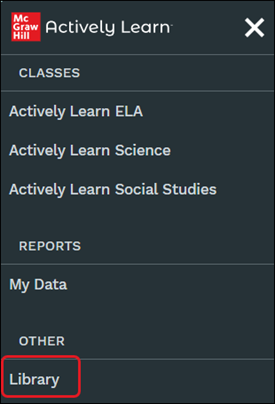
Click the Menu button at the top-left of the page and click Library from the panel.
Educators can add a variety of content, such as current event articles, literary classics, or engaging simulations, to align with their curriculum. The available content to select from spans multiple genres and comes from trusted, high-quality sources.
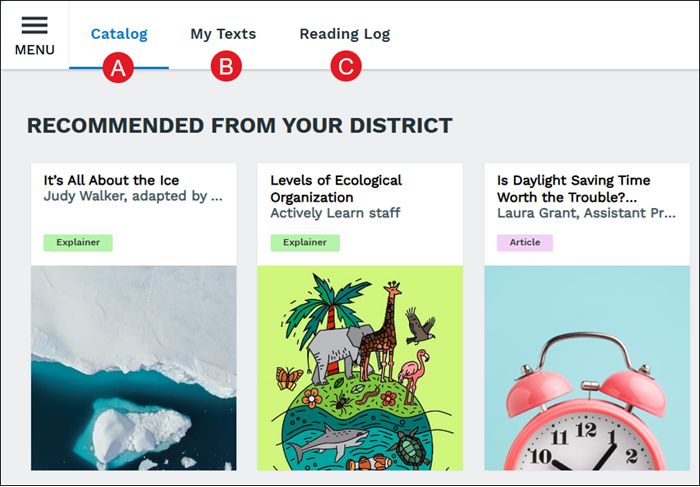
A. The page defaults to the Catalog. The page contains all of the resources added by the district/school by administrators and teachers.
Note: If this page shows blank, this means that no texts have been added by the district/school administrators and teachers.
B. The My Texts page is where students will be able to view and access all of the resources they've started reading/have read.
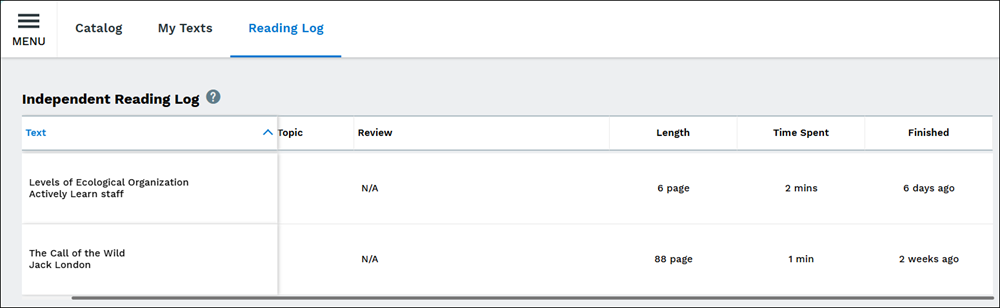
C. The Reading Log page provides a list of texts students have read independently that include the Text title, the Length of the text, the Time Spent reading the text, and how long it took to Finish reading the text.
Search and Filter
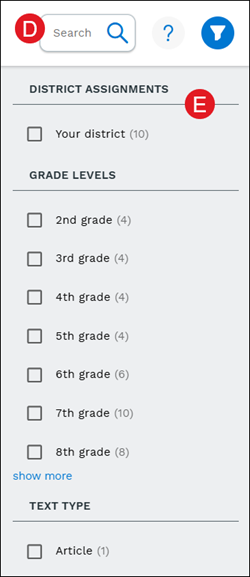
Once the content is in the student Library, on the Catalog page, students can use the Search field (D) to locate a specific resource or Filter by Grade Levels and Text Type (E).
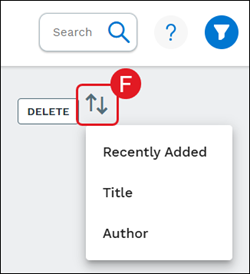
On the My Texts page, students can click on the arrows (F) to filter by Recently Added, Title, and Author.
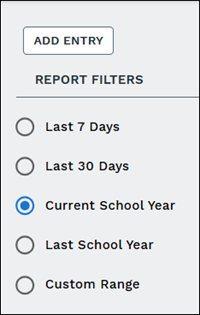
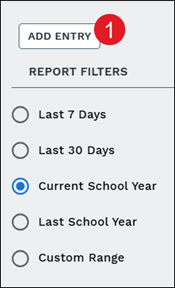
On the Reading Log page, the list can be filtered by Last 7 Days, Last 30 Days, Current School Year, Last School Year, and Custom Range.
Delete Texts
Students have the ability to remove texts they have started reading/have read from their My Texts page with a few easy steps.
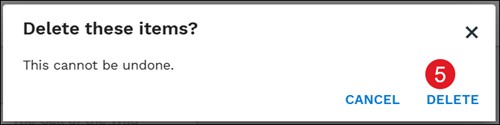
Keep in mind, once a text has been deleted from the My Texts page, it cannot be undone. However, the text will still be available on the Catalog page.
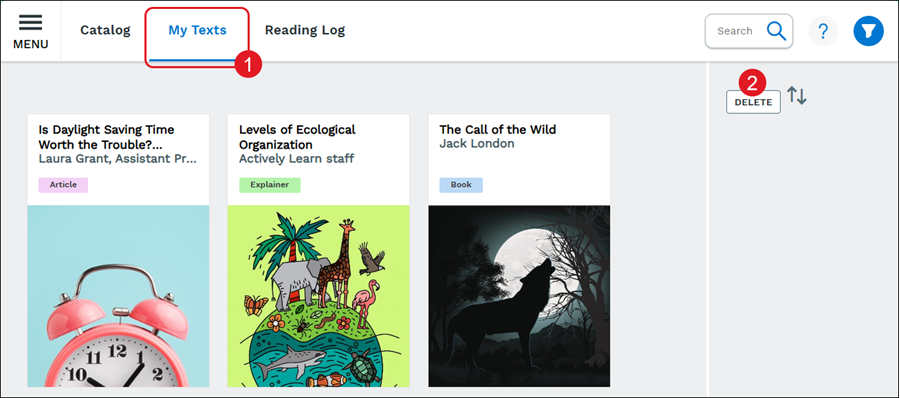
1. Click on My Texts in the navigation menu.
2. Click the Delete button.
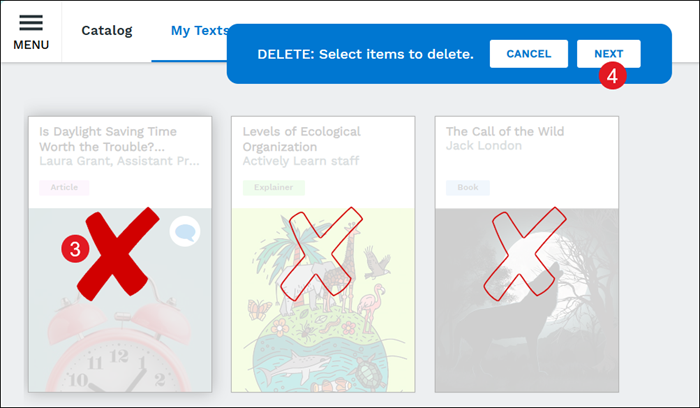
3. Click the X on text to remove.
4. Click the Next button.
5. Click the Delete button to confirm.
Add Entry to Independent Reading Log
Students can manually add a reading log entry such as a website, to their Independent Reading Log.
1. On the Reading Log page, click the Add Entry button.
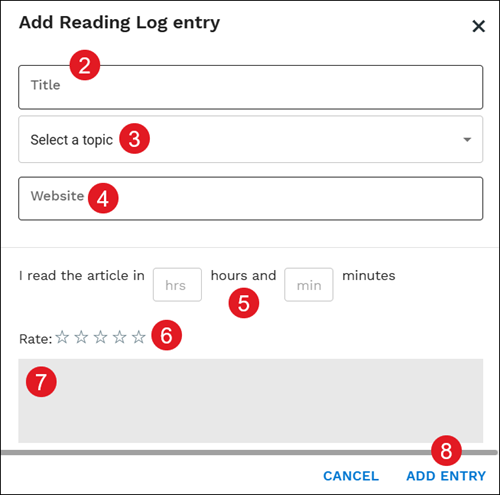
2. On the pop-up, enter a Title.
3. Select a topic from the drop-down.
4. Enter a Website URL. This is optional.
5. Enter the hours and minutes spent reading the resource.
6. Select a rating by clicking on the stars. This is optional.
7. Enter a description or notes. This is also optional.
8. Click the Add Entry button.
actively-learn
student
school-parent
prek-12
Customer Support, PreK-12, School Student, School Parent, Elementary School, Middle School, High School, Direct Login & Auto-Rostering, Direct Login & Manual-Rostering, SSO & Auto-Rostering, SSO & Manual-Rostering, Supplemental, Literacy, Science, Social Studies, Actively Learn, Dashboard & Navigation Overview, Student Resources
dts
2026-03-24T18:44:50.711-03:00
Our mission is to make reading meaningful for every student. To support this, we’ve created the Student Library. Article Content Accessing the Student Library Search and Filter Delete Texts Add Entry to Independent Reading Log Accessing the Student Library Click the Menu button at the top-left of the page and click Library from the panel. Educators can add a variety of content, such as current event articles, literary classics, or engaging simulations, to align with their curriculum. The available content to select from spans multiple genres and comes from trusted, high-quality sources. A. The page defaults to the Catalog. The page contains all of the resources added by the district/school by administrators and teachers. Note: If this page shows blank, this means that no texts have been added by the district/school administrators and teachers. B. The My Texts page is where students will be able to view and access all of the resources they've started reading/have read. C. The Reading Log page provides a list of texts students have read independently that include the Text title, the Length of the text, the Time Spent reading the text, and how long it took to Finish reading the text. Search and Filter Once the content is in the student Library, on the Catalog page, students can use the Search field (D) to locate a specific resource or Filter by Grade Levels and Text Type (E). On the My Texts page, students can click on the arrows (F) to filter by Recently Added, Title, and Author. On the Reading Log page, the list can be filtered by Last 7 Days, Last 30 Days, Current School Year, Last School Year, and Custom Range. Delete Texts Students have the ability to remove texts they have started reading/have read from their My Texts page with a few easy steps. Keep in mind, once a text has been deleted from the My Texts page, it cannot be undone. However, the text will still be available on the Catalog page. 1. Click on My Texts in the navigation menu. 2. Click the Delete button. 3. Click the X on text to remove. 4. Click the Next button. 5. Click the Delete button to confirm. Add Entry to Independent Reading Log Students can manually add a reading log entry such as a website, to their Independent Reading Log. 1. On the Reading Log page, click the Add Entry button. 2. On the pop-up, enter a Title. 3. Select a topic from the drop-down. 4. Enter a Website URL. This is optional. 5. Enter the hours and minutes spent reading the resource. 6. Select a rating by clicking on the stars. This is optional. 7. Enter a description or notes. This is also optional. 8. Click the Add Entry button.
Help us improve!
Let us know how we can improve our support information by providing feedback in this short survey.
Top
Regional Page Available
It looks like you're outside the United States. Do you want to see your regional version of this page?