Actively Learn Standards Overview
Locate resources associated with specific standards and learn how to add standards to questions.
- Customer Support
- PreK-12
- Classroom Teacher
- Elementary School
- Middle School
- High School
- Direct Login & Auto-Rostering
- Direct Login & Manual-Rostering
- SSO & Auto-Rostering
- SSO & Manual-Rostering
- Supplemental
- Literacy
- Science
- Social Studies
- Actively Learn
- Plan & Present
- Tools & Resources
- Grades & Assignments
- Online Assessments


Actively Learn, in partnership with EdGate, has aligned the catalog to all standards for ELA, Science, and Social Studies for all 50 states. To access these standards, make sure your profile is registered to the correct school in your state.
Article Contents
Filter Catalog by Standard
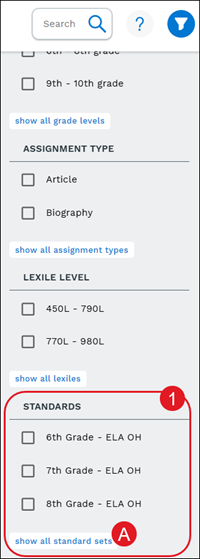
1. On the Filters panel, check the box(es) next to the Standards.
A. Click the show all standard sets button to expand the list.
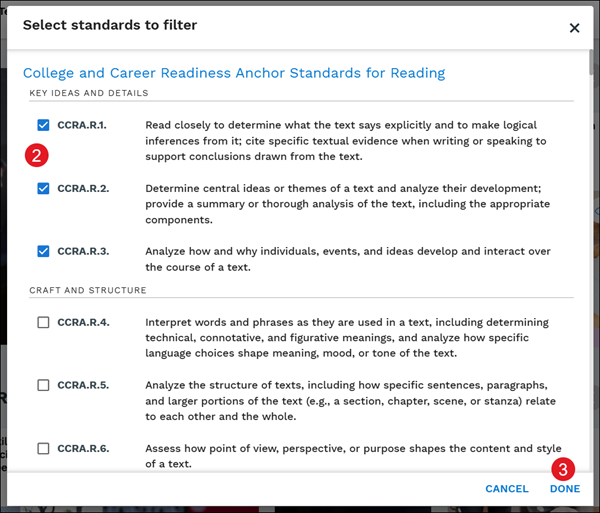
2. On the pop-up, check the box(es) next to the standards to search by.
3. Click the Done button.
Add Standards to Questions
Adding standards for questions helps teachers assess students based on subject specific standards, such as main ideas, text structure, etc.
The standard set used for questions are automatically determined by your school's state, your main content area, and the grades you teach. The standards are reflected in the accumulated data on student performance in your reports. Students will also be able to see which standards are tagged in each question.
For steps on making customizations to assignments, refer to the Customize Actively Learn Text Assignments and Customize Actively Learn Video Assignments articles.
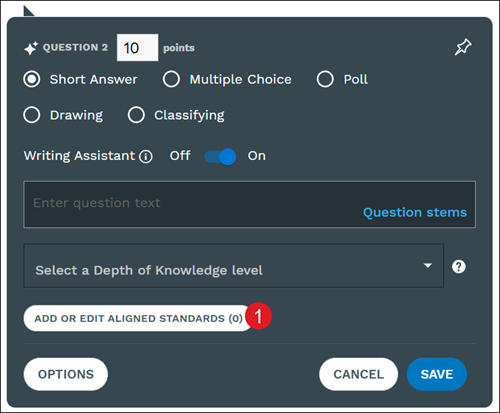
1. Click the Add or Edit Aligned Standards button.
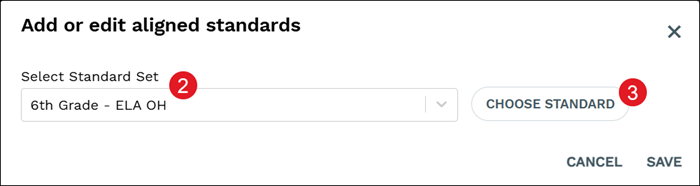
2. On the pop-up, Select Standard Set from the drop-down.
3. Click the Choose Standard button.
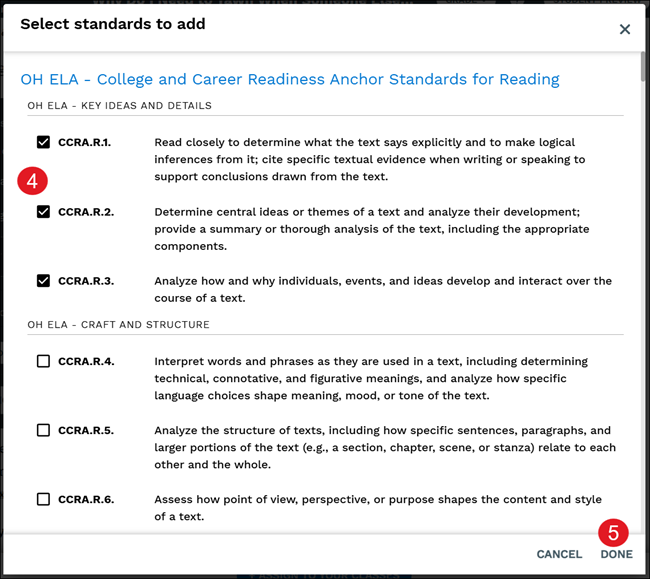
4. Check the box(es) next to the standards you want associated to the question.
5. Click the Done button.
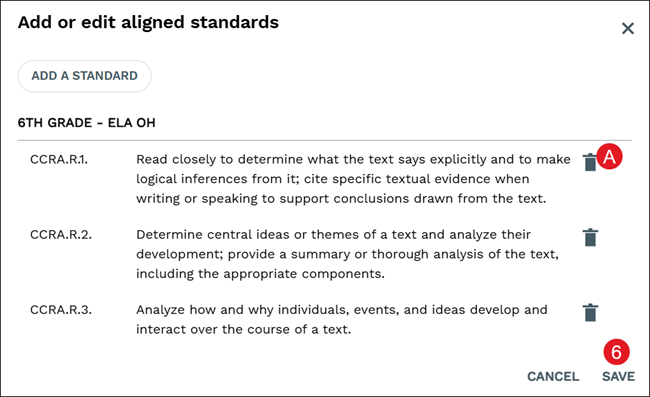
A. Click the remove (trash can) icon to unassociate the standard from the question.
6. Click the Save button.