
Actively Learn Administrator Coaching Reports
View Actively Learn Coaching Reports for information about assignments and feedback given by teachers.
- PreK-12
- Customer Support
- School Administrator
- Elementary School
- Middle School
- High School
- Direct Login & Auto-Rostering
- Direct Login & Manual-Rostering
- SSO & Auto-Rostering
- SSO & Manual-Rostering
- Supplemental
- Literacy
- Actively Learn
- Reports & Analytics


Coaching Reports give administrators access to the assignments, information about the question types each teacher is assigning, and feedback teachers have given students.
Note: Data from deleted assignments will be included in these reports. Meaning, if a teacher assigned an assignment and then later deleted it, any data from that assignment will still be counted for the teacher. Additionally, data from co-taught classes will always be shown in parentheses.
Article Contents
Access Coaching Reports
1. From the Admin Tools, click on Actively Learn from the navigation menu.
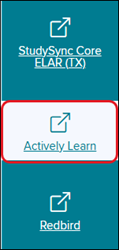
If the page does not automatically load to the Administrator Reports:
2. Click Menu at the top-left.
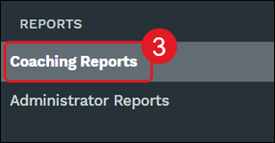
3. Click on Coaching Reports under the Reports section of the menu.
Note: If you are a teacher with administrator access, you can launch Actively Learn from your teacher My Programs page and access the reports from the Menu.
Overview
This overview section tracks different data points for each individual teacher for all of their classes.
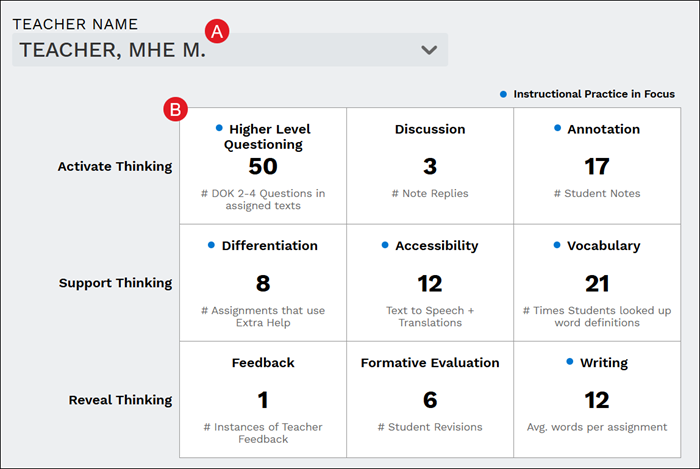
A. Select a teacher to view data for from the Teacher Name drop-down.
B. The table shows a breakdown of data for Active Thinking, Support Thinking, and Reveal Thinking.
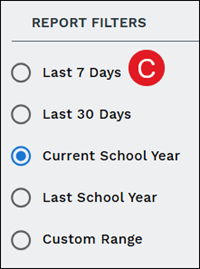
C. Filter the report by Last 7 Days, Last 30 Days, Current School Year, Last School Year, and by Custom Range.
Assignments
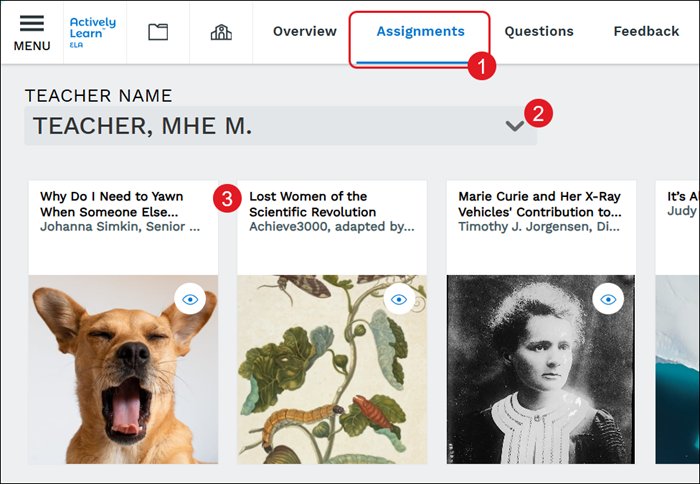
See what teachers are working on. You can view all the "Assignments" the teacher has in their workspace.
1. Click on Assignments from the navigation menu.
2. Select a teacher from the Teacher Name drop-down.
3. Click on an assignment tile to view the assignment, including any notes that have been added by teachers and students.
Questions
View a list of questions that have been created by teachers that include information on any associated standards, the date they were created, the number of responses, and the Proficient percentages.
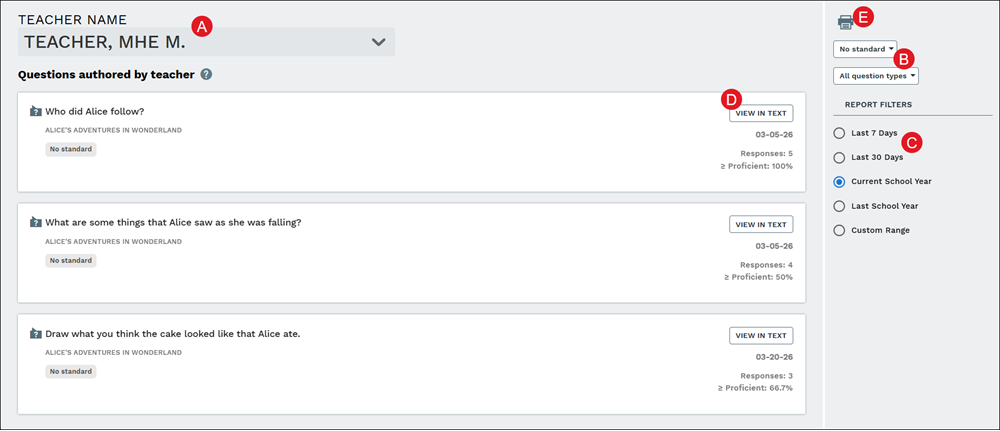
A. Select a teacher from the Teacher Name drop-down.
B. Select to view questions With standard assigned or No standard. You can also filter by All question types or a specific type of question.
C. Further filter by the Last 7 Days, the Last 30 Days, the Current School Year, the Last School Year, or a Custom Range.
D. Click the View in Text button to navigate to the question within the associated assignment.
E. Click the Print icon to download the report.
Feedback
View all feedback that teachers have provided to students within their assignments.
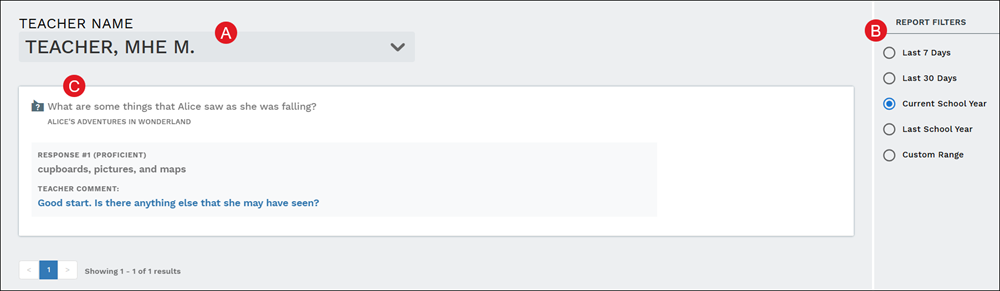
A. Select a teacher from the Teacher Name drop-down.
B. Filter by the Last 7 Days, the Last 30 Days, the Current School Year, the Last School Year, or a Custom Range.
C. Each question will be listed along with student Responses that received a Proficient grade and any Teacher Comments provided.
