Actively Learn - Assignment Reset Features
Use assignment reset features in Actively Learn to allow students to retry work.
Tags
- Supplemental
- Getting Started & Orientation
- Literacy
- Actively Learn
- SSO & Manual-Rostering
- Customer Support
- Grades & Assignments
- Social Studies
- Direct Login & Auto-Rostering
- Middle School
- Direct Login & Manual-Rostering
- High School
- Classroom Teacher
- SSO & Auto-Rostering
- PreK-12
- Science
- Preschool
- Elementary School


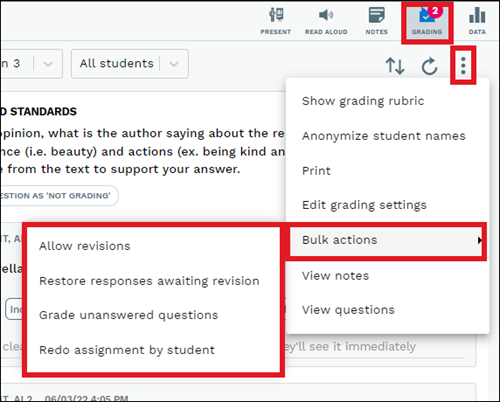
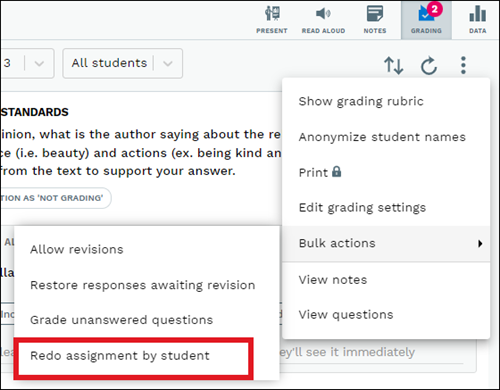
Teachers can find the reset assignment features under the Bulk Actions menu in the Actions tab of the assignment grading panel. They can bulk allow revisions, restore responses awaiting revision requests, grade unanswered questions, and redo/reset the assignment by the student.
Sections in this article:
Allow Revisions
Restore Responses Awaiting Revision
Grade Unanswered Questions
Redo Assignment by Student
Allow Revisions
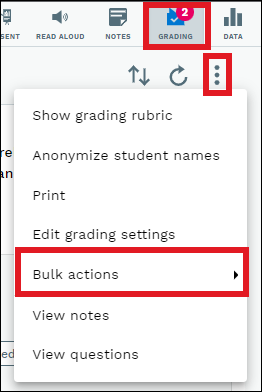
- Click on the assignment and then click on the kebob menu. Go to Bulk actions.
If you do not see the menu, you may have to click on the Grading icon at the top right.
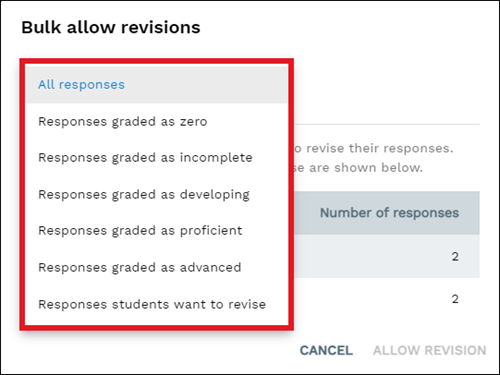
- Click on Allow Revisions.
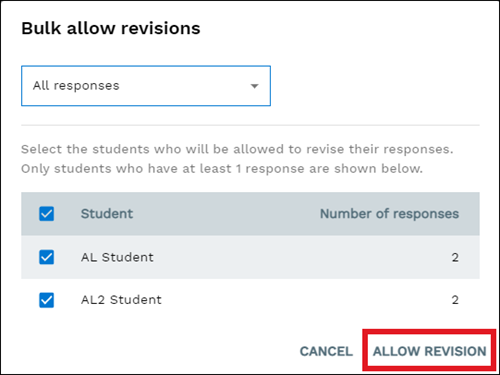
Teachers can allow revisions of all of a student's responses by check-marking the student's name. Or, they can allow revisions for responses that are certain grades or have been requested by students
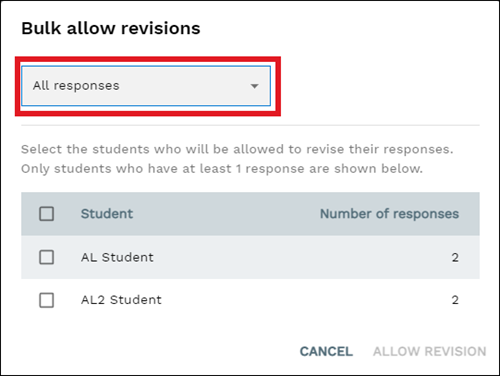
- Click on Allow Revision.
Restore Responses Awaiting Revision
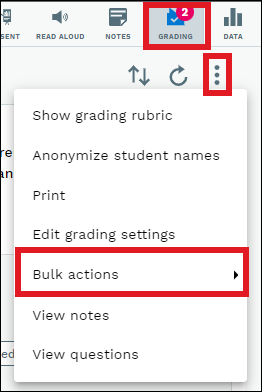
- Click on the assignment and then click on the kebob menu. Go to Bulk actions.
If you do not see the menu, you may have to click on the Grading icon at the top right.
- Click on Restore Responses Awaiting Revision.
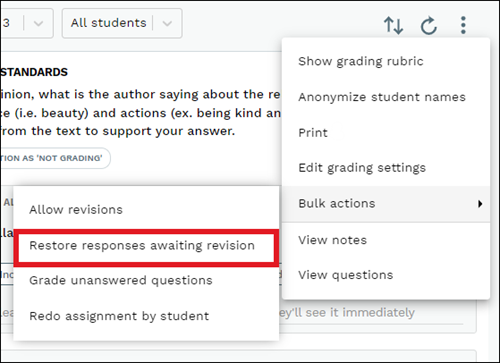
- Click OK in the pop-up.
Grade Unanswered Questions
- Click on the assignment and then click on the kebob menu. Go to Bulk actions.
If you do not see the menu, you may have to click on the Grading icon at the top right.
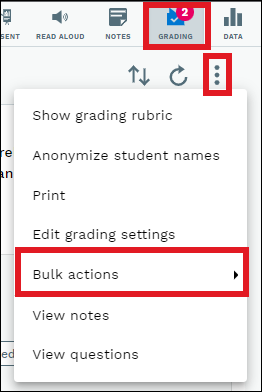
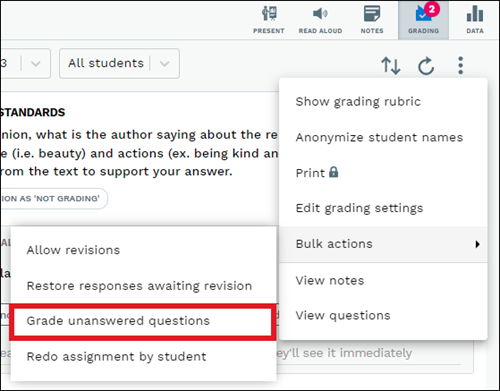
- Click on Grade Unanswered Questions.
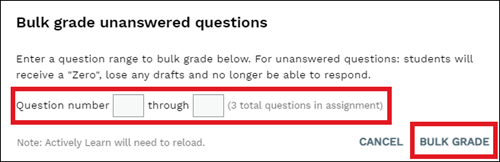
- Enter the question range in the appropriate boxes. Click Bulk Grade.
Redo Assignment by Student
- Click on the assignment and then click on the kebob menu. Go to Bulk actions.
If you do not see the menu, you may have to click on the Grading icon at the top right.
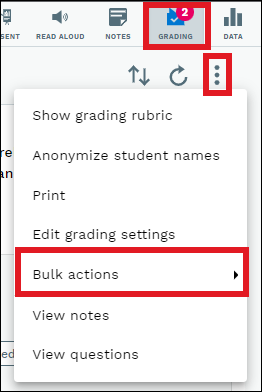
- Click on Redo Assignment by Student.
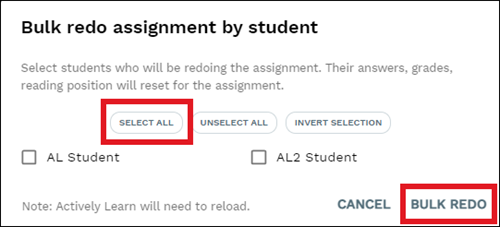
- Either Select All students or check-mark individual students that need to redo the assignment. Click Bulk Redo.