Add or Remove Text in the Actively Learn Student Library
Add texts to the student library in Actively Learn so learners can easily access readings.
- Customer Support
- PreK-12
- Classroom Teacher
- Elementary School
- Middle School
- High School
- Direct Login & Auto-Rostering
- Direct Login & Manual-Rostering
- SSO & Auto-Rostering
- SSO & Manual-Rostering
- Supplemental
- Literacy
- Science
- Social Studies
- Actively Learn
- Plan & Present
- Tools & Resources
- Dashboard & Navigation Overview


To be able to add resources to the Student Library, teachers must also have access to manage the District Library. If the teacher does not have access to manage the District Library, they will need to reach out to their Organization Administrator to have the permission added to their profile.
Note: Only free text can be added to the Student Library.
1. Click Menu at the top-left.
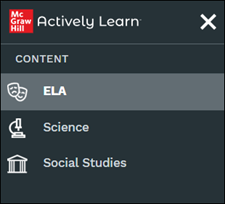
2. Click on ELA, Science, or Social Studies from the Content section of the menu.
Note: The options available will depend on what was purchased by the district.
3. Click on a text from the catalog.
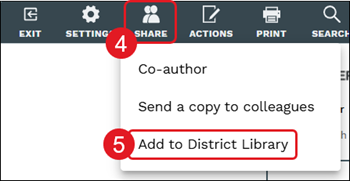
4. Click the Share button.
5. Click Add to District Library from the menu.
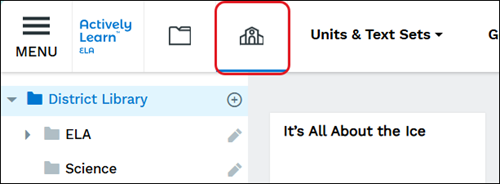
6. Exit the text and click the District Library button (school icon).
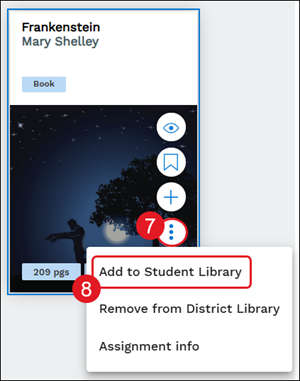
7. Click the more info button on the resource tile.
8. Click Add to Student Library from the menu.
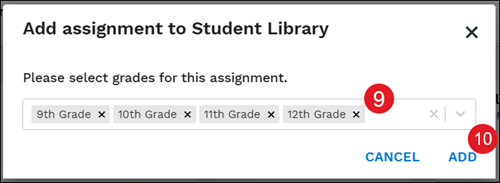
9. On the pop-up, select the grades for the resource.
10. Click the Add button.
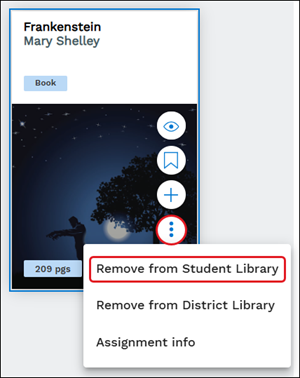
To remove the text, click the more info button and select Remove from Student Library from the menu.