Create Teacher Guides in Actively Learn Lessons
Learn how to create Teacher Guides within texts to help support instruction.
- Customer Support
- PreK-12
- Classroom Teacher
- Elementary School
- Middle School
- High School
- Direct Login & Auto-Rostering
- Direct Login & Manual-Rostering
- SSO & Auto-Rostering
- SSO & Manual-Rostering
- Supplemental
- Literacy
- Science
- Social Studies
- Actively Learn
- Plan & Present
- Tools & Resources


Article Contents
View Teacher's Guides
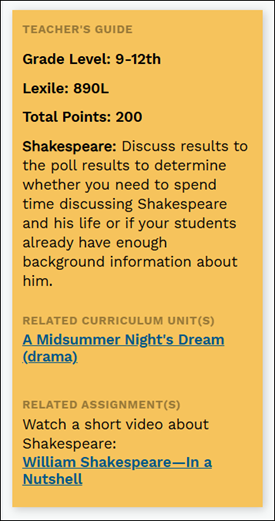
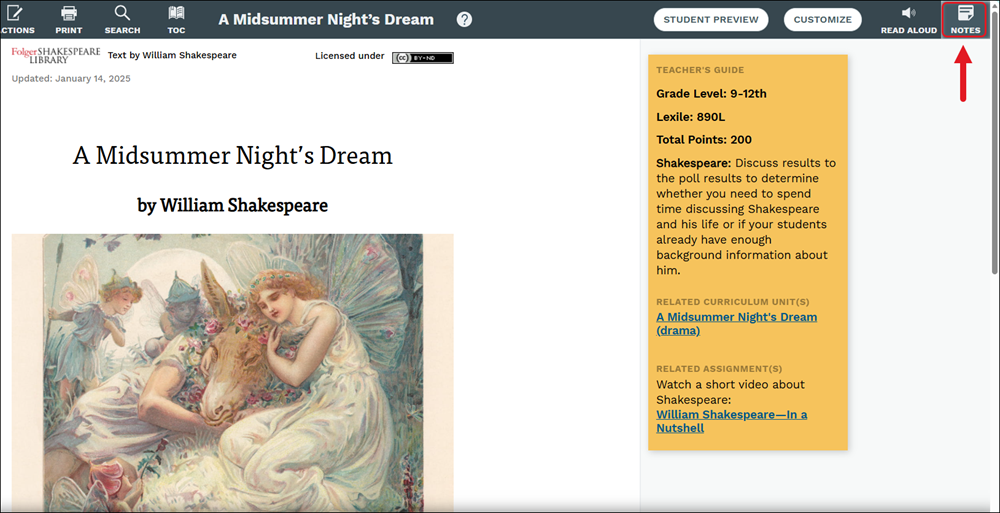
Teacher Guides are available for the most popular texts within Actively Learn and can be found in the right column at the beginning of a text.
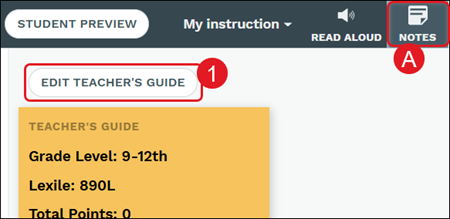
The panel can be opened and closed by clicking on the Notes button at the top-right of the page.
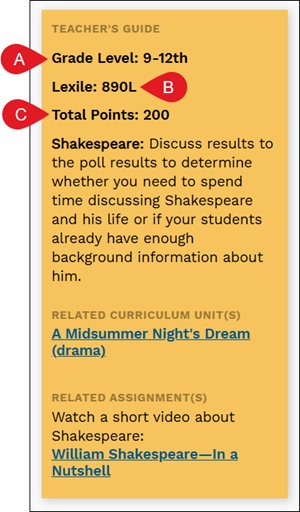
The Teacher's Guide provides the Grade Level (A) of the text, the Lexile level (B), as well as the Total Points (C)available. The Total Points only displays if there are questions provided throughout the text for students to answer.
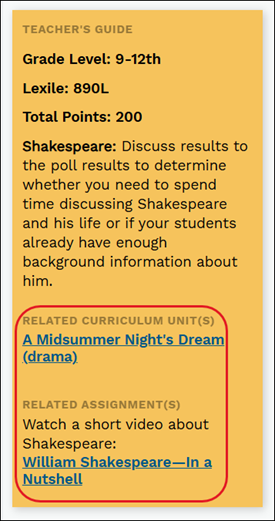
The Teacher's Guide also provides teachers with links to other related assignments, and links to Curriculum Units that the assignment appears in, if applicable.
Create Teacher's Guides
District Library managers can add and edit Teacher Guides for assignments that they have added to their district library. They can also link other related articles and assignments in the guides just like in our catalog.
If you do not have access as a District Library manager and believe you should have access, you will need to reach out to your Organization Administrator to have access granted.
Note: A user with District Library management access will only see the option to add a Teacher's Guide if they were the person to add the text to the District Library. For steps on adding a text to the District Library, refer to the Actively Learn - District Library article.
1. To edit an existing Teacher's Guide, click the Edit Teacher's Guide button on the Notes (A) panel.
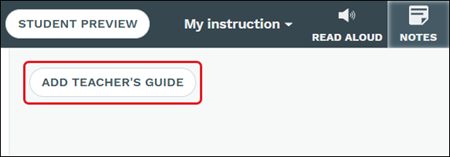
To add a Teacher's Guide to a text that does not currently have one, click the Add Teacher's Guide button.
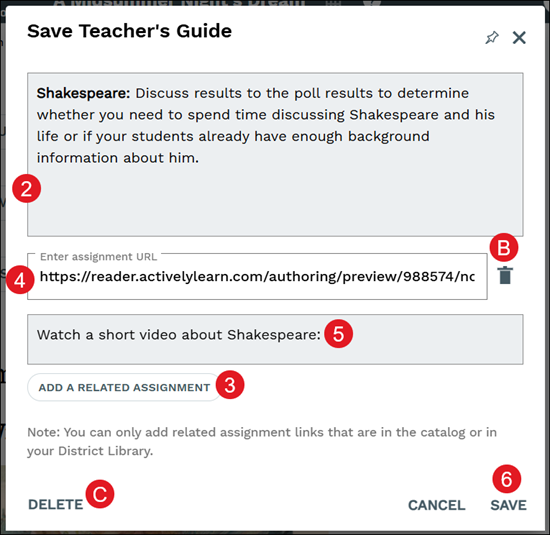
2. Add/Edit the Overall Teacher's Guide information.
3. Click to the Add a Related Assignment button to add assignment links to the guide. This is optional and you can add as many as you would like.
4. Enter/Edit an assignment URL.
Note: You can only add related assignment links that are in the catalog or in your District Library.
B. Click the trash can icon to delete any related assignments you do not want attached to the Teacher's Guide.
5. Enter a description to go along with the assignment URL.
C. Click the Delete button to remove the Teacher's Guide from the text.
6. Click the Save button.
Your new Teacher's Guide will be saved to the library assignment for all of the teachers to see and use.