Create Actively Learn Research Projects
Create and complete Actively Learn research projects for self-directed knowledge of a topic.
- Customer Support
- PreK-12
- School Student
- School Parent
- Elementary School
- Middle School
- High School
- Direct Login & Auto-Rostering
- Direct Login & Manual-Rostering
- SSO & Auto-Rostering
- SSO & Manual-Rostering
- Supplemental
- Literacy
- Science
- Social Studies
- Actively Learn
- Student Resources
- Grades & Assignments


Research provides students with an incredible opportunity for a self-directed pursuit of knowledge on a topic of their interest, go in depth into a subject, and grow their knowledge base. Students can then share insights and discoveries on the topic with their teacher and peers.
A crucial part of any research is finding credible sources for your topic. We recommend that you look for research sources that:
- Provide background knowledge
- Support your argument, and those that counter your argument
- Provide reliable statistical information, timelines, etc.
Actively Learn makes it easy for you to import and store all your research content in one space for easy access. Get your research going, import Internet articles, Google Docs, and PDFs.
Article Contents
Edit Text Details and Cover Image
Uploading Copyright Material
Generally, students may legally use copyrighted materials without permission for educational purposes, if that use qualifies under copyright law or as a fair use.
How to know if a work is copyrighted
As soon as someone creates an original work (visual, auditory, written, etc.) in a fixed medium (video, written, song, etc.) it is copyrighted by the creator. In the U.S., copyright lasts from the moment a work is created until 70 years after the death of the author. In cases where works are created by a company/employer, copyright lasts 95 years from the date of publication.
More information on duration of copyright
What is fair use?
Fair use is a legal doctrine that promotes freedom of expression by permitting the unlicensed use of copyrighted-protected material, in certain circumstances, without permission from the copyright holder for certain types of uses, such as criticism, comment, news reporting, teaching, scholarship, and research.
Helpful Links
Copyright Law of the United States
General guidelines on using copyrighted material from Stanford University Library
Stanford Copyright Renewal Database
McGraw Hill and Actively Learn cannot provide legal guidance and leaves it to teachers/partners to ensure that their use is permitted under copyright law or as a fair use.
Add Content
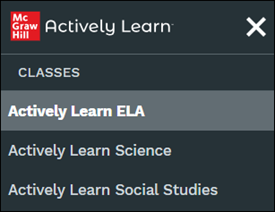
1. Click on Menu in the top-left.
2. Under Classes, click the class to associate the research project to.
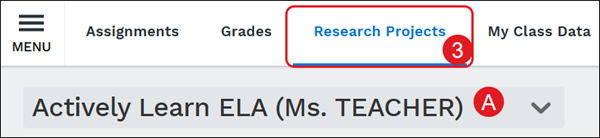
3. Click on Research Projects.
A. You can toggle between classes by clicking on the class drop-down.
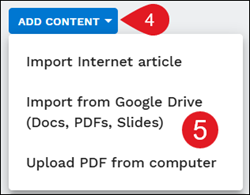
4. Click the Add Content button.
5. Select to Import Internet article, Import from Google Drive, or Upload PDF from computer from the menu.
Import Internet Article
1. Click the Add Content button.
2. Click Import Internet article from the menu.
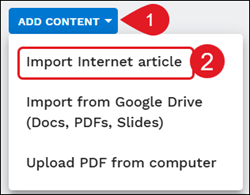
3. On the pop-up, enter a URL.
4. Click the Next button.
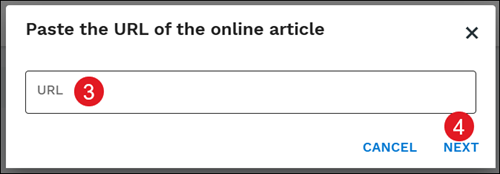
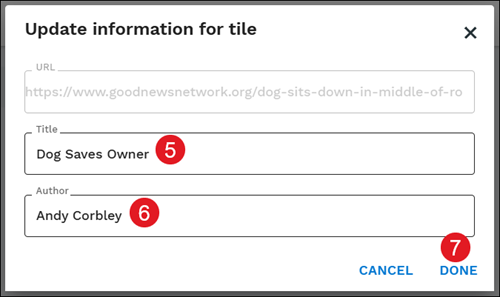
5. Enter a Title for the import.
6. The Author may auto-fill based on the URL entered. Change or enter Author if needed.
7. Click the Done button.
Import from Google Drive
Students have the ability to import Google Docs, Google Slide presentations, and PDFs from Google Drive.
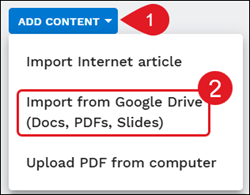
1. Click the Add Content button.
2. Click Import from Google Drive (Docs, PDFs, Slides) from the menu.
3. Sign into your Google account.
4. Check the box to allow Actively Learn access to your Google Drive files (this should only be needed the first time linking your Google account to Actively Learn).
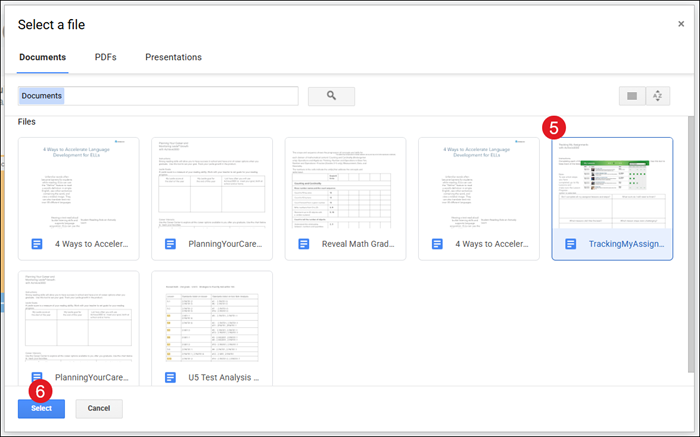
5. On the Select a file pop-up, select the file to upload.
6. Click the Select button.
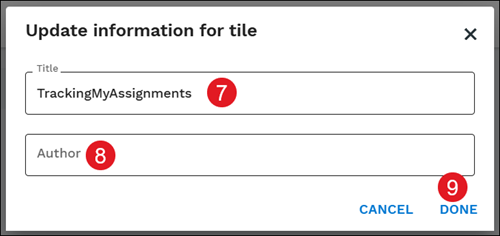
7. On the pop-up, enter a Title.
8. Enter a Author.
9. Click the Done button.
Upload PDF from Computer
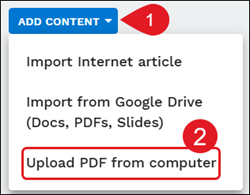
1. Click the Add Content button.
2. Click Upload PDF from computer from the menu.
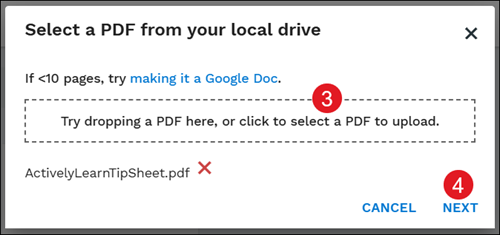
3. On the pop-up, drag the PDF into the provided field or click in the field and select the file from your device.
4. Click the Next button.
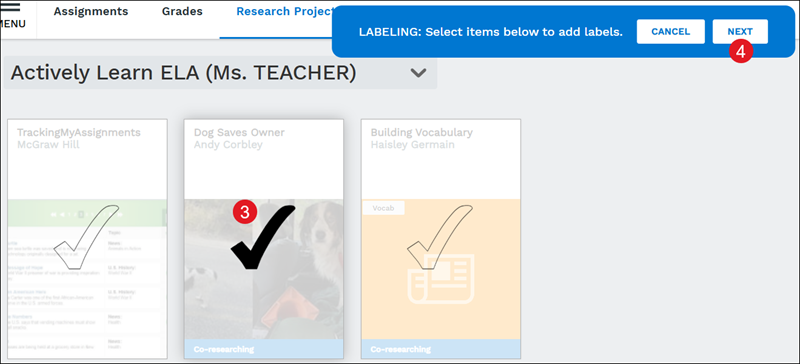
5. Enter a Title for the PDF.
6. Enter a Author.
7. Click the Done button.
Collaborate With Classmates
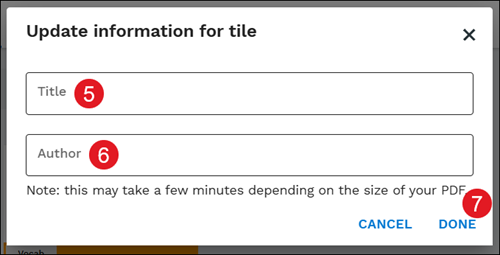
1. Click the Collaborate button from the side panel.
2. Click on the research project to share with classmates.
3. Enter your classmate's name.
4. Click the Invite button.

A Co-researching label will show at the bottom of the tile for any that have been shared.

Add Labels
Students can add labels to their various research projects to help organize them.
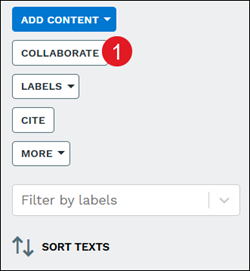
1. Click the Labels button from the side panel.
2. Click Add labels from the menu.
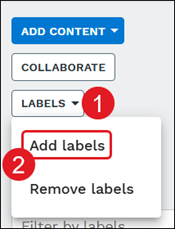
3. Click on the research tile.
4. Click the Next button.
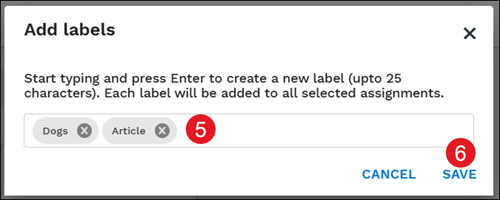
5. On the Add labels pop-up, enter preferred labels into the provided field.
6. Click the Save button.
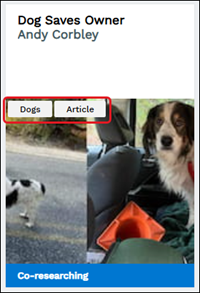
Labels will show at the top of the image on the research tile.
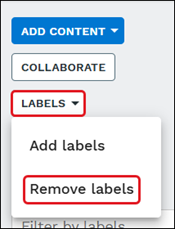
To remove labels, click Labels on the panel and select Remove labels from the menu.
Cite Project
Citing texts is a vital aspect of a research project. Students can now access citations for their research texts and copy/paste them into their paper or project bibliographies.
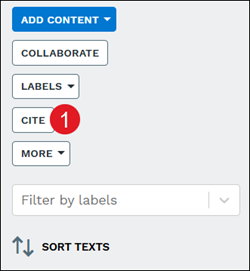
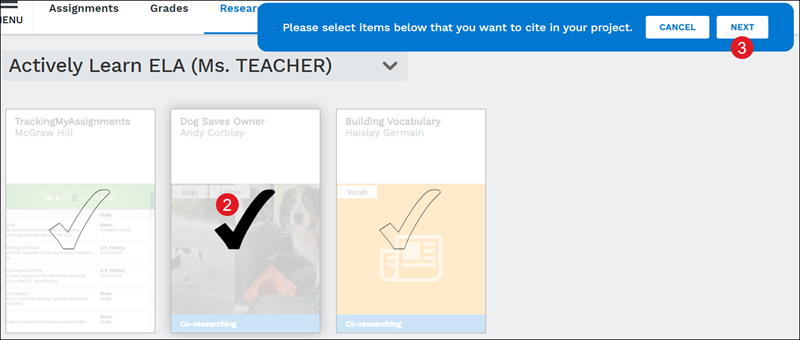
1. Click the Cite button from the side panel.
2. Click on the research tile.
3. Click the Next button.
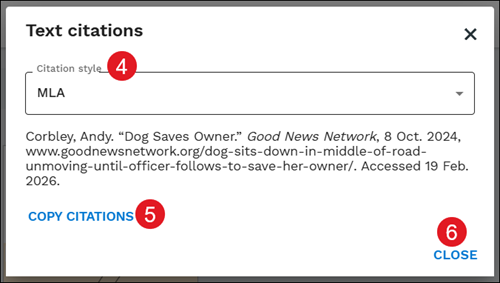
4. On the Text citations pop-up, select the Citation style from the drop-down.
5. Click the Copy Citations button to easy copy the citation information.
6. Click the Close button to exit out of the pop-up.
Move Project to Another Class
If you added the text to the wrong class in error, or later decided to use it in a different class, you can move the text.
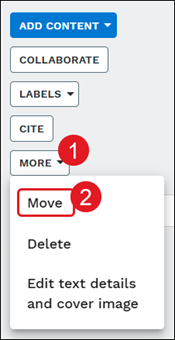
1. Click the More button from the side panel.
2. Click Move from the menu.
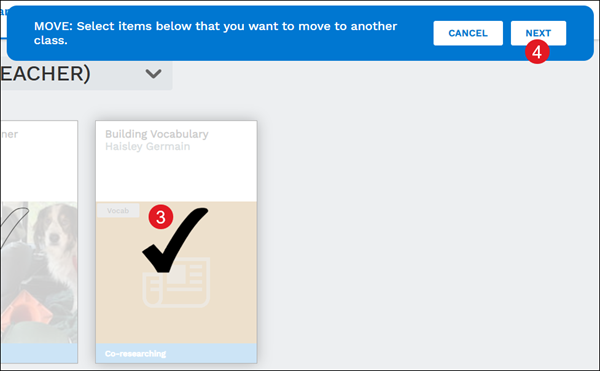
3. Click on the research tile(s) you want moved.
4. Click the Next button.
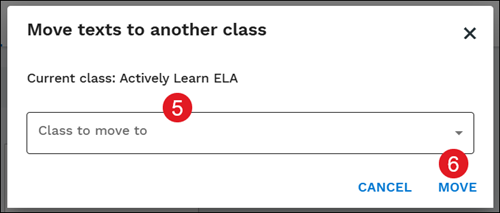
5. On the pop-up, select the Class to move to from the drop-down.
6. Click the Move button.
Delete Project
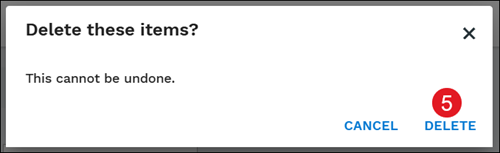
If a project is no longer needed, students can remove it by using the delete option. Keep in mind, once a project is deleted, it cannot be undone.
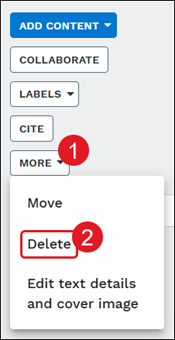
1. Click the More button from the side panel.
2. Click Delete from the menu.
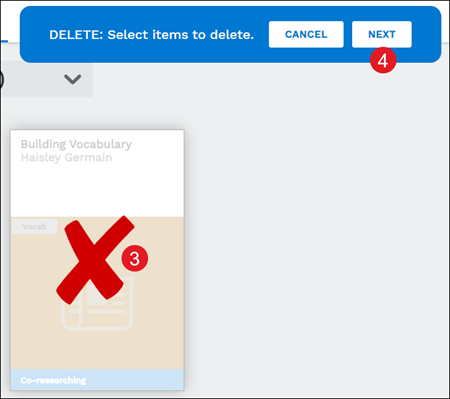
3. Click on the research tile.
4. Click the Next button.
5. Click the Delete button to confirm.
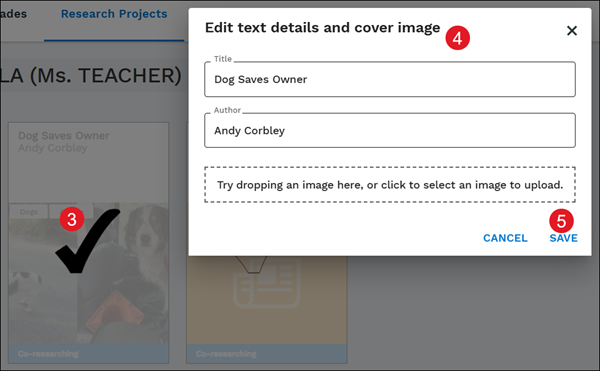
Edit Text Details and Cover Image
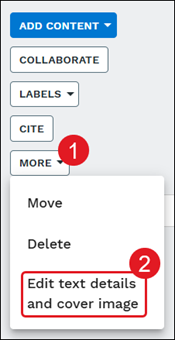
1. Click the More button from the side panel.
2. Click Edit text details and cover image from the menu.
3. Click on the research tile.
4. On the pop-up, change preferred details.
5. Click the Save button to confirm.