Access the Student Preview in Actively Learn as a Teacher
Instructions on how to access the Student Preview option as a teacher for Actively Learn.
- PreK-12
- Customer Support
- Classroom Teacher
- Elementary School
- Middle School
- High School
- Direct Login & Auto-Rostering
- Direct Login & Manual-Rostering
- SSO & Auto-Rostering
- SSO & Manual-Rostering
- Literacy
- Science
- Social Studies
- Supplemental
- Actively Learn
- Dashboard & Navigation Overview
- Tools & Resources


When previewing assignments in the catalog, teachers can preview what their students would see if the assignment was assigned to them. Teachers can test out how the assignment would look to their students before adding the assignment to their workspace or assigning it to their classes.
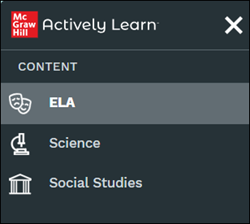
1. Click Menu at the top-left.
2. Click on ELA, Science, or Social Studies under Content to view the catalog.
Note: The options available will depend on what was purchased by the district.
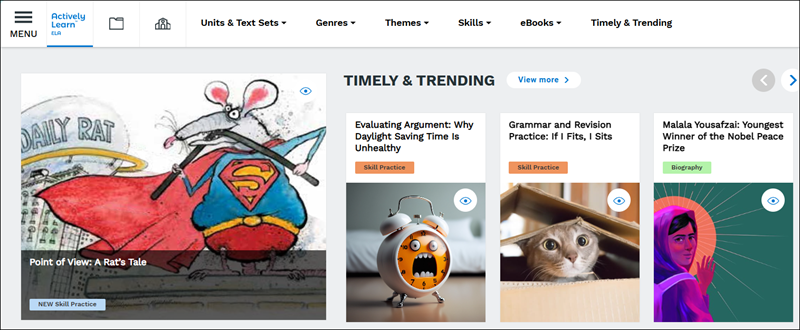
3. Click on a content tile.
4. Click the Student Preview button at the top.

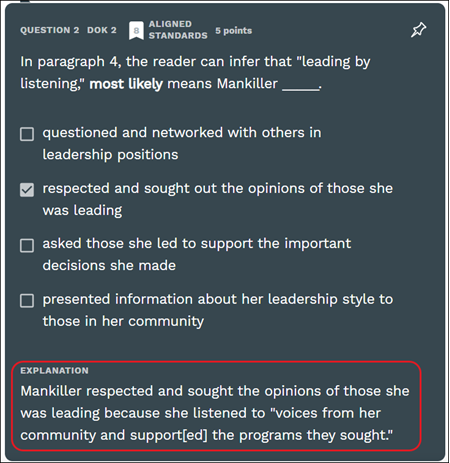
Teachers can answer questions as students would and will even see additional information, such as the 'Explanation' if it is included with a particular multiple choice question.
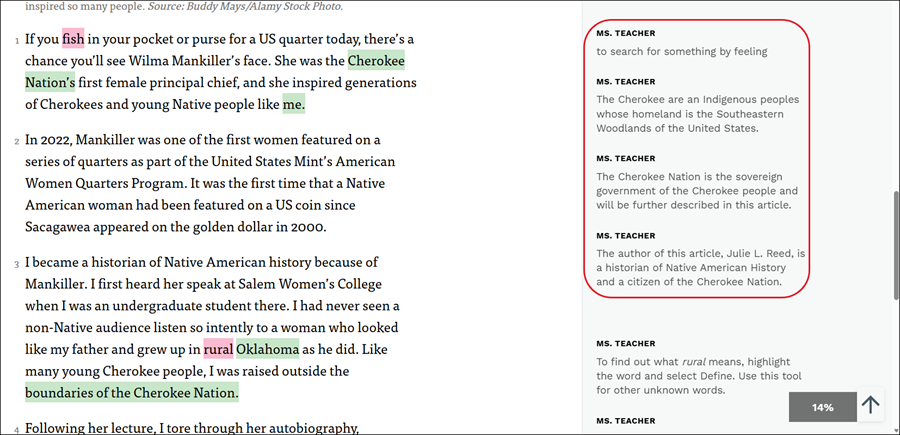
Teachers will also be able to view how any notes in the assignment will appear from the student's perspective as well.
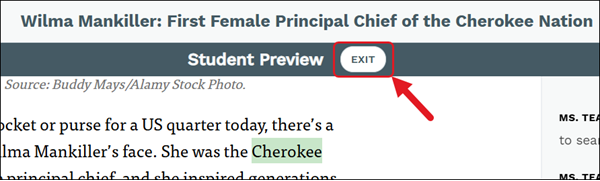
To leave student view, click on the Exit button at the top of the page to go back to viewing the assignment from the teacher view.