
View and Reply to Student Notes in Actively Learn Assignments
Learn how to view student notes and send replies for review.
- Customer Support
- PreK-12
- Classroom Teacher
- Elementary School
- Middle School
- High School
- Direct Login & Auto-Rostering
- Direct Login & Manual-Rostering
- SSO & Auto-Rostering
- SSO & Manual-Rostering
- Supplemental
- Literacy
- Science
- Social Studies
- Actively Learn
- Tools & Resources
- Grades & Assignments


Article Contents
View Student Notes
1. Click Menu at the top-left.
2 Click on the class from the Classes section.
3. Click on the assignment tile.
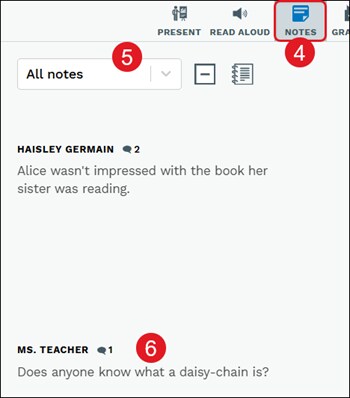
4. Click on the Notes button at the top-right.
5. Select to view Shared notes, All notes, or notes from a specific student from the drop-down.
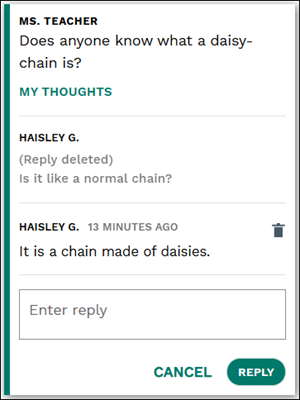
6. Click on the note to expand it and view the replies.
Teachers will be able to see active notes as well as notes that have been deleted by students.
Reply to Student Notes
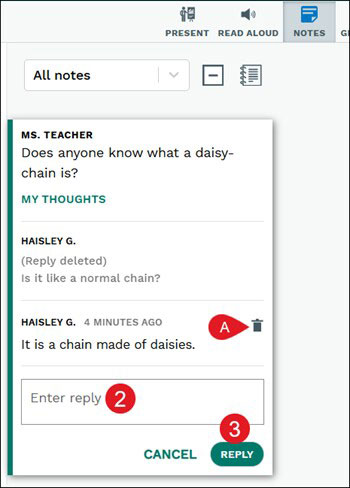
1. Click on the note to expand it.
2. Enter reply in the provided field.
3. Click the Reply button.
A. Click the Delete reply (trash can) icon to remove the student's reply from the thread.
Notes Summary
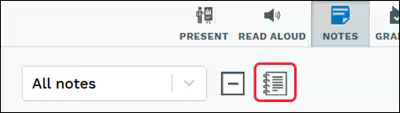
To view a summary of all the notes entered by you and your students, click the View notes (notebook) icon.
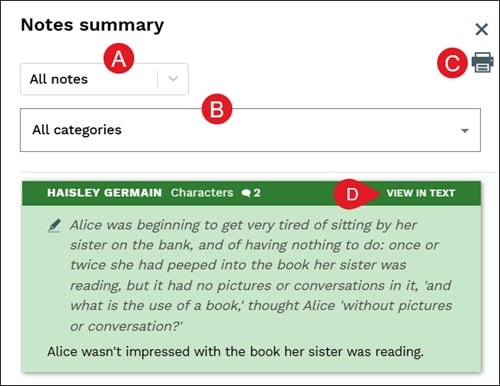
A. Click the notes drop-down to view All shared notes, All notes, or notes from a specific student.
B. Click the categories drop-down to view All categories or notes associated to a specific category.
C. Click the print icon to save/print all the notes in the summary based on the selections made.
D. Click the View in Text link to navigate to where the note was added within the text.
