Use Present Mode in Actively Learn Lessons
Learn how teachers can use Present Mode for a variety of instructional strategies in Actively Learn.
- Customer Support
- PreK-12
- Classroom Teacher
- Elementary School
- Middle School
- High School
- Direct Login & Auto-Rostering
- Direct Login & Manual-Rostering
- SSO & Auto-Rostering
- SSO & Manual-Rostering
- Supplemental
- Literacy
- Science
- Social Studies
- Actively Learn
- Plan & Present
- Tools & Resources


Teachers can use Present Mode for a variety of instructional strategies, including leading a whole class read, modeling effective annotation, or discussing the answer to a question as a class.
For information on customizing assignments, refer to the Customize Actively Learn Text Assignments and Customize Actively Learn Video Assignments articles.
Article Contents
Features in Present Mode
While in Present Mode certain features are hidden from the view, teachers will still have access to some tools while presenting. Here is a list of the features in Present Mode:
- Student names are automatically anonymized.
- The Teacher's Guide is automatically hidden.
- Extra Help Summary is automatically hidden (if present) and any Extra Help markers are hidden in the questions and notes.
- Questions are not gated.
- Teachers can use Text-To-Speech, Define, Move students here, and Translate in the assignment.
- All of the questions are shown with the question number, Depth of Knowledge (DoK) information, aligned standards, and point value.
- Peer Responses are hidden for questions.
- The Grading panel and associated grades are hidden.
- Teachers can highlight and take notes in Present mode with the notes being available after the teacher exits Present mode.
Access Present Mode
1. Click Menu in the top-left.
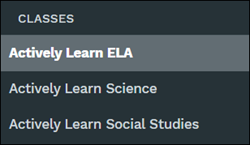
2. Under Classes, select the class you want to present the assignment from.
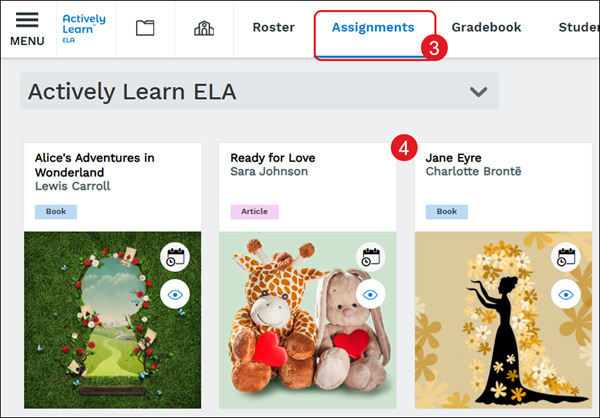
3. Click on Assignments from the navigation bar.
4. Click on the assignment tile.
5. Click Present at the top-right in the toolbar.

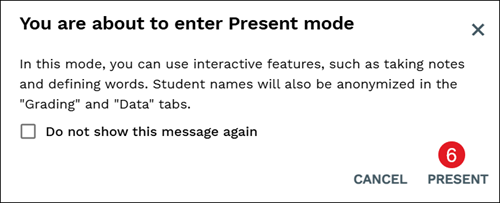
6. On the pop-up, click the Present button.
Note: In this mode, you can use interactive features, such as taking notes and defining words. Student names will also be anonymized in the "Grading" and "Data" tabs.
The Notes panel (A) will automatically open in Present mode.
Click the All shared notes drop-down (B) to view a specific student's notes.
Click the Expand/Collapse icon (C) to open/close all notes at once.
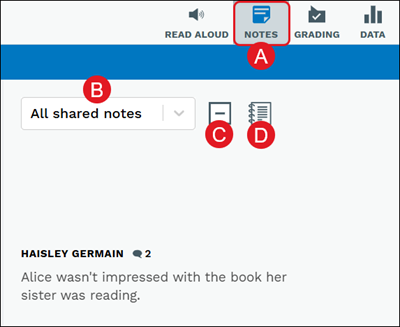
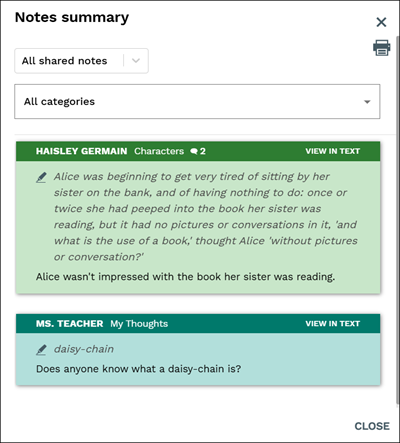
Click the View notes (notebook icon) (D) to open the Notes summary pop-up to view all notes attached to the assignment.
Click on the highlighted section or a note in the panel to open the notes thread.
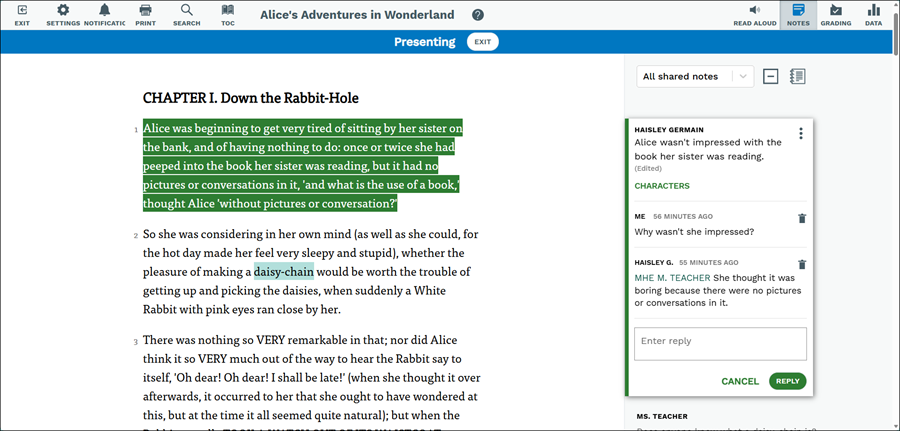
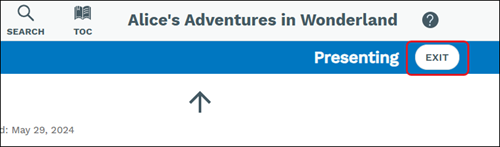
To exit present mode, click the Exit button in the Presenting bar.