Access and Navigate Through Actively Learn Assignments as a Student
Learn how to access and answer questions for Actively Learn assignments as a student.
- Customer Support
- PreK-12
- School Student
- School Parent
- Elementary School
- Middle School
- High School
- Direct Login & Auto-Rostering
- Direct Login & Manual-Rostering
- SSO & Auto-Rostering
- SSO & Manual-Rostering
- Supplemental
- Literacy
- Science
- Social Studies
- Actively Learn
- Grades & Assignments
- Online Assessments


Article Contents
Add Images to Question Answers
View Other Students' Responses
Access Assignments
1. SSO or log in at my.mheducation.com.
2. Launch Actively Learn.
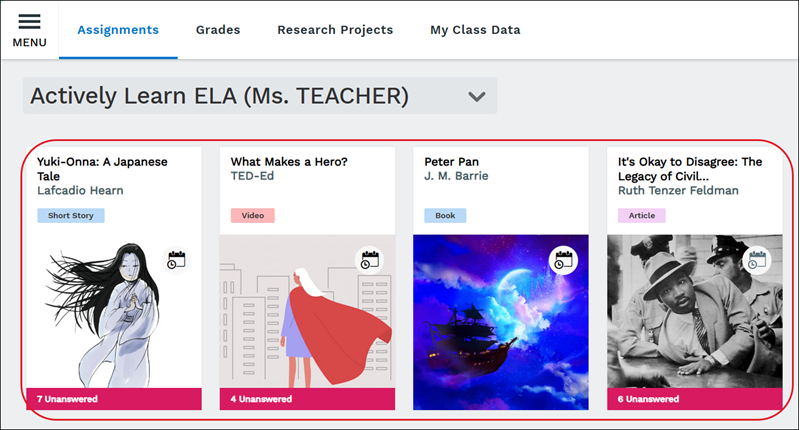
The Assignments page will automatically load.
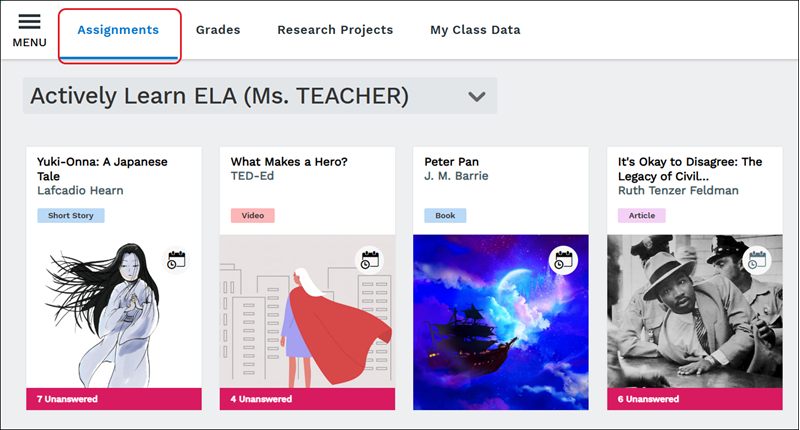
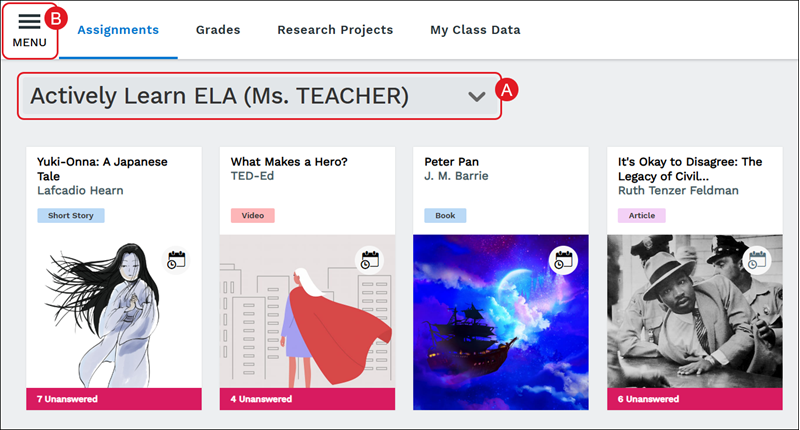
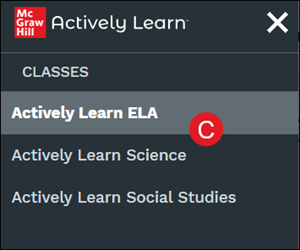
If students are assigned to more than one class, they can select the class from the drop-down (A), or by clicking Menu (B) at the top-left and selecting the class from the side panel.
3. Click on a tile to launch the assignment.
Question Types
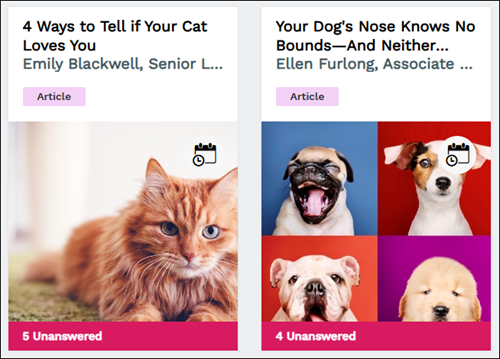
Some assignments may have questions to answer as students read through the material. If an assignment has any unanswered questions, they will show with a red bar across the bottom of the tile with the number of questions that need to be answered.
There are a few different types of questions that students will encounter:
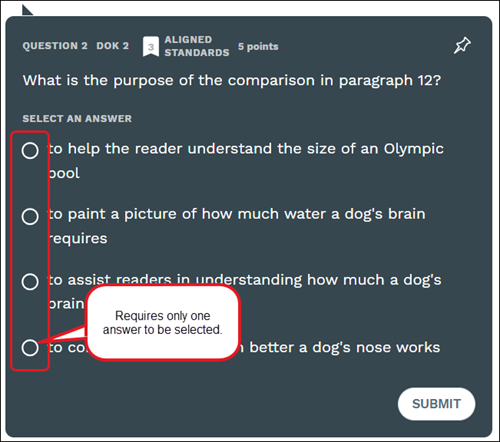
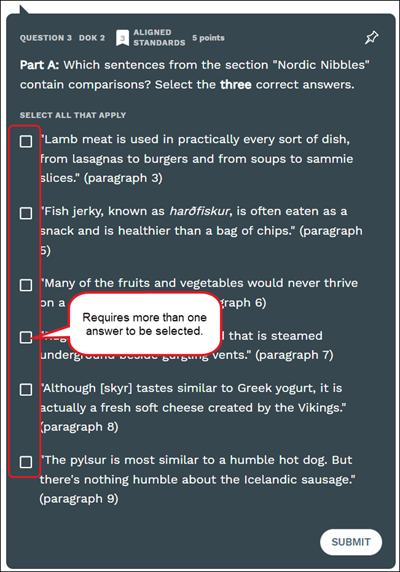
Multiple choice questions can have one or more correct choices. If the question has circle to the left of the answers, only one answer is required for the question. If a question has squares to the left of the answers, more than one answer is needing to be selected.
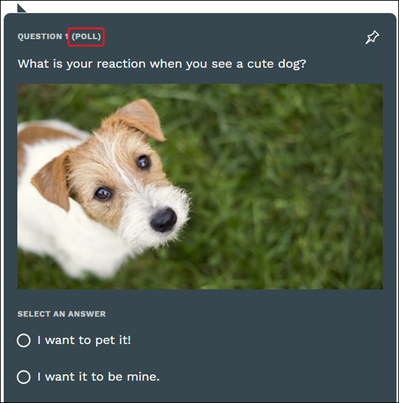
Poll questions are used to engage students in discussion and will not be graded. If it's a poll question, it will show (POLL) at the top beside the question number.
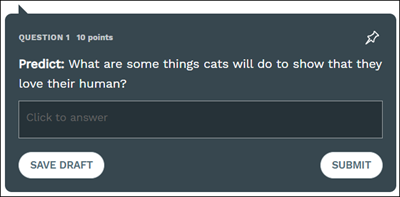
Short answer questions are great for formative assessment and provide excellent insight into what the students are taking away from the assignment. Short answer questions provide students the option to Save Draft when working on longer answers.
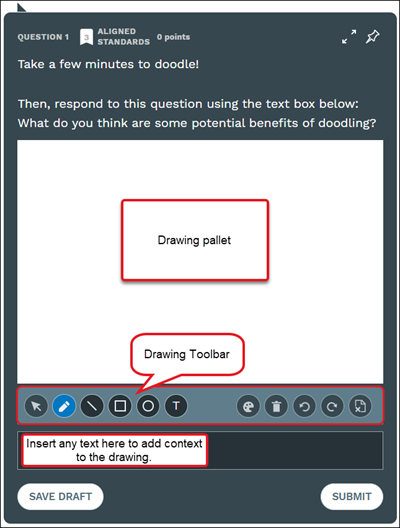
Drawing questions allow for teachers to have students draw or upload their drawings. Teachers can allow for the student to add text to provide context to their drawing. Drawing questions also have the Save Draft option to allow students to return and finish before completing the assignment.
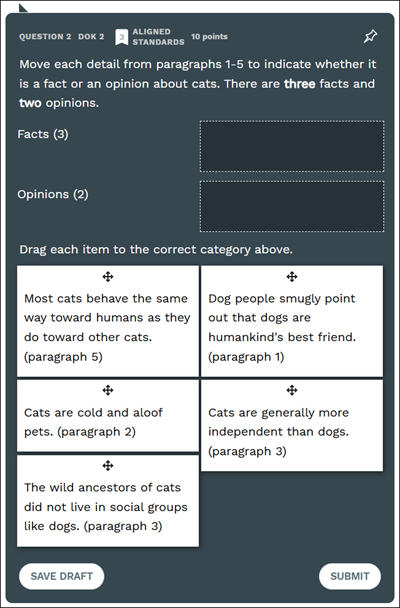
Classifying/Matching questions provide students the opportunity to establish connections between causes and effects. They will be presented with 2 to 4 statements or questions and will simply drag and drop the answer choices next to their respective 'matches'. These questions also have the Save Draft option to allow students to return and finish before completing the assignment.
Teachers have the ability to enable media responses for questions in their assignments. When this setting is turned on (which is done by the teacher), students are able to upload images or videos in their question responses. They will be able to upload via a link or local drive.
Note: Not allow question types allow for media to be added by students.
Upload Images to Question Answers
1. Click on the assignment.
2. Navigate to the question.
3. Click the paperclip icon on the question.
4. Select Upload image from the menu.
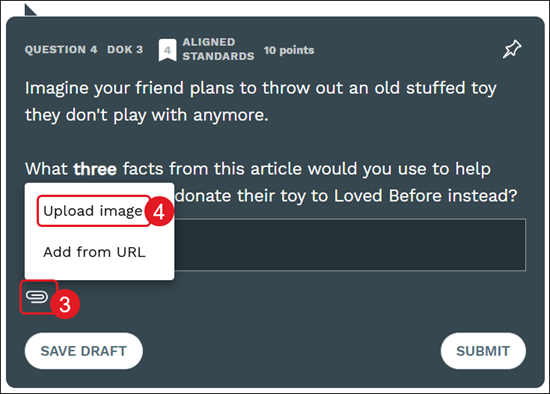
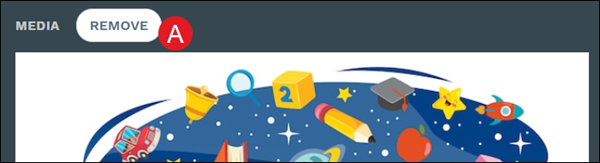
5. On the pop-up, drag and drop an image into the dotted field or click in the field to select an image from your device.
6. Click the Submit button.
A. Click the Remove button to delete the selected image and select a new one.
Add URL to Question Answers
1. Click on the assignment.
2. Navigate to the question.
3. Click the paperclip icon on the question.
4. Select Add from URL from the menu.
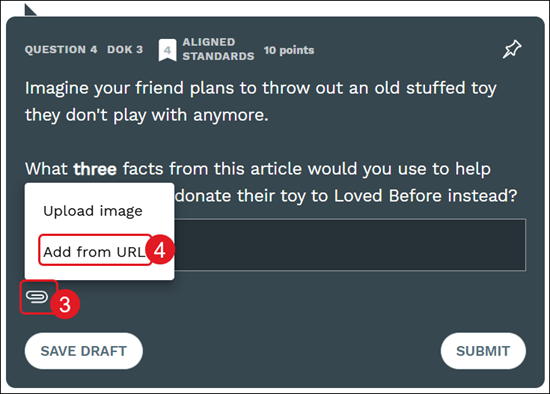
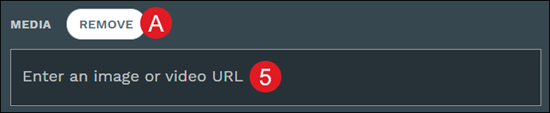
5. Enter an image or video URL in the provided field.
A. Click the Remove button to delete the selection and add a new one.
Access Notes and Questions
If students need to review previous assignments that have expired licenses, they can select the text and view questions and notes.
1. Click on the assignment tile.
If it's an expired text, students will see a You do not have access to this assignment and your teacher has been notified. message.
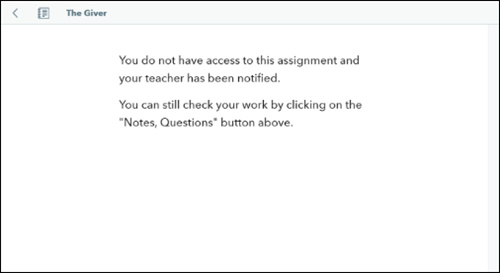
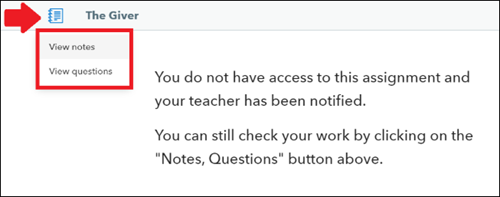
2. Click on the Notes/Questions icon that looks like a notebook.
3. Click View notes or View questions from the menu.
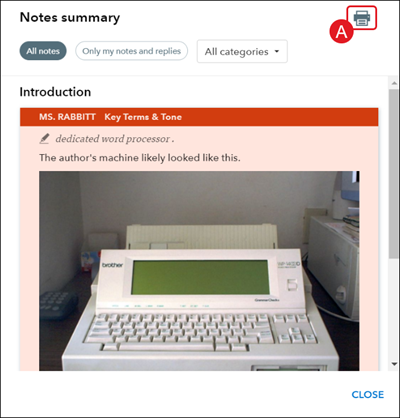
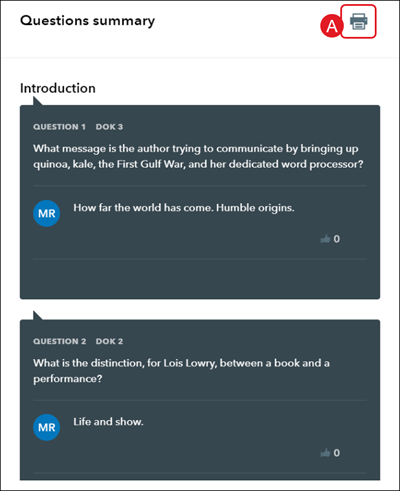
A. On the Notes summary/Question summary, click the printer icon to print/save them.
View Other Students' Responses
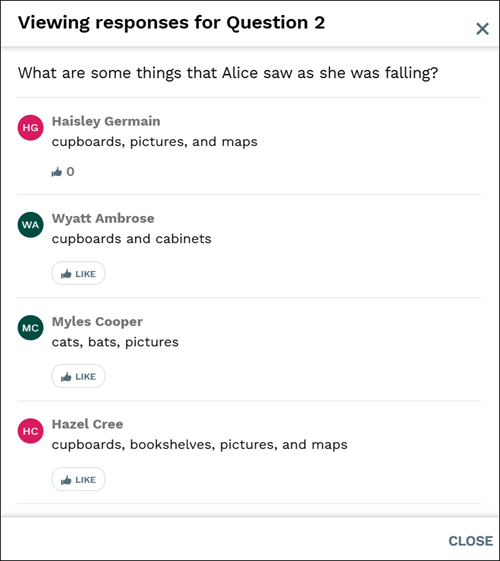
Once you've submitted your answer to a question, you'll then be able to view the responses that other classmates have entered by clicking the View Classmates' Reponses button on the question. If you do not see this option, you'll need to speak with your teacher due to it being a feature they would have to enable for the assignment.
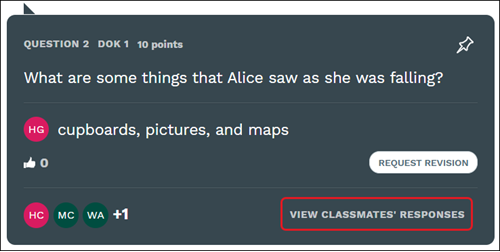
On the pop-up, you'll be able to see each answer provided by other students. If the feature is enabled, you will also be able to click the Like button for a response that you agree with.