
Best Practices for Formatting Text Before Importing into Actively Learn
Learn best practices for formatting text files to ensure a smooth import into Actively Learn.
- Customer Support
- PreK-12
- Classroom Teacher
- Elementary School
- Middle School
- High School
- Direct Login & Auto-Rostering
- Direct Login & Manual-Rostering
- SSO & Auto-Rostering
- SSO & Manual-Rostering
- Supplemental
- Literacy
- Science
- Social Studies
- Actively Learn
- Plan & Present
- Tools & Resources
- Grades & Assignments
- Online Assessments


We understand our teachers have contents in various forms. The conversions and formats below conserve the original formatting during importing.
For steps on importing PDF's, internet articles, Google Drive files, and videos, refer to the Import Resources for Actively Learn Assignments article.
Article Contents
Convert Microsoft Files and PDFs
Convert Microsoft Files and PDFs
If you have a Gmail account, you can convert Microsoft files into Google Docs to upload for usage on Actively Learn.
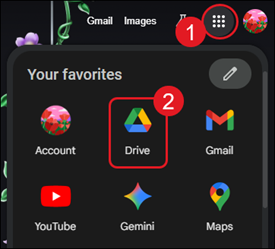
1. Click on the Google apps icon.
2. Click on Drive from the menu.
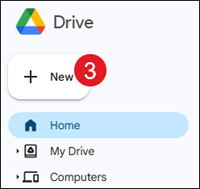
3. Click on the +New button.
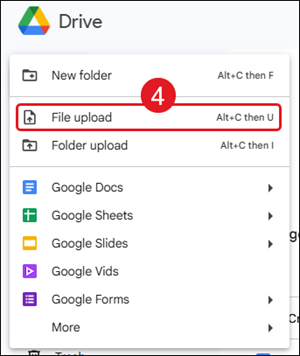
4. Click on File Upload from the menu.
5. Select the file(s) to upload.
6. Right-click on the file or click the More actions button to the right of the file.
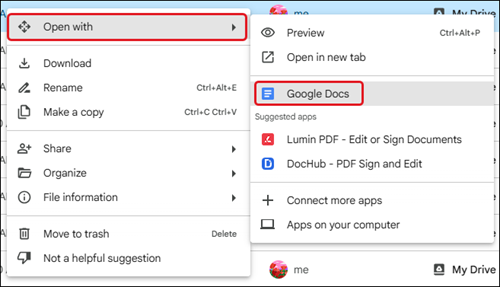
7. Hover over Open with on the menu and select Google Docs from the next menu.
8. Refresh the page to see the newly converted file (it will have a blue lined icon to the left).
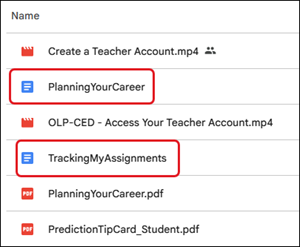
Make any format changes before uploading the resource into Actively Learn.
Google Doc Formatting Guide
Font Size
We recommend size 14pt font. Use the default font (Arial) if possible since is supported on every browser and device.
Bold/Italics/Underlined Words
You may notice that the word immediately next to the word you bolded gets highlighted in Actively Learn. To avoid this, bold not only the word but the trailing space as well. Same goes for italics and underline.
Indenting Paragraphs
Sometimes indentation doesn’t get imported into Actively Learn correctly. The correct way is to type a paragraph and then indent the beginning of it, by pressing the “Tab” button.
To type the second paragraph onwards, press “Enter” at the end of the previous paragraph to start a new, indented paragraph.
If you want to create a left aligned heading between paragraphs:
1. Press Enter to start a new paragraph.
2. Remove the indent using the Backspace button.
3. Type Heading text, add styling.
4. Press Enter to start a new paragraph.
5. Add an indent using Tab.
6. Keep pressing Enter as suggested above for following paragraphs.
Currently, floating or tabbing text all the way to the right edge of a Doc is not supported.
Bulleting
Use the built-in bullet system, and do not copy/paste your own in.
Images and Captions
Follow these steps to insert images so they properly appear in Actively Learn:
1. Click Insert.
2. Select Image.
3. Import preferred image.
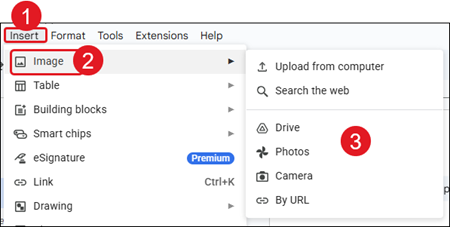
4. Align image as desired and enter any preferred captions.
Spelling and Grammar Check
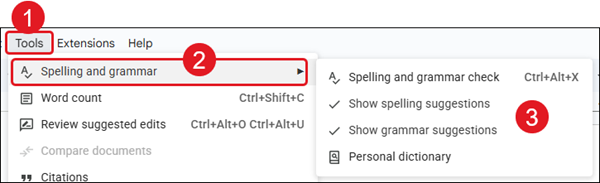
Google Docs has a built-in spelling and grammar checker. To turn this on:
1. Click Tools.
2. Select Spelling and Grammar.
3. Check the features you want turned on.
Equations
Equations are hosted on the user's Google Drive so not everyone will be able to access them. You must share the Doc with your students or make it public to the world, to get equations to properly render at this time.
