
Share and Manage Actively Learn Assignments in the District Library
Instructions on how to share assignments and create folders within the District Library.
- Customer Support
- PreK-12
- Classroom Teacher
- Elementary School
- Middle School
- High School
- Direct Login & Auto-Rostering
- Direct Login & Manual-Rostering
- SSO & Auto-Rostering
- SSO & Manual-Rostering
- Supplemental
- Literacy
- Science
- Social Studies
- Actively Learn
- Plan & Present
- Tools & Resources
- Grades & Assignments
- Online Assessments


Article Contents
Share Assignments to District Library
Remove Assignments from District Library
Note: To be able to manage folders and assignments within the District Library, teachers will need to have the District Library permissions activated by an Organization Administrator.
Add Folders
1. Click the District Library (school icon) button in the navigation menu.
2. Click the add folder (plus icon) to the right of the District Library folder.
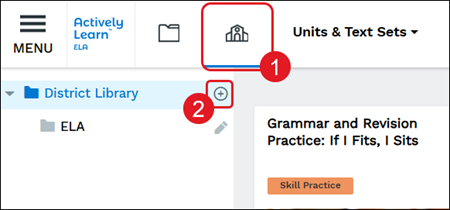
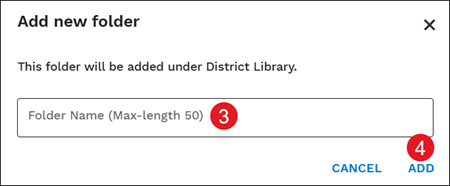
3. On the pop-up, enter a Folder Name.
4. Click the Add button.
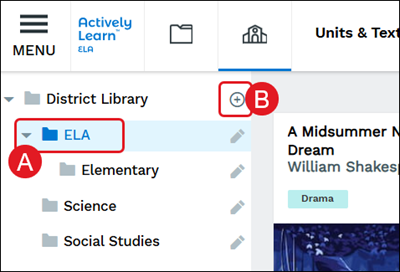
To add a sub-folder, click on the main folder (A) and then click the add folder (B) button.
Remove Folders
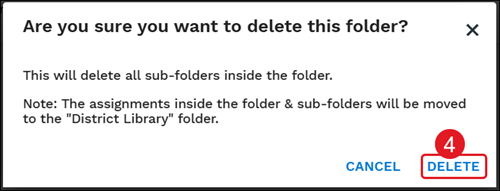
Note: Deleting a parent folder will also delete all assignments and sub-folders associated to it.
1. Click the District Library (school icon) button in the navigation menu.
2. Click the edit (pencil icon) button to the right of the folder.
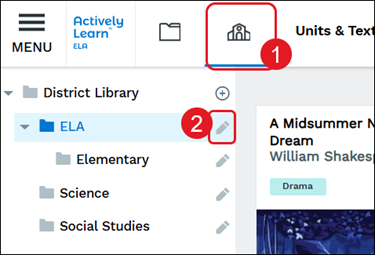
3. On the Edit folder pop-up, click Delete Folder.
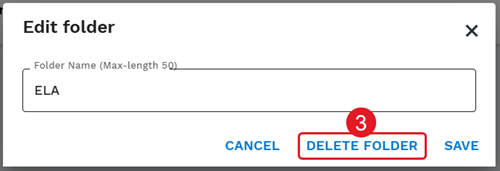
4. Click the Delete button to confirm.
Share Assignments to District Library
1. Click Menu at the top-left.
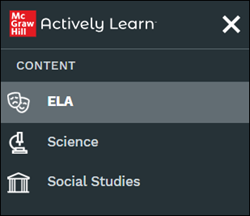
2. Click ELA, Science, or Social Studies from the Content section.
3. Click on a resource tile.
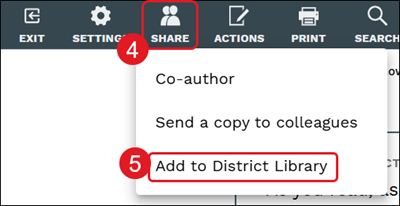
4. Click Share on the navigation menu.
5. Click Add to District Library from the menu.
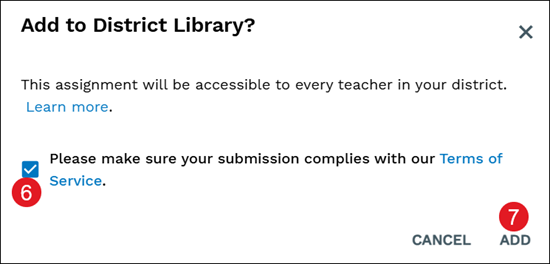
6. Check the Terms of Service box.
7. Click the Add button.
Move Assignments to Folder
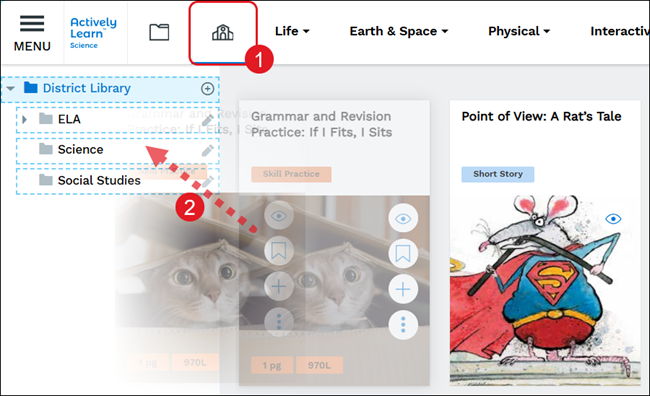
1. Click the District Library (school icon) button in the navigation menu.
2. Click on the assignment tile and drag it to the folder you want it associated under.
Remove Assignments from District Library
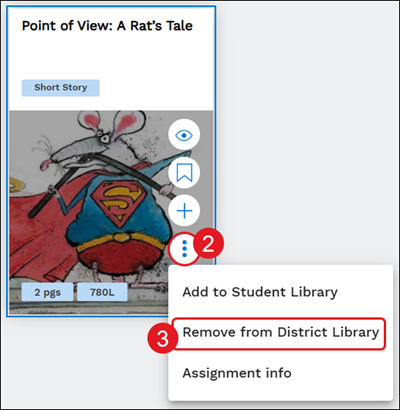
1. Click the District Library (school icon) button in the navigation menu.
2. Hover over the assignment tile and click on the more info button.
3. Click Remove from District Library from the menu.
4. On the pop-up, click Remove to confirm.

