Adjust Actively Learn Author Actions and Text Settings
Adjust available teacher text settings and author actions in Actively Learn for customized reading views.
- Customer Support
- PreK-12
- Classroom Teacher
- Elementary School
- Middle School
- High School
- Direct Login & Auto-Rostering
- Direct Login & Manual-Rostering
- SSO & Auto-Rostering
- SSO & Manual-Rostering
- Supplemental
- Literacy
- Science
- Social Studies
- Actively Learn
- Plan & Present
- Tools & Resources


Article Contents
Text Settings
Both teachers and students have the ability to customize how they experience texts on Actively Learn.
In their workspace and in their assignments, teachers can change text settings to better suit their working environment. Students can do the same in an assignment from their class view.
Note: PDFs do not have text setting options.
1. Click on a text.
2. Click on Settings in the toolbar.

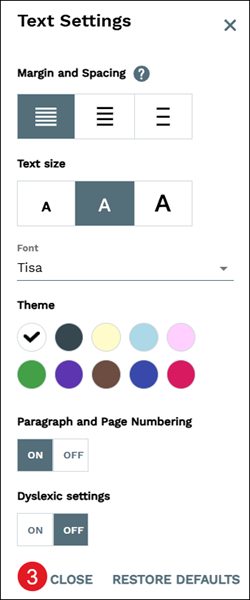
Margin and Spacing in particular - but also Text size and Font - can affect how quickly and fluently you read.
Experiment to find a combination that works well for you.
3. Click the Close button when finished selecting the preferred options.
Author Actions
Teachers have different authoring options within a text that include marking assignments as a quiz, reporting a text error, removing questions by section or removing all questions and notes, as well as viewing notes and questions within the text.
1. Click on a text.
2. Click on Actions in the toolbar.

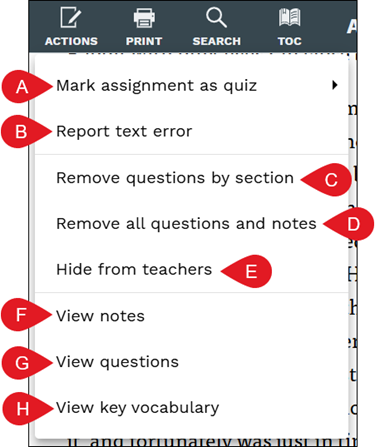
A. Mark assignment as quiz - When an assignment is marked as a quiz, all social features are turned off, students don't see answers after completing multiple choice questions, and questions do not stop readers in the text. Refer to the Create and Share Actively Learn Quizzes article for more information on creating custom quizzes.
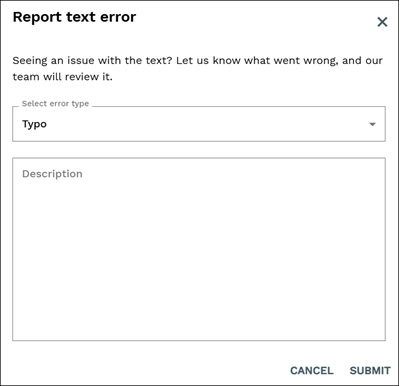
B. Report text error - On the Report text error pop-up, select the error type from the drop-down and add a description as to what was found incorrect within the text. Click the Submit button for the issue to be sent to our support team.
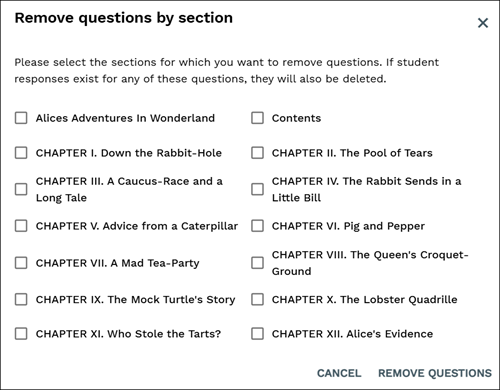
C. Remove questions by section - On the pop-up, click the checkbox for each section you want to remove the questions from. Click the Remove Questions button to confirm the changes.
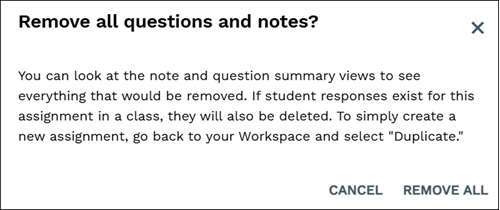
D. Remove all questions and notes - This option will remove all questions and notes that were added to the text, allowing you to start fresh with customizing the text. Click the Remove All button to confirm.
E. Hide from teachers - If you have administrator privileges, you can remove that specific text from the view of all teachers in your school/district.
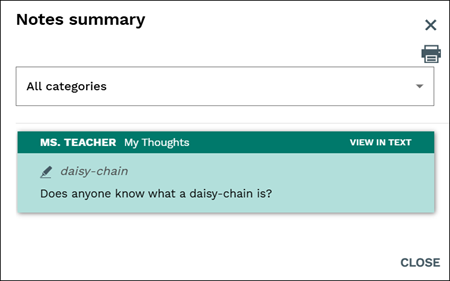
F. View notes - A Notes summary will be viewable that contains all the notes that you added to the text. It can be viewed by all categories, or by a specific category at a time. Clicking the printer icon allows you to print the list of notes. Click View in Text to navigate to where the note is within the text.
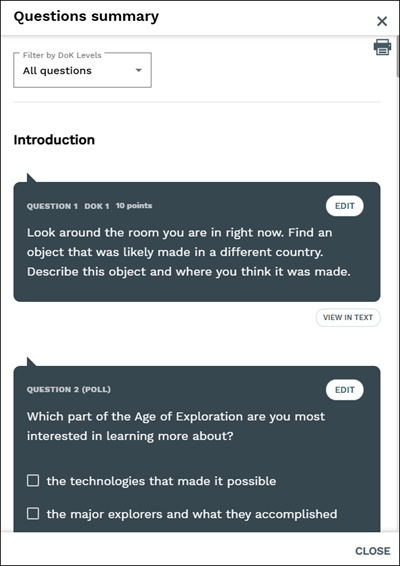
G. View questions - A Questions summary will be viewable that contains all questions that are within the text. It can be viewed by all questions at a time or by DoK levels. Clicking the printer icon allows you to print the list of notes. Click the Edit button a question to make changes to the question and the View in Text button to navigate to where the question is within the text.
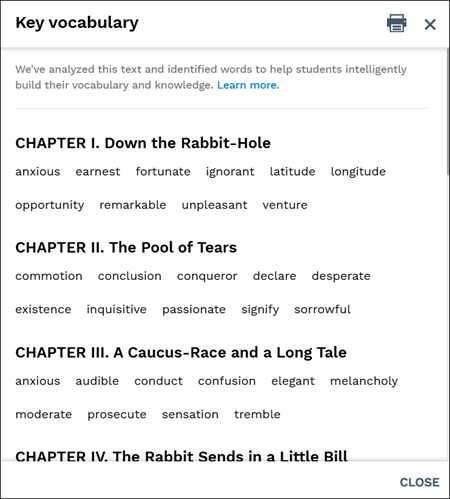
H. View key vocabulary - We've analyzed this text and identified words to help students intelligently build their vocabulary and knowledge. This is not an option within all texts. Click the printer icon to print the list of words.