
Manage Actively Learn Catalog Content and Permissions as an Administrator
Learn how administrators can make changes to what is avaailable in the Actively Learn catalog and manage content permissions.
- Customer Support
- PreK-12
- School Administrator
- Elementary School
- Middle School
- High School
- Direct Login & Auto-Rostering
- Direct Login & Manual-Rostering
- SSO & Auto-Rostering
- SSO & Manual-Rostering
- Supplemental
- Literacy
- Science
- Social Studies
- Actively Learn
- User Management
- Tools & Resources
- Account Management


District and School Administrators and teachers with administrator or content managing permissions have the ability to limit the content visible in the catalog to the teachers at their organization. These users will see an eye icon on each assignment tile in the catalogs. When selected, the assignment will be hidden from view for every teacher listed at the school or district. You can unselect this icon to unhide the content from the catalog.
Note: If a teacher in the organization has an assignment assigned in their classes at the time a piece of content is hidden, it will be removed from the class. Teachers will receive a pop-up the next time they access their classes that an admin has removed the assignment.
Unless a teacher already has the assignment assigned when it is hidden, they will not receive a pop-up indicating something was hidden.
Article Contents
Content Management Permissions
Content Management Permissions
If a teacher has administrator privileges assigned to their user profile, they will automatically have access to all administrator privileges within Actively Learn.
For users that only have the teacher role assigned, administrators can make any necessary changes from their administrator account within Actively Learn.
1. Click Menu at the top-left.
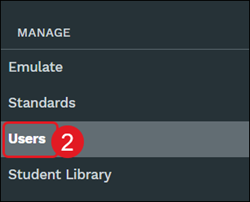
2. Under Manage, click on Users from the menu.
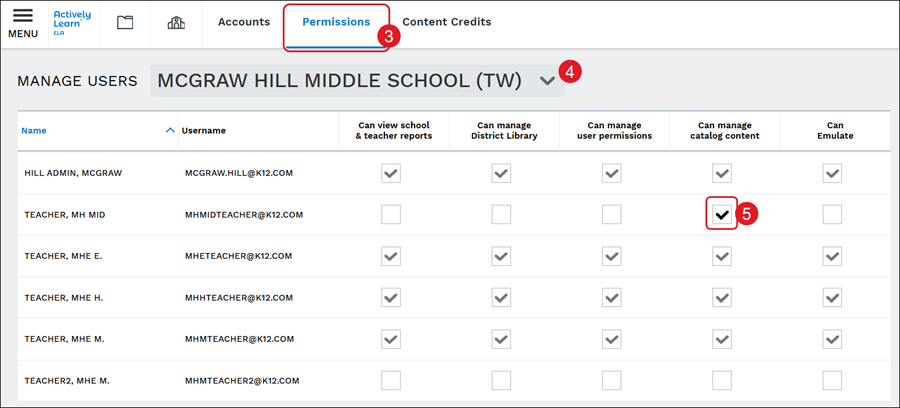
3. Click on Permissions in the navigation bar.
4. Select the school from the Manage Users drop-down.
5. Click on the Can manage catalog content box for the user(s).
If the box has a check and is grayed out, this means the user already has administrator privileges through the McGraw Hill Administrator Tools.
Hide Individual Resource
1. Click Menu at the top-left.
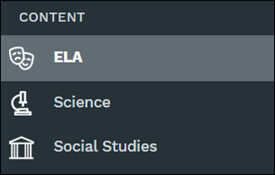
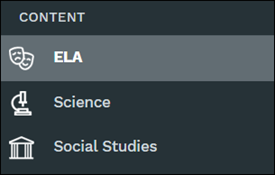
2. Under Content, select ELA, Science, or Social Studies.
Note: Options will vary based on what was purchased by the district.
3. On the text tile, click the Hide from teachers (eye) icon.
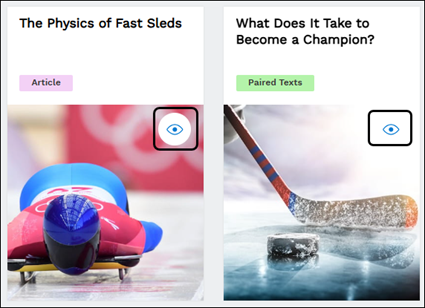
If a text was hidden from teachers, the icon will show crossed out.

Hide Content by Genre
Admins and teachers with proper permissions will be able to hide content by topic. When exploring the catalog, you can select from any of the topic drop downs, select a topic, and then toggle on the to option to 'Hide topic from teachers.' When toggled on, any article under that topic page will automatically be hidden from teachers at your organization. If any piece of content is cross listed in other topic pages, it will also be hidden there. If teachers have it saved in their Workspace or assigned in their classes, it will be removed.
1. Click Menu at the top-left.
2. Under Content, select ELA, Science, or Social Studies.
Note: Options will vary based on what was purchased by the district.
3. Hover over a navigation menu option and select an option from the menu.
4. Toggle on the Hide topic from teachers.

