
Using the Achieve3000 Literacy Writing Assistant
Learn about what the Writing Assistant is in Achieve3000 Literacy and how to use it as a teacher.
- PreK-12
- Customer Support
- Classroom Teacher
- Elementary School
- Middle School
- High School
- Direct Login & Auto-Rostering
- Direct Login & Manual-Rostering
- SSO & Auto-Rostering
- SSO & Manual-Rostering
- Supplemental
- Literacy
- Achieve3000 Literacy
- Plan & Present
- Tools & Resources


Article Contents
Writing Assistant AI Disclosure
Turn Writing Assistant Feature On/Off
Turn Writing Assistant Feature On/Off
The Writing Assistant is automatically enabled for Achieve3000 Literacy lessons. Teachers can turn the feature on and off at the class level while Administrators can do so at the district, school, and class levels.
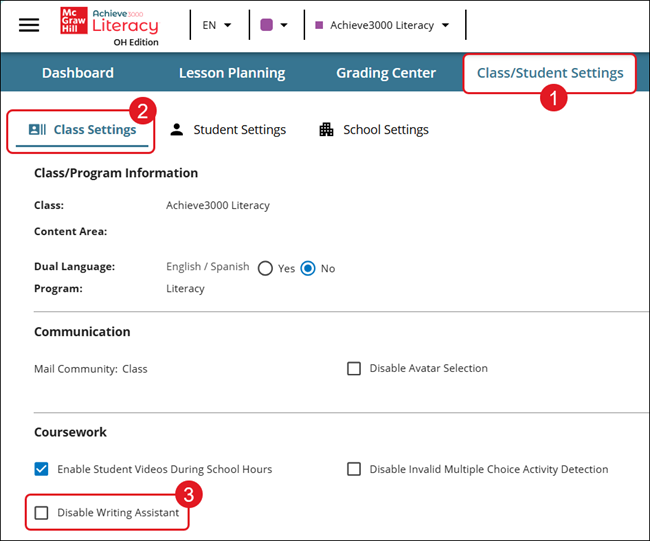
1. Click on Class/Student Settings from the home page.
2. Click the Class Settings tab.
3. In the Coursework section, check/uncheck the box to Disable Writing Assistant.
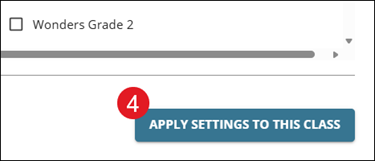
4. Click the Apply Settings To This Class button at the bottom.
Auto Feedback
Auto Feedback is also automatically turned on for the Writing Assistant. When enabled, the Writing Assistant instantly sends back summaries to the students. If you want to review student questions with the Writing Assistant before providing feedback, you will want to disable the feature.
Note: Turning off the feature will disable it for all students in the class.
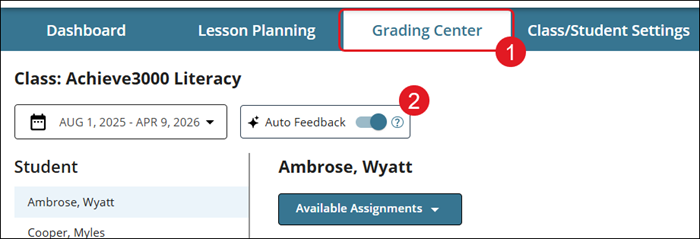
1. Click on Grading Center from the home page.
2. Click the toggle for Auto Feedback.
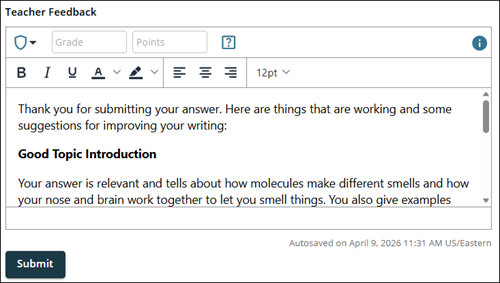
If the feature is activated, in addition to it sending suggestions back to students automatically, it also provides Automatic Writing Assistant Feedback for the teacher to the right of the page for each written answer.
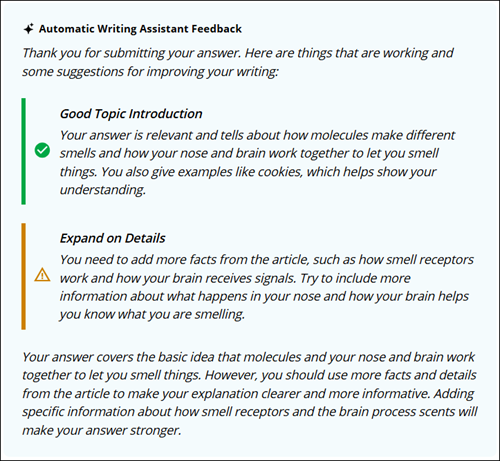
Teachers can use this provided feedback in the Teacher Feedback field to send to students, or they can write their own preferred feedback.
Review Student Chat History
The full Writing Assistant chat history is also accessible to teachers for each lesson it is used by the student.
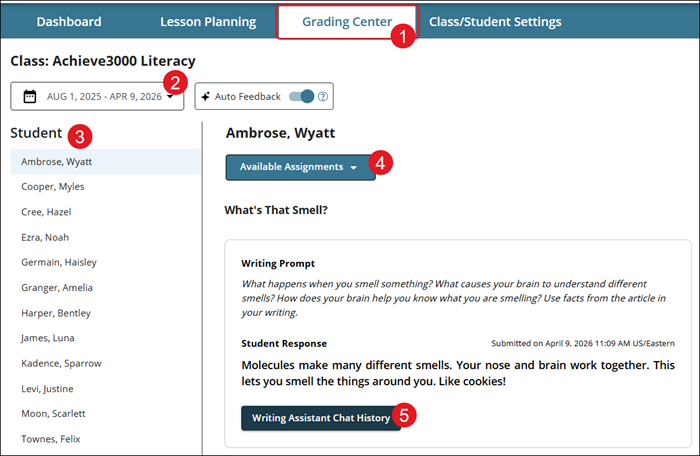
1. Click on Grading Center from the home page.
2. Select the date range.
3. Click the Student name.
4. Select the assignment from the Available Assignments drop-down.
5. Click the Writing Assistant Chat History button.
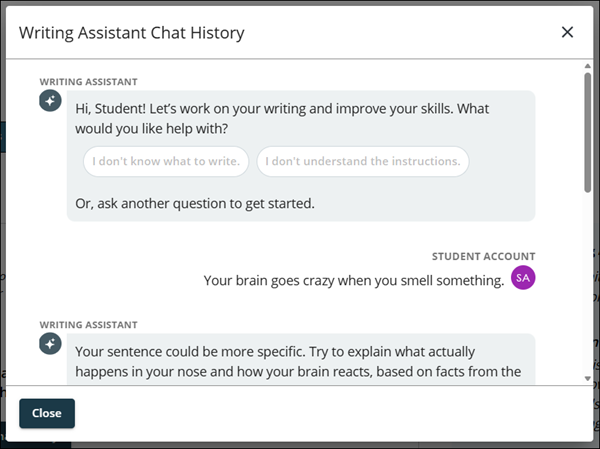
The chat history will show in a pop-up that teachers can scroll through and view what was entered by the student and what was provided by the Writing Assistant.
Writing Assistant FAQ
What support does the Writing Assistant provide to teachers and students using Achieve3000 Literacy?
The Writing Assistant is an AI-powered feature that empowers teachers by giving students instant, on-demand support in the writing process. It engages students, fosters creativity, and helps refine writing skills by providing continuous feedback and revision in a simple, user-friendly interface. It optimizes instructional time for teachers by helping streamline feedback, reduce administrative workload, and enhance overall classroom efficiency. When students are engaged in the Write Step, they will have access to support from the Writing Assistant.
What parameters is McGraw Hill implementing to ensure the Writing Assistant is safe for our students?
The Writing Assistant has been developed in close collaboration with MH’s Data Ethics Department and in alignment with our industry-leading cybersecurity practices. It is designed to operate within the customized guidelines and restrictions, or “guardrails,” we have established to promote safe, ethical, legal, and effective operation while upholding MH’s core principles of prioritizing the security and privacy of all information we collect and process. Our safety requirements are closely aligned with the NIST Artificial Intelligence Risk Management Framework.
For more information, review our Writing Assistant AI Disclosure.
Does the Writing Assistant comply with student data privacy laws?
Yes, like all MH institutional products, Writing Assistant complies with federal and state student data privacy laws, including FERPA. The customer owns all of their student data processed through the Writing Assistant.
Who is monitoring how the Writing Assistant interacts with students?
In addition to the well-defined controls of the feature, the teacher plays a central role in monitoring how the Writing Assistant interacts with students. Once a student submits their assignment, the teacher can review each Writing Assistant interaction in detail. This includes examining how the tool guided the student, the suggestions provided, and how the student applied them, so the teacher may ensure the Writing Assistant supports the student’s learning objectives effectively. The teacher remains in control and can reject any suggestions provided in the final feedback by the Writing Assistant. In addition, the teacher will receive a notification if a guardrail is triggered to alert the teacher to the possible need for additional chat history review.
How will the Writing Assistant respond based on the student’s Lexile level and the Lexile leveling of the different parts of the lessons?
The Writing Assistant will consider the following when guiding the student in chat and providing final feedback: article Lexile level, writing prompt, writing tips, article paragraph sentence frames, and article rubric.
Does the Writing Assistant follow a specific writing rubric? Can it be customized?
Yes, the Writing Assistant follows the program rubric to evaluate student writing. No customizations to the rubric can be made at this time.
At what levels can the Writing Assistant be turned on or off?
The Writing Assistant is automatically enabled. If needed, it can be deactivated by the district administrator at the district, school, or class level. A teacher can deactivate the Writing Assistant at the class level. The teacher can also choose to turn the auto-feedback feature off and on at the class level.
Is the Writing Assistant accessible for all students?
Yes, the Writing Assistant was built in alignment with our accessibility standards. If audio is enabled for students due to accessibility, students will have access to the read-aloud capabilities.
What kind of feedback and reporting does the Writing Assistant offer teachers?
Once a student submits their assignment, the teacher can review each Writing Assistant interaction in detail. This includes examining how the tool guided the student, the suggestions provided, and how the student applied them. Further, the tool will provide teachers with final feedback related to the scoring rubric. The Writing Assistant does not determine student grades and is not intended to be used as a grading tool.
Is professional development available to help teachers effectively use the Writing Assistant in Achieve3000 Literacy?
Training on the Writing Assistant is part of Achieve3000 Literacy’s professional learning offerings. Additional support and guidance can also be found on our PreK-12 Support Center page.
