
Edit Achieve3000 User Information as an Administrator
Learn how to make changes to user profiles within Achieve3000 Literacy as an administrator.
- PreK-12
- Customer Support
- School Administrator
- Elementary School
- Middle School
- High School
- Direct Login & Auto-Rostering
- Direct Login & Manual-Rostering
- SSO & Auto-Rostering
- SSO & Manual-Rostering
- Supplemental
- Literacy
- Achieve3000 Literacy
- Account Management
- User Management


The information provided only makes adjustments to user information for within Achieve3000 Literacy.
For Manual Rostering districts, if you're needing to add, remove, or edit staff accounts – or add new student accounts – for the McGraw Hill platform, you will need to follow the steps provided in the Manage User Accounts article.
For Auto-Rostering district, to add or remove teacher or student accounts, refer to your District Coordinator. If you're needing to edit administrator access for a user, refer to the Manage Roles for an Existing User article.
If you're unsure of your Access Service, refer to the Access Service Descriptions article.
Article Contents
Edit Student and Teacher Information
Edit Administrator Information
Edit Student and Teacher Information
1. Sign into your administrator account.
2. Launch Achieve3000.
3. Select Literacy MS from the drop-down.
4. Click on Profile/Settings (your name) at the top-right.
5. Click Admin Settings from the menu.
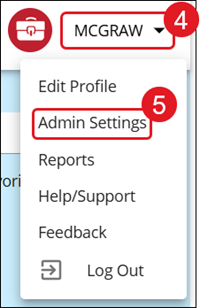
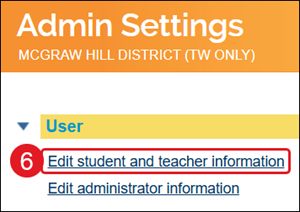
6. In the User section, click the Edit student and teacher information link.
7. Select the radio button to search by Class or User.
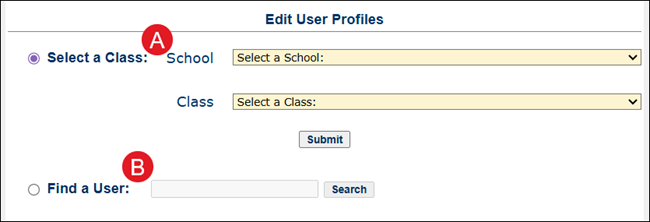
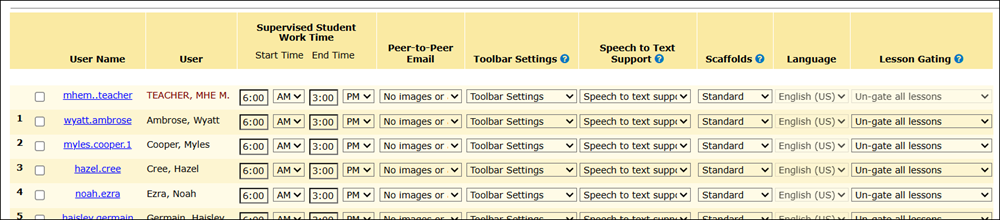
A. If Select a Class is selected, choose the School and Class from the drop-downs and click Submit. Use this option if you want to make changes to the user's tools and lesson access.
Note: Student Lexile levels can only be adjusted within the first three weeks of the student completing the LevelSet Pre-Test.
Changes can be made to:
- Supervised Student Work Time
- These are default times for supervised student work, including LevelSet assessments and activities that count toward updating students' Lexiles.
- Peer-to-Peer Email
- Toolbar Settings
- Please use caution when providing students with audio support tools. While audio support can be helpful to students with poor word recognition skills, it may affect the student’s Lexile measure (which would have to be seen as a mix of their reading and listening skills).
- Speech to Text Support
- Speech to Text is an experimental feature and may not work or appear on your browser.
- Scaffolds
- Lesson Gating
- By default, students must complete one step of a lesson before moving on to the next step. You can adjust the settings to limit this gating feature to five-step lessons only, or remove it entirely, for individual students or an entire class.
Click on the User Name link for the profile you would like to edit or use the Find a User option.
B. If Find a User is selected, enter the name for the user and click Search. Use this option if you want to only make edits to the user's profile.
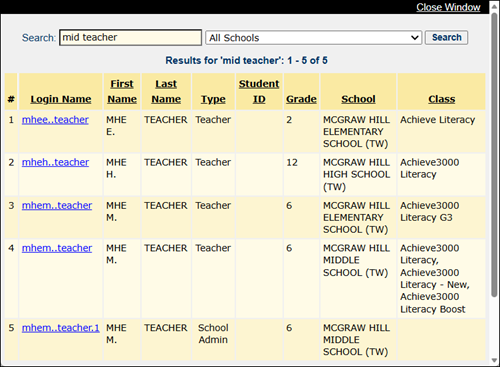
Search results will show in a new web browser window where you can then click on the Login Name of the user you want to edit.
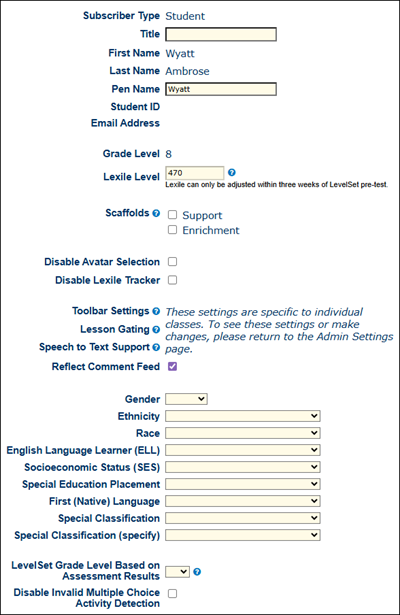
These fields include (the available fields vary based on user profile):
- Title
- Pen Name
- Lexile Level
- Scaffolds
- Avatar Selection
- Lexile Tracker access
- Comment Feed
- Gender
- Ethnicity
- Race
- English Language Learner (ELL)
- Socioeconomic Status (SES)
- Special Education Placement
- First (Native) Language
- Special Classification
- LevelSet Grade Level
- Invalid Multiple Choice Activity Detection
Edit Administrator Information
1. Sign into your administrator account.
2. Launch Achieve3000.
3. Select Literacy MS from the drop-down.
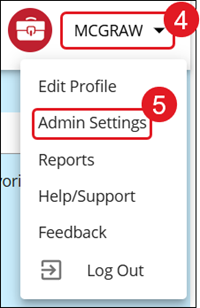
4. Click on Profile/Settings (your name) at the top-right.
5. Click Admin Settings from the menu.
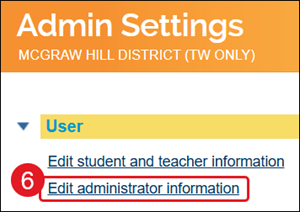
6. In the User section, click the Edit administrator information link.
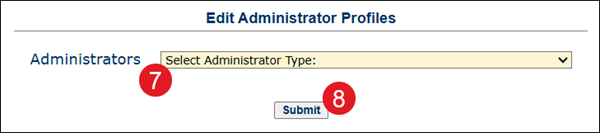
7. Select District Administrator or a school from the Select Administrator Type drop-down.
8. Click the Submit button.
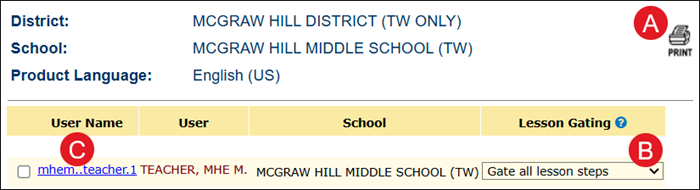
A. Click the Print icon to print the list of administrators.
B. Click the Lesson Gating drop-down to change the selection.
By default, students must complete one step of a lesson before moving on to the next step. You can adjust the settings to limit this gating feature to five-step lessons only, or remove it entirely, for individual students or an entire class.
C. Click on the User Name link to make changes to the profile.
Note: DO NOT use the Permanently Delete option. If you need to remove an administrator from the school/district account, refer to the Drop Staff section of the Manage User Accounts article.
Changes can be made to the following:
- Title
- TE Display Name
- Phone
- Lexile Level
- Scaffolds
- Avatar Selection
- Gender
9. Click the Submit button to save any changes made on the profile page.
