Edit Achieve3000 Literacy District and School Information as an Administrator
Learn how administrators can make changes to district and school information in Achieve3000 Literacy.
- PreK-12
- Customer Support
- School Administrator
- Elementary School
- Middle School
- High School
- Direct Login & Auto-Rostering
- Direct Login & Manual-Rostering
- SSO & Auto-Rostering
- SSO & Manual-Rostering
- Supplemental
- Literacy
- Achieve3000 Literacy
- Account Management


Article Contents
Edit District Information
Administrators have the ability to make changes to certain changes to district information such as the address, city, and state for the Achieve3000 Literacy program. They can also make adjustments to a select few district settings.
Keep in mind, these changes are only for within the Achieve3000 Literacy program. If you are needing assistance with making any changes to the district name, associated schools, main address, etc., please reach out to our PreK-12 support team.
1. Sign into your administrator account.
2. Launch Achieve3000 and select Literacy MS from the drop-down.
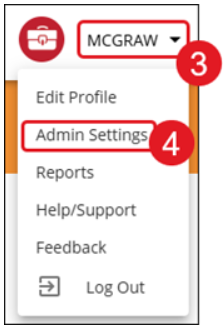
3. Click the Profile/Settings (your name) drop-down at the top-right.
4. Click Admin Settings from the menu.
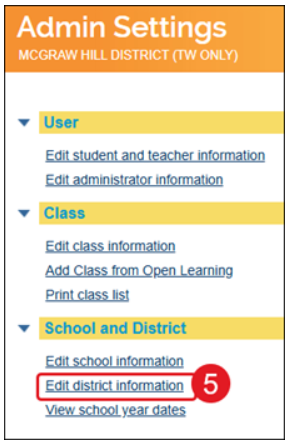
5. In the School and District section, click the Edit district information link.
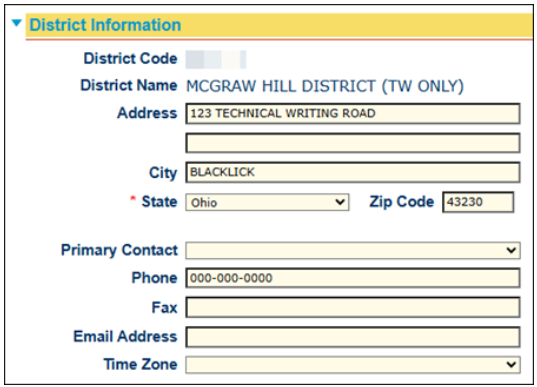
In the District Information section, admins can make changes to the:
- Address
- City
- State
- Zip Code
- Primary Contact
- Phone
- Fax
- Email Address
- Time Zone
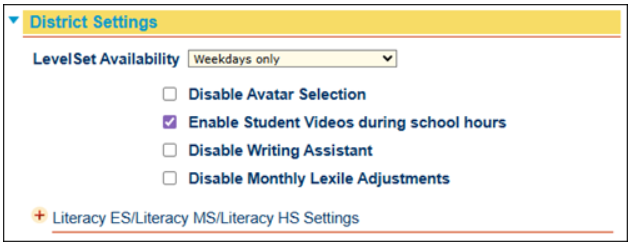
The District Settings is where administrators can enable/disable the following:
- LevelSet Availability
- Avatar Selection
- Student Videos during school hours
- Writing Assistant
- Monthly Lexile Adjustments
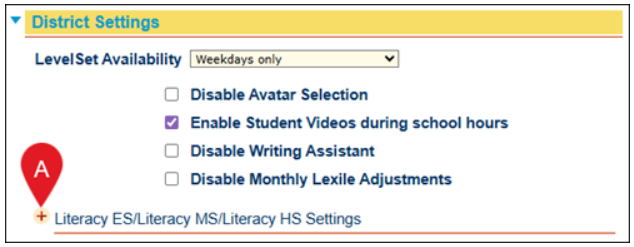
Click the + (plus) icon to expand the Literacy ES/Literacy MS/Literacy HS Settings (A) section.
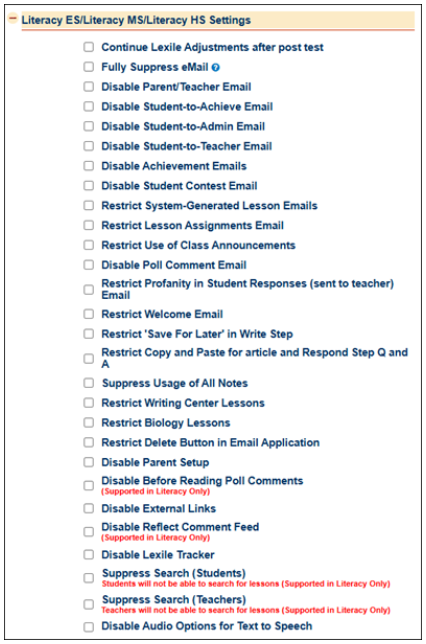
This is where administrators can enable/disable many additional features for the district, including email sending/receiving abilities, copy/paste ability, restricting Writing Center and Biology lessons, and many more options.
Note: By default, the monthly Lexile adjustments are set to only occur prior to the LevelSet Post-Test. However, if students will continue using the Achieve3000 Literacy program after they complete the LevelSet Post-Test, district administrators can set the monthly Lexile adjustments to continue after the LevelSet Post-Test for all schools in a district by selecting the Continue Lexile Adjustments after post text option.
6. Click the Submit button at the bottom to confirm any changes made.
Edit School Information
1. Sign into your administrator account.
2. Launch Achieve3000 and select Literacy MS from the drop-down.
3. Click the Profile/Settings (your name) drop-down at the top-right.
4. Click Admin Settings from the menu.
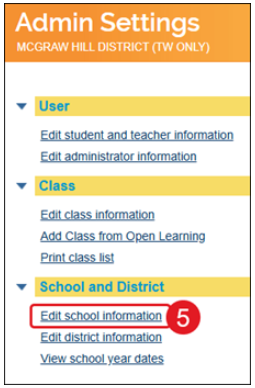
5. In the School and District section, click the Edit school information link.
On the main school information page, administrators can make changes to the Contact (A) and Email Community (B) drop-downs.
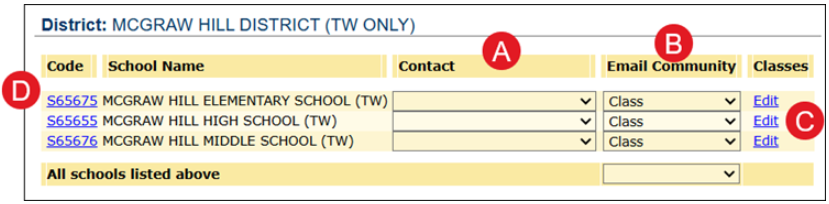
C. Click the Edit link in the Classes column to make changes to that specific class. For more information on making changes to an individual class, refer to the Achieve3000 Literacy - Edit Class Information as an Administrator article.
D. Click the school Code link to make changes to the school information, settings, and access settings.
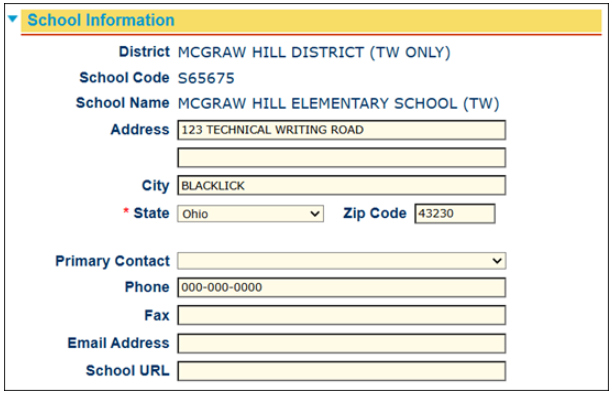
In the School Information section, changes to the Address, City, State, Zip Code, Primary Contact, Phone, Fax, Email Address, and School URL can be made.
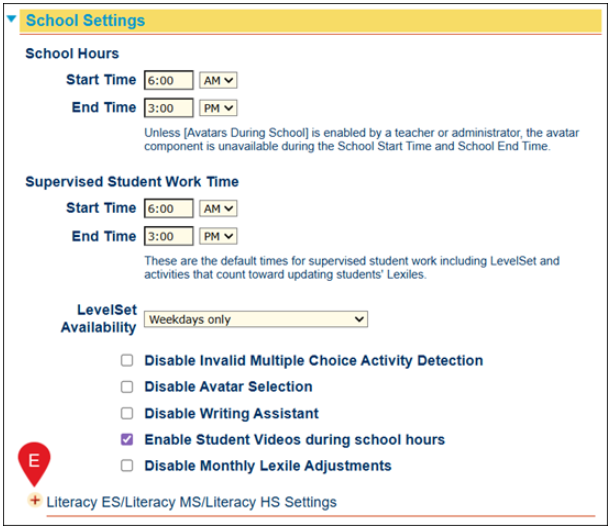
For the School Settings, administrators can set the School Hours, Supervised Student Work Time, and LevelSet Availability for the selected school. This is also where they can enable/disable additional options such as the Writing Assistant and Monthly Lexile Adjustments.
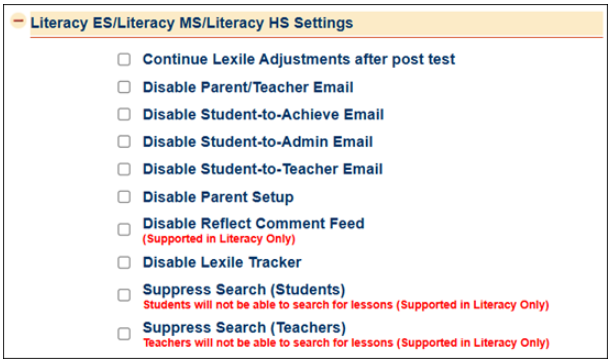
Click the + (plus) icon to expand the Literacy ES/Literacy MS/Literacy HS Settings (E) section.
This is where administrators can enable/disable many additional features for the school such as email abilities, the Lexile tracker, and remove the search for lessons options.
Note: By default, the monthly Lexile adjustments are set to only occur prior to the LevelSet Post-Test. However, if students will continue using the Achieve3000 Literacy program after they complete the LevelSet Post-Test, district administrators can set the monthly Lexile adjustments to continue after the LevelSet Post-Test for all schools in a district by selecting the Continue Lexile Adjustments after post text option.
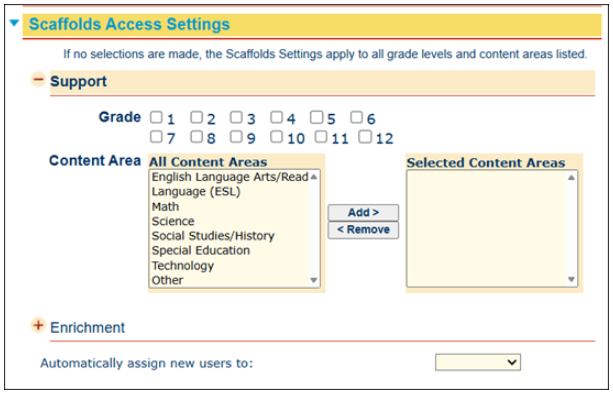
The Scaffolds Access Settings allow administrators to set Support and/or Enrichment Scaffolds for specific grades and content areas for the school.
Note: If no selections are made, the Scaffolds Settings apply to all grade levels and content areas listed.