Achieve3000 Literacy - Create and Revise Content Exclusions
Learn how administrators can hide certain topics from the lesson library in Achieve3000 Literacy.
- PreK-12
- Customer Support
- Direct Login & Auto-Rostering
- Direct Login & Manual-Rostering
- SSO & Auto-Rostering
- SSO & Manual-Rostering
- Elementary School
- Middle School
- High School
- Supplemental
- Literacy
- Achieve3000 Literacy
- School Administrator
- Tools & Resources


The Achieve3000 Literacy Content Development team focuses on creating engaging lesson content, helping students see themselves and to extend their worldview through the lessons they read. We encourage thoughtful interaction with the text and with peers through the use of discussion questions, social-emotional learning prompts, and thoughtful and inspiring writing prompts.
While we want all students to engage fully with the lessons we create, we understand that states and localities have imposed content rules that limit classroom use of selected topics. The Content Exclusions tool puts the control of this into the hands of the local educational leaders.
Article Contents
Create New Exclusion Rule
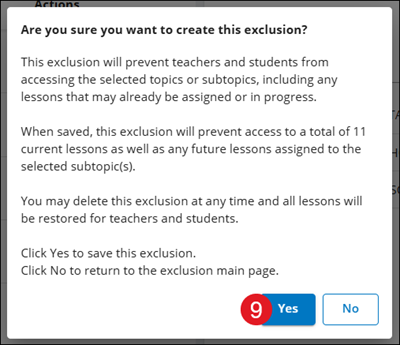
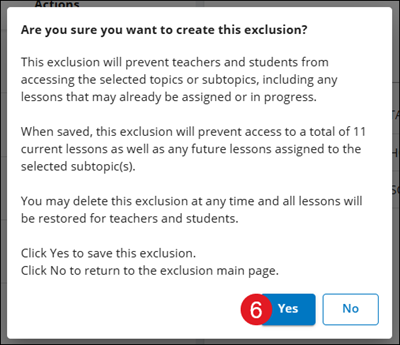
Keep in mind, creating an exclusion will prevent teachers and students from accessing the selected topics or subtopics, including any lessons that may already be assigned or in progress.
1. Sign into your Administrator account at my.mheducation.com.
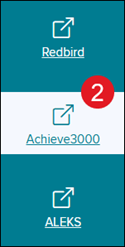
2. Launch Achieve3000.
3. Click to Open side menu at the top-left.
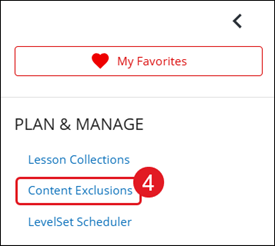
4. Under Plan & Manage, click Content Exclusions.
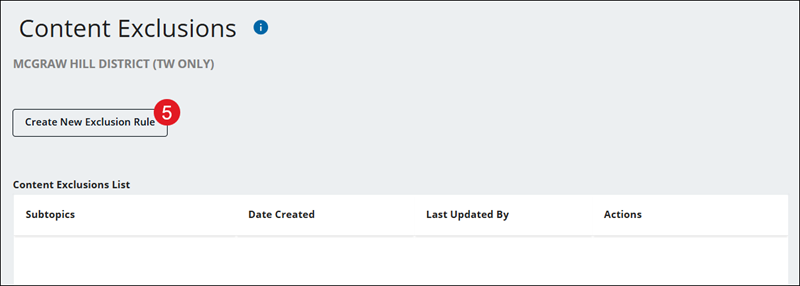
5. Click the Create New Exclusion Rule button.
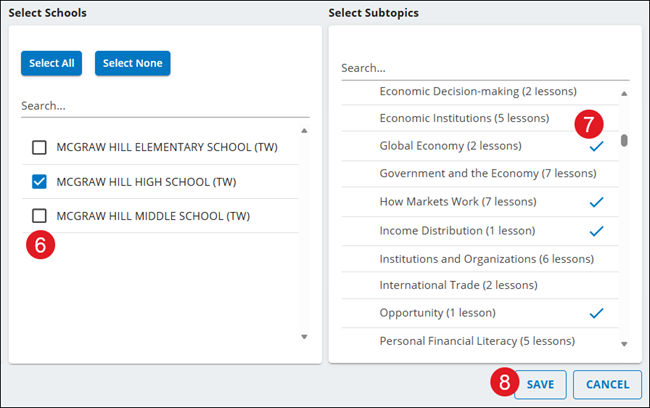
6. Check the box next to the School(s).
7. Navigate through the Subtopics and click on the ones you want to hide.
8. Click the Save button.
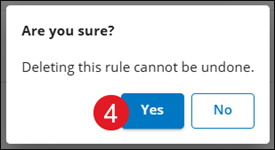
9. Click the Yes button on the pop-up.
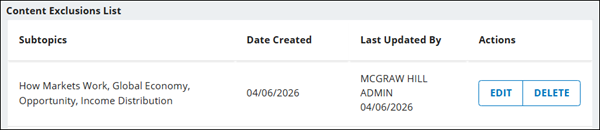
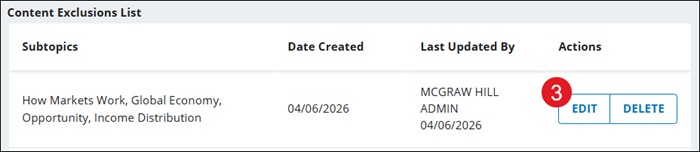
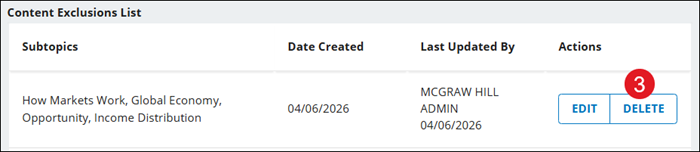
All exclusion rules will show in the Content Exclusions List with the list of Subtopics selected, the Date Created, and the user who Last Updated the rule.
Edit Exclusion Rules
1. Click to Open side menu at the top-left.
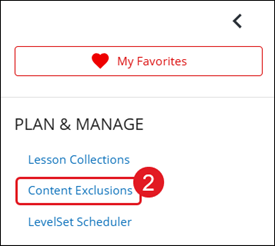
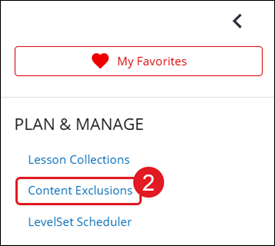
2. Under Plan & Manage, click Content Exclusions.
3. Click the Edit button to the right of the rule.
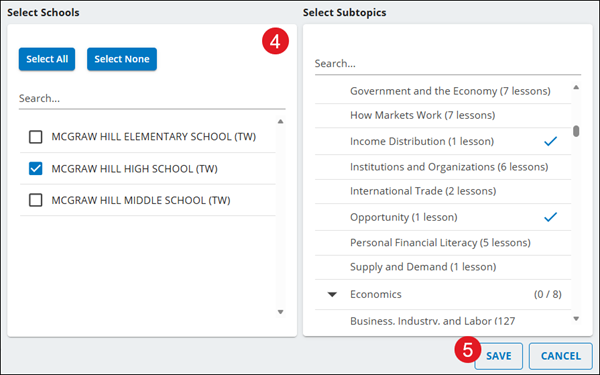
4. Make changes to the Selected Schools and/or Select Subtopics.
5. Click the Save button.
6. Click the Yes button on the pop-up.
Delete Exclusion Rule
1. Click to Open side menu at the top-left.
2. Under Plan & Manage, click Content Exclusions.
3. Click the Delete button to the right of the rule.
4. Click the Yes button to confirm.