Complete Achieve3000 Literacy Writing Center Activities
Explore the student Achieve3000 Liteacy Writing Center and complete activities for teacher review.
- Customer Support
- PreK-12
- School Student
- School Parent
- Elementary School
- Middle School
- High School
- Direct Login & Auto-Rostering
- Direct Login & Manual-Rostering
- SSO & Auto-Rostering
- SSO & Manual-Rostering
- Supplemental
- Literacy
- Achieve3000 Literacy
- Dashboard & Navigation Overview
- Student Resources
- Grades & Assignments


Achieve3000 Literacy provides students with many opportunities to write. In addition to the 5-Step Literacy Routine, the program includes a Writing Center with a wealth of resources to help students perfect their writing skills.
- Writing Process Topics - Topics are available for specific organizational strategies (e.g., cause and effect, sequence of events, compare & contrast). Students will see a writing prompt and then read a related Article. They also have access to appropriate graphic organizers. They then craft a response through the Writing Process that includes Read, Prewrite, Draft, Revise/Edit steps.
- Timed Writing Assignments - These are designed to give students practice with timed writing, which is often required for state exams. The prompts are designed to imitate a testing environment and the activities include a timer so students can learn to pace themselves when writing.
- Revising and Editing Assignments - These multiple-choice activities give students an opportunity to practice error identification and error correction.
- Mechanics - These online mini-lessons cover basic grammar, writing mechanics, and process writing skills in a fun, engaging manner.
- Printable Graphic Organizers - These help students organize their writing across the curriculum.
Students can access the Writing Center at any time and select from a list of prompts to complete.
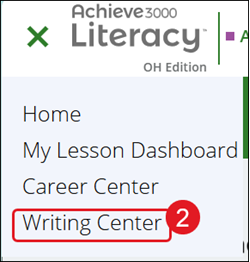
1. Click to open the Main Menu.
2. Click on Writing Center.
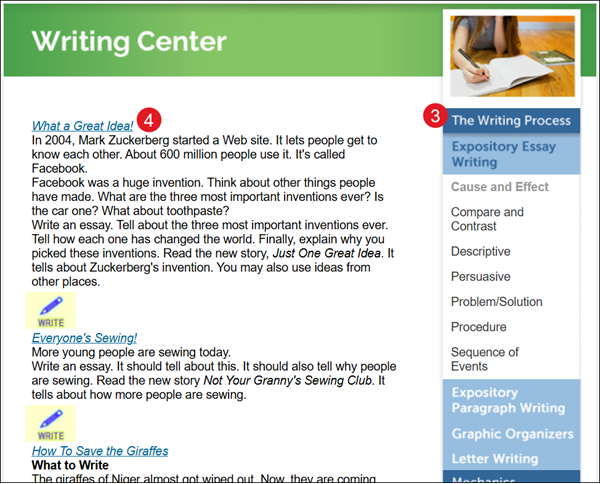
3. Click on a category from the right panel.
4. Click on a writing title.
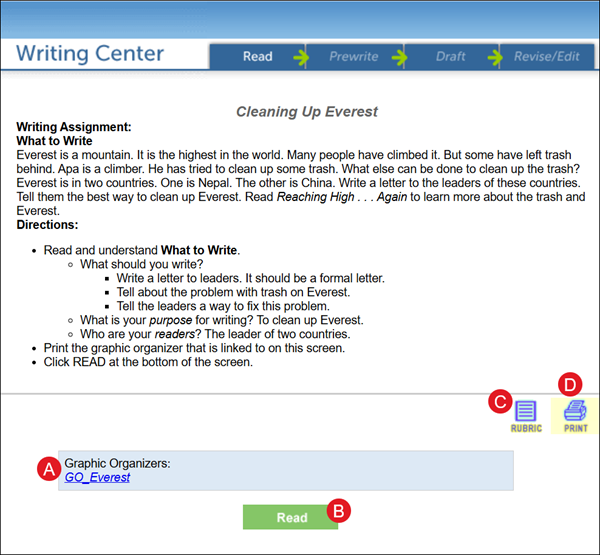
A. Some topics provide access to a Graphic Organizer that can be accessed by clicking on the Graphic Organizer link.
B. Some topics will have multiple steps to complete the activity. These activities will start with the Read section and can be accessed by clicking the Read button at the bottom of the page.
To move through the steps, click the corresponding button at the bottom of the page to move to that section: Read, Prewrite, Draft, and Revise/Edit.
C. Click the Rubric button to view the grading scale for the writing exercise.
D. Click the Print button to print/save the current page.
E. Some topics will only have a writing section, such as those found under the Subject-Area Prompts section.
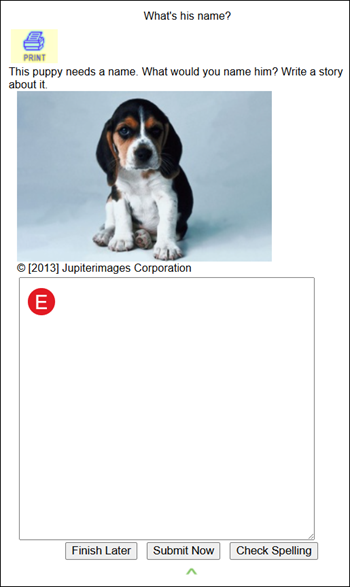
5. Click the Submit button on the writing activity once done.
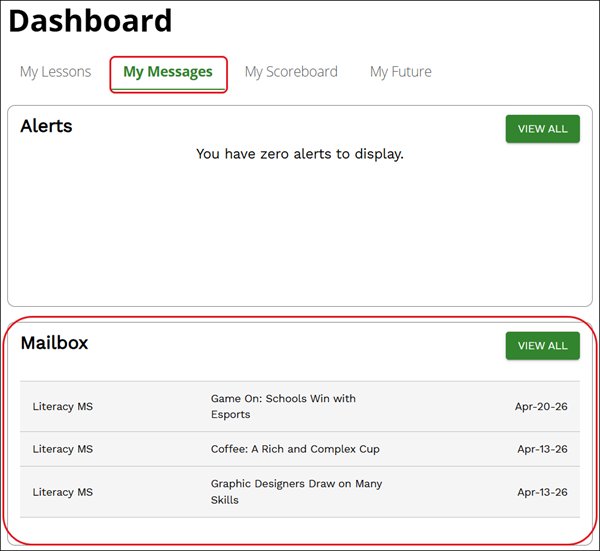
Teachers can also assign these to students for completion. These assignments can be accessed in the Mailbox section under My Messages on their Dashboard.