
Navigating Achieve3000 Literacy Student Reports
Access Achieve3000 Literacy student reports to review progress, performance, and reading growth.
- Customer Support
- PreK-12
- Classroom Teacher
- Elementary School
- Middle School
- High School
- Direct Login & Auto-Rostering
- Direct Login & Manual-Rostering
- SSO & Auto-Rostering
- SSO & Manual-Rostering
- Supplemental
- Literacy
- Achieve3000 Literacy
- Reports & Analytics


If you are looking to review LevelSet scores, refer to the Navigating the Achieve3000 Litearcy Data Center article.
Article Contents
Access and Generate Student Reports
Access and Generate Student Reports
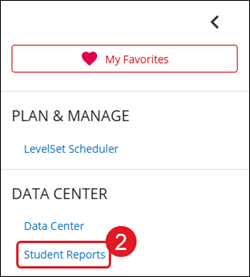
1. Click the menu at the top-left.
2. Click Student Reports from the menu panel.
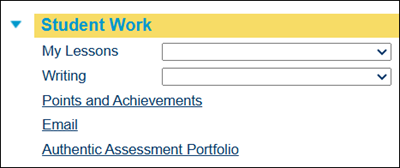
3. Click on a blade/arrow to expand the report section.
Student Work - Pertain specifically to the lessons students completed.
Usage Reports* - Show how much time users are spending within the program and the fidelity of that time.
Performance Reports* - Provide reports on College and Career Readiness, how students are performing on activities, standards, and reading skills, as well as measuring Lexile reading performance over time.
Assessment Tools - Lists reports on which students have not yet completed the LevelSet assessment and which Lexiles have been adjusted or are decreasing.
Home Communications - Provides a Lexile letter to provide to parents.
*All Usage and Performance reports are updated nightly. Student usage and activities will show up on these reports the morning after they are completed.
4. Click on a report link.
For the Student Work reports, teachers can choose a report option from the My Lessons or Writing drop-downs or one of the provided report links.
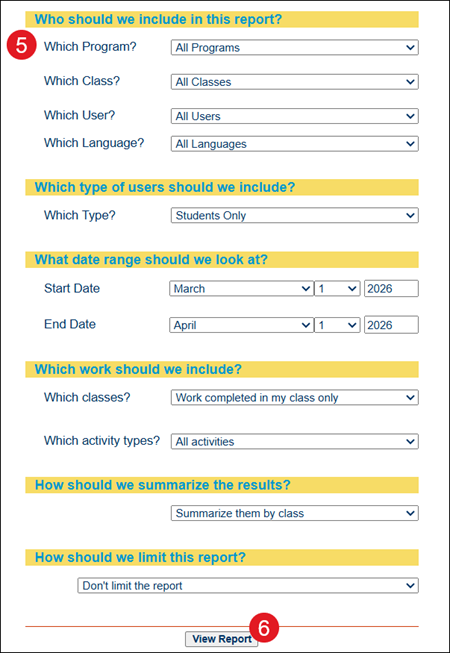
5. Select what should be included in the report from the drop-downs listed. The options available will vary based on the report selected.
Note: Typically, the reason you may not be seeing a student's activity in your reports is that the activity was completed under a different class. This happens when students complete work while signed into the wrong class. To view all student work that has been completed outside of your classes, you will have to change the Which Class? filter under Who should we include in this report? to show All classes on the report filter page.
6. Click the View Report button at the bottom.
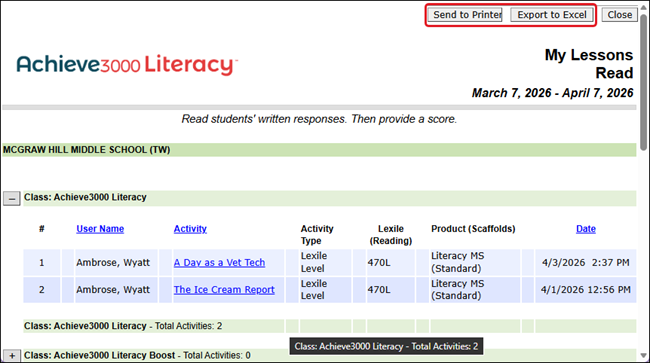
The report will open in a secondary browser window with the options to Print or Export to Excel.
Forecast Student Performance
The report titled "How are my students likely to perform on the ... assessment?” uses a students' Lexile score to forecast their performance on your high-stakes test at the end of your academic year. This can be a great tool to help you identify which students need more intensive support to improve their chances of scoring in the target performance category.
The report uses information from linking studies between Lexile scores and high-stakes test performance categories. These studies, conducted by MetaMetrics, are only available in certain states, so this report may not be available in your account. If the report is available in your state, you will see your specific test name in the report link and title.

This report is a great way to identify students in need of intervention and get them the help they need well in advance of the high-stakes assessment. As a reminder, you can run this report multiple times across the school year to make sure that your students are moving in the right direction and adjust your support as needed.