Achieve3000 Literacy - Student Lesson Tools
Review the lesson tools available to students in Achieve Literacy to support reading and writing.
Tags
Supplemental
Resources
Getting Started & Orientation
Literacy
SSO & Manual-Rostering
Customer Support
Direct Login & Auto-Rostering
School Student
Middle School
Direct Login & Manual-Rostering
High School
Classroom Teacher
School Parent
SSO & Auto-Rostering
PreK-12
Preschool
Achieve3000 Literacy
Elementary School


Sections Covered:
HighlighterDictionary
Screen Masking/ Settings
Audio/Read Aloud/ Settings
Translate/ Settings
Note: The default tool available to students is only the Highlight option. To have the additional Lesson Tools enabled for use, please reach out to your teacher.
Lesson Tools
Highlighter
To add a Highlight, click and drag to select sections of the article within the Lesson. From the pop-up menu, select Highlight then choose one of the available colors, or the Strike Through option.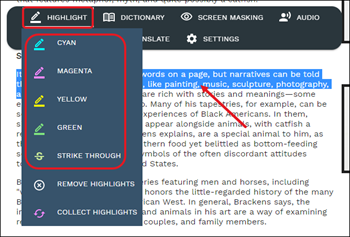
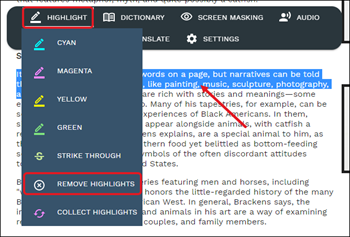
To remove a Highlight, select the highlighted text in the article. In the pop-up menu, select Highlight, then select Remove Highlights.
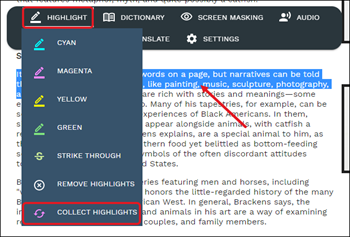
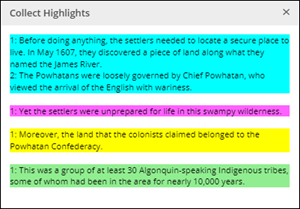
To view any highlights made throughout the article, highlight any text in the article. On the pop-up menu, select Highlight then select Collect Highlights. All highlights will be listed in the order they were created, and grouped by color selected.
Dictionary
To view a word's definition, select the word in the text, and then click the Dictionary option from the pop-up menu.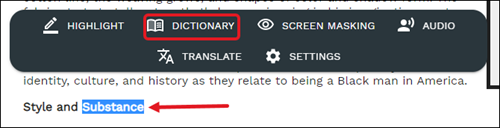
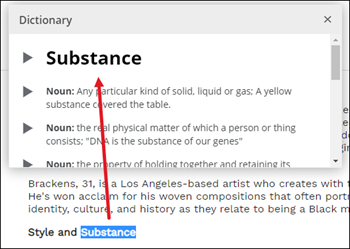
A pop-up will then come up with the selected word and the different definitions available for the selection.
Screen Masking
Screen Mask is a document reading tool that follows your mouse or touch to help eliminate page distractions so you can focus on reading one passage at a time.Select any text in the lesson to bring up the Lesson Tools Menu. Select Screen Masking from the pop-up menu.

At the top left of the page, a Screen Masking toggle will show. Click the toggle to activate the Screen Masking feature.
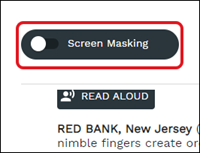
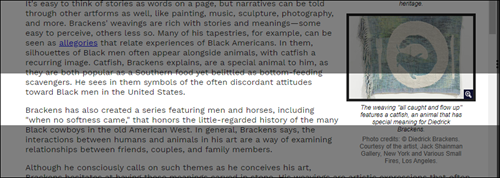
Toggle the Screen Masking button again to turn off the feature. The feature toggle will stay available on the screen until you select Screen Masking from the pop-up Lesson Tool Menu again.
Screen Masking Settings
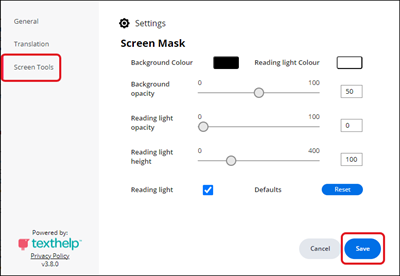
To change the Background Color and Reading Light Color, select Settings from the menu. Then, select the Screen Masking tab. Click the Save button to save any changes made.
Back to Top
Audio/Read Aloud
There are two ways to activate the read aloud feature in a Lesson.Option 1:
Click the Read Aloud button at the top of the Lesson in the left pane.
Option 2:
Select any text in the left pane to bring up the Lesson Tool Menu. From the pop-up menu, select the Audio option.
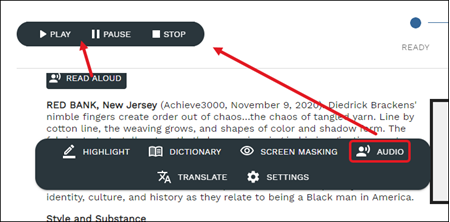
Both options will bring up the play bar at the top of the Lesson. Use the Play, Stop, and Pause buttons to have the text read aloud. As the text is read, the words will be highlighted as it navigates through the text.
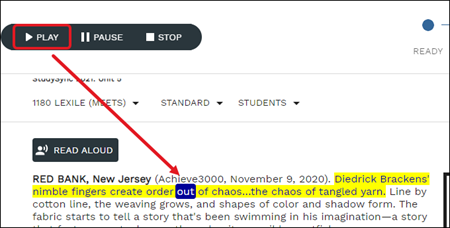
Read Aloud/Audio Settings
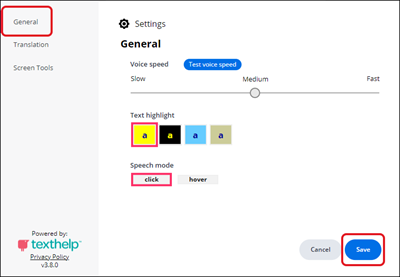
To change the Voice Speed and Text Highlight colors, select Settings from the Lesson Tool Menu. Then, select the General tab. Click the Save button to save any changes made.
Translate
Select any text in the lesson to bring up the Lesson Tools Menu. Select Translate from the pop-up menu.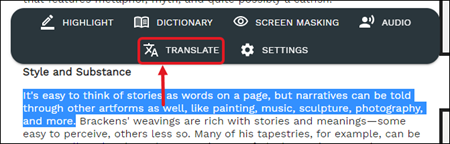
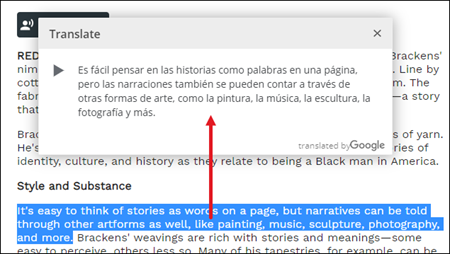
A pop-up will come up on the page with the translation of the selected text.
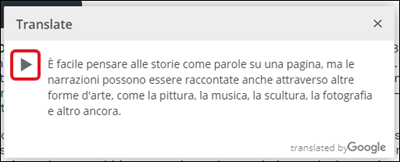
On the Translate pop-up, click the Play button to have the translated text read aloud.
Translate Settings
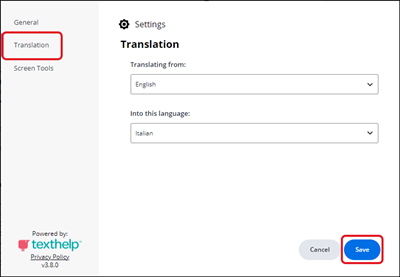
To change the Translating From and Translate To languages, select Settings from the Lesson Tool Menu. Then, select the Translate tab. Click the Save button to save any changes made.