Navigating the Achieve3000 Literacy Student Home Page
Learn how students use the Achieve3000 Literacy dashboard to access lessons and assignments.
- Customer Support
- PreK-12
- School Student
- School Parent
- Elementary School
- Middle School
- High School
- Direct Login & Auto-Rostering
- Direct Login & Manual-Rostering
- SSO & Auto-Rostering
- SSO & Manual-Rostering
- Supplemental
- Literacy
- Achieve3000 Literacy
- Getting Started & Orientation
- Dashboard & Navigation Overview


The home page is the starting point for students, providing them with the assigned article, information on their points and achievements, and links to important news and announcements.
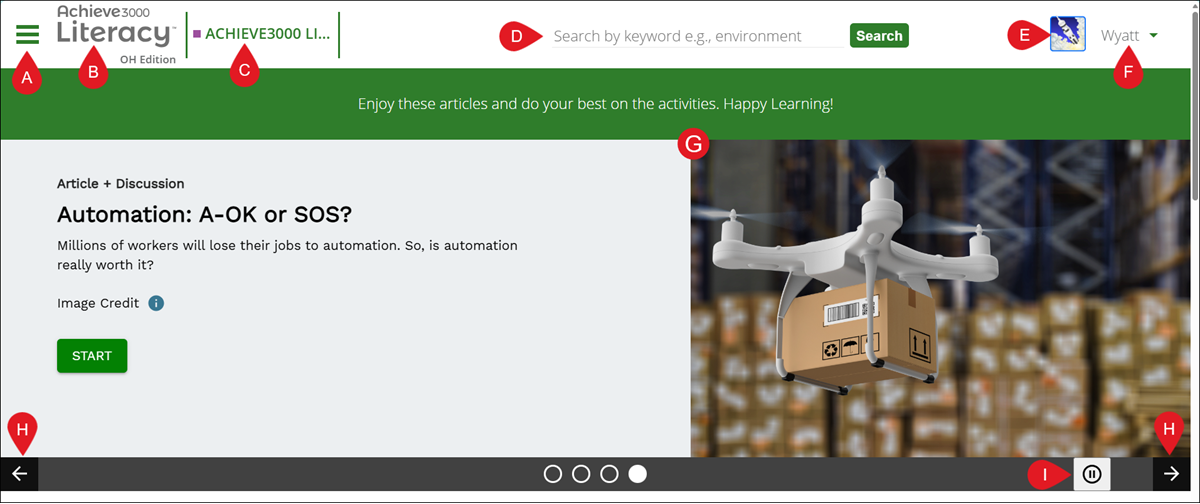
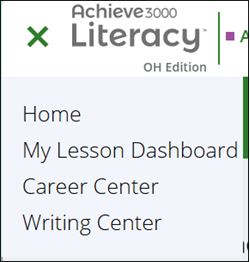
A. Main Menu - Use the menu button to access Home, My Lesson Dashboard, the Career Center, and the Writing Center.
B. Achieve3000 Literacy Logo - Click the logo to quickly navigate back to the home page.
C. Class Navigator - If assigned to more than one Achieve3000 Literacy class, click on the class name to navigate between them.
D. Search - Enter a keyword in the search field to located a specific/additional lessons.
E. Avatar - Click on the avatar image to select a different option.
F. User Preferences - Click on the name at the top-right to log out of the program.
G. Featured Lessons/Lesson Carousel - These are the top lessons scheduled for the current day. If more than one lesson is scheduled for the day, it will scroll between them.
H. Previous/Next Arrows - Click the back and forth arrows to navigate between the featured lessons.
I. Pause/Play - Click the pause/play button to activate/deactivate the lesson carousel.
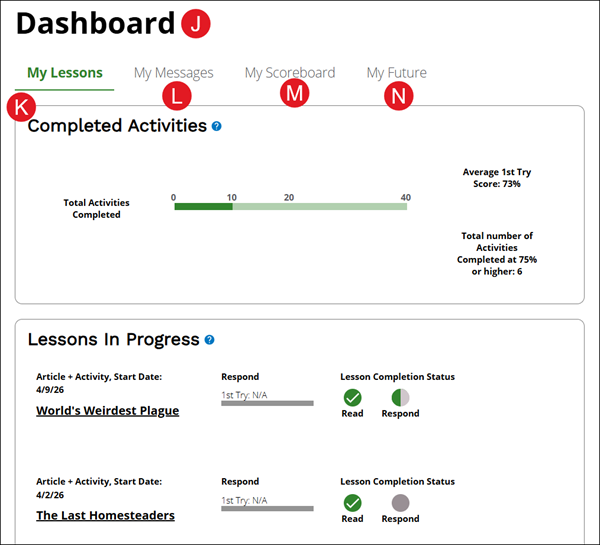
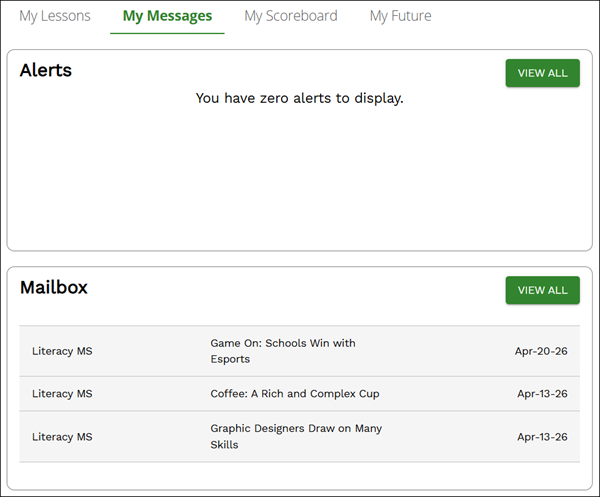
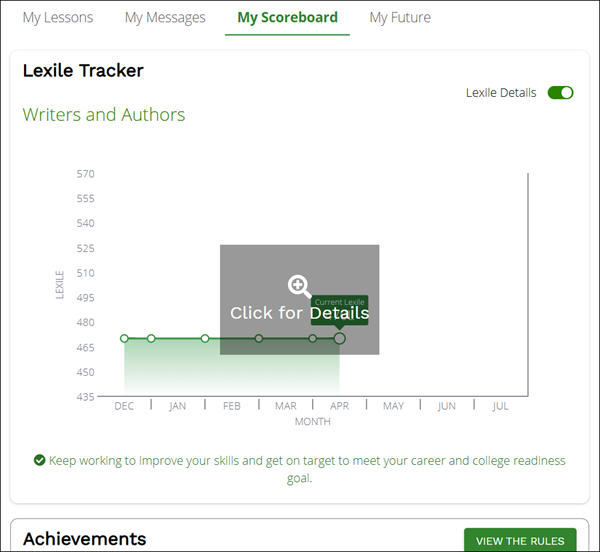
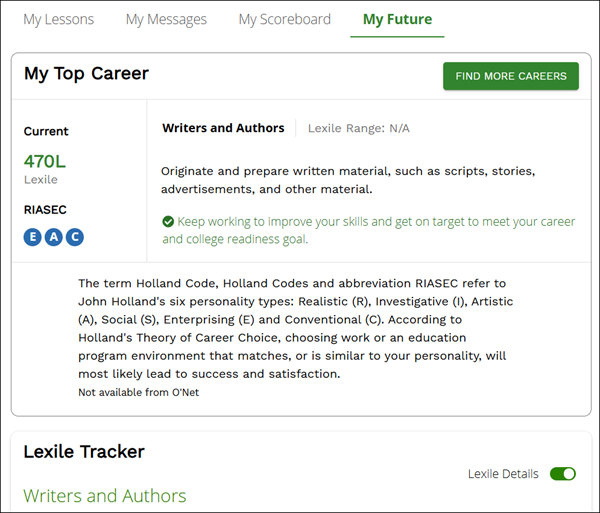
J. Dashboard - Provides access to the My Lessons, My Messages, My Scoreboard, and My Future tabs.
K. My Lessons - Shows the total number of activities that have been completed, the average first try score percentage, and the number of activities completed at 75 percent or higher.
It also provides a list of any Lessons In Progress. This section shows lessons that need to be finished. If the circle is fully colored with a check symbol, that step is done. Click on one of the other circles to finish that part.
L. My Messages - Shows any Alerts and the Mailbox, which contains any messages from the teacher.
M. My Scoreboard - Provides access to the Lexile Tracker, Achievements that have been earned, and student Points.
For more details on the My Scoreboard page, refer to the Achieve3000 Literacy - Student Lexile Tracker & Scoreboard article.
N. My Future - Provides the selected Top Career and the Lexile Tracker.
For more information on the Career Center and selecting a Top Career, refer to the Achieve3000 Literacy - Navigating the Career Center article.
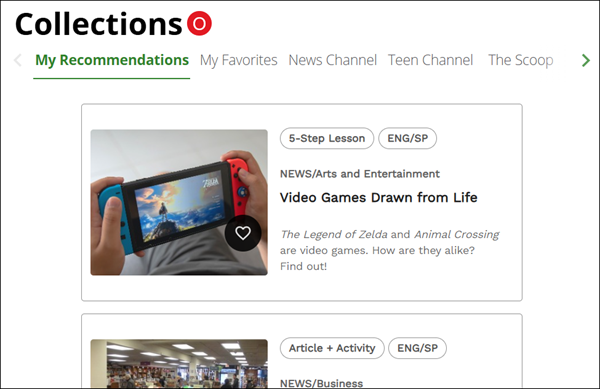
O. Collections - Provides lists of the available lessons for students to access, including those marked as favorites by clicking the heart icon on a lesson.