
Achieve3000 Literacy - Search Tool
Use the Achieve Literacy search tool to quickly find lessons, texts, and resources.
Tags
Supplemental
Getting Started & Orientation
Literacy
SSO & Manual-Rostering
Customer Support
Direct Login & Auto-Rostering
Tools & Resources
Middle School
Direct Login & Manual-Rostering
High School
Classroom Teacher
SSO & Auto-Rostering
PreK-12
Preschool
Achieve3000 Literacy
Elementary School


Search can be accessed by clicking the link at the top of any page within the
Teacher Edition. Students see a simplified version of the same tool.
Search allows teachers and students to locate additional lessons of interest that correspond to a specific theme or topic.
From the Dashboard, enter a keyword into the Search by keyword field to find lessons that correspond with the keyword.

Teachers can also access Advanced Search by clicking the magnifying glass without inputting any search terms.

On the Advanced Search page, enter a keyword in the Search field. Then, click the arrow next to Advanced Options to expand the additional search filter options.

Click the + icon next to the additional search filter you want to search by. Select an option from the drop-down provided.
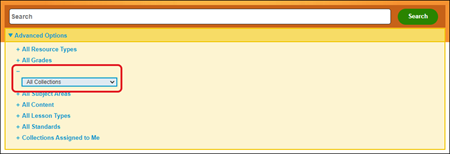
Click the Search button to bring up lessons based on the selections and keyword you have entered.
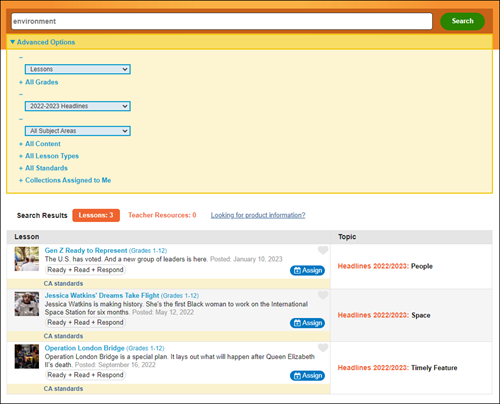
In the Search Results section, you can click on the Title of the article to open the lesson, click the Assign button to assign the lesson to individual students or the class, click the Heart icon to favorite the lesson, or click the Topic to view additional lessons for that selected Topic.
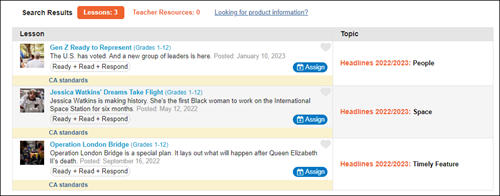
Search allows teachers and students to locate additional lessons of interest that correspond to a specific theme or topic.
From the Dashboard, enter a keyword into the Search by keyword field to find lessons that correspond with the keyword.
Teachers can also access Advanced Search by clicking the magnifying glass without inputting any search terms.
On the Advanced Search page, enter a keyword in the Search field. Then, click the arrow next to Advanced Options to expand the additional search filter options.
Click the + icon next to the additional search filter you want to search by. Select an option from the drop-down provided.
Click the Search button to bring up lessons based on the selections and keyword you have entered.
In the Search Results section, you can click on the Title of the article to open the lesson, click the Assign button to assign the lesson to individual students or the class, click the Heart icon to favorite the lesson, or click the Topic to view additional lessons for that selected Topic.