
Achieve3000 Literacy Rostering Changes for Back-to-School
Learn about Achieve3000 Literacy rostering changes for back‑to‑school, including Open Learning workflows and supported rostering methods.
- Customer Support
- PreK-12
- School Administrator
- Classroom Teacher
- Elementary School
- Middle School
- High School
- Direct Login & Auto-Rostering
- Direct Login & Manual-Rostering
- SSO & Auto-Rostering
- SSO & Manual-Rostering
- Supplemental
- Literacy
- Achieve3000 Literacy
- Getting Started & Orientation
- Back-to-School Setup
- Account Management
- User Management
- Class Management


Article Contents
Open Learning Rostering (Eventing + On-Demand SSO)
Additional Article
Achieve3000 Literacy Migration to My.Mheducation.com FAQ
A3K Class/Roster Wizard
How it currently works on Achieve3000 Literacy:
District staff can create, update, and delete classes, users, and enrollments from within Achieve Literacy.
How it will work with Open Learning:
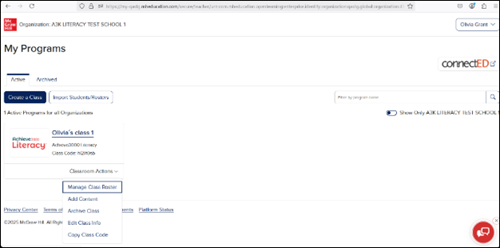
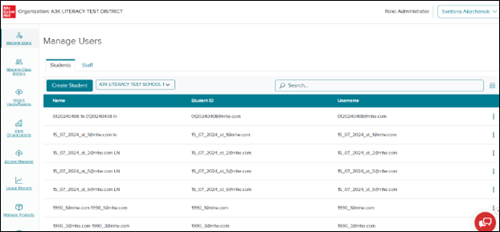
District staff will not have access to the Achieve3000 Literacy Class/Roster Wizard. However, they will be able to create, update, and delete classes, users, and enrollments from within Open Learning.
Teachers:
Administrators:
Manual Upload Process
How it currently works on Achieve3000 Literacy:
District staff fill out a csv template with the district roster data and upload the file. A Rostering Customer Support Specialist then handles the upload for the district.
Users currently access the program from the Achieve3000 Literacy login page.
How it will work with Open Learning:
Open Learning has the ability for Administrators to upload a csv or xlsx file with the district's roster data directly using the bulk upload process. Our McGraw Hill Digital Technical Support Team is available to assist with rostering if needed.
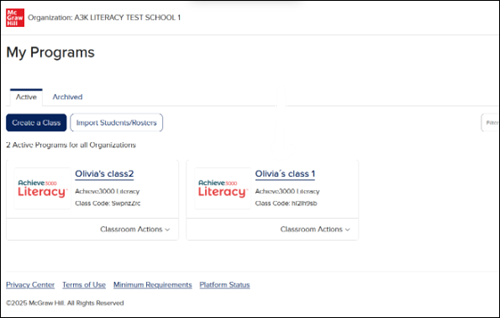
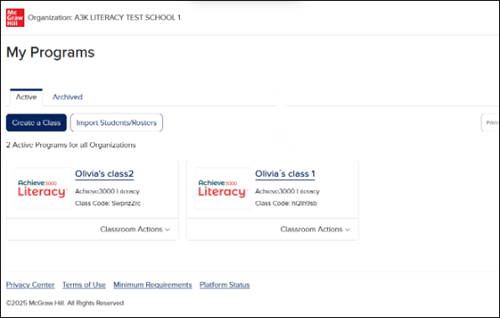
Teachers and students will access Achieve3000 Literacy by clicking on the class from their Open Learning Dashboard.
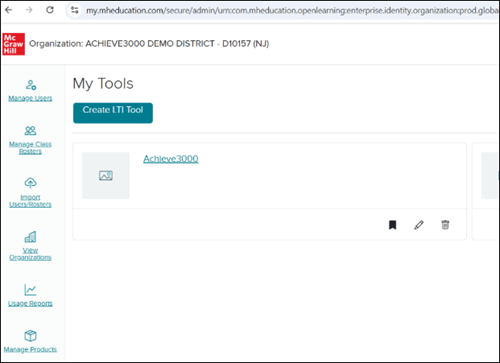
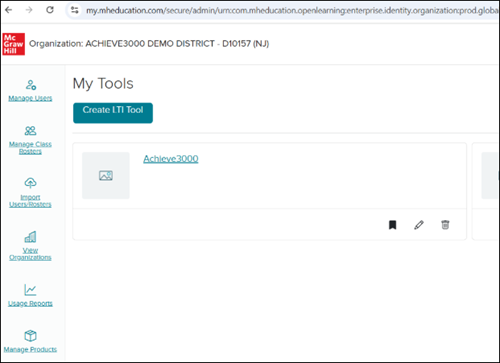
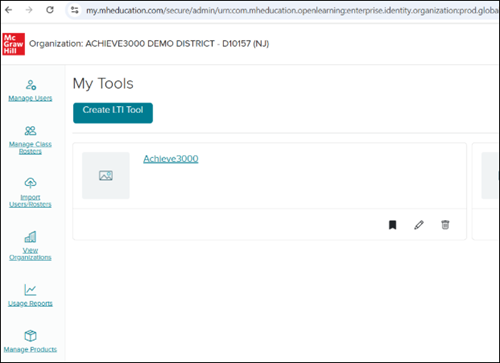
Administrators will be able to access Achieve3000 Literacy by clicking on the Achieve3000 link from the My Tools page in their Admin Tools.
Clever
How it currently works on Achieve3000 Literacy:
District staff upload csv files directly on Clever and set up sharing rules for Achieve Literacy. Clever automatically syncs nightly and synchronizes the data with Achieve3000 Literacy.
Most often Achieve3000 Literacy users access the program via Clever SSO.
How it will work with Open Learning:
District staff will continue to upload csv files directly on Clever and set up sharing rules for Achieve3000 Literacy. Clever formats the data in OneRoster format and uploads all the district data to an assigned SFTP. Clever sends the files every time changes are made, and then McGraw Hill will process the data every 12 hours.
Users will access Open Learning via Clever SSO and then access Achieve3000 Literacy from Open Learning.
Teachers and students will access Achieve3000 Literacy by clicking on the class from their Open Learning Dashboard.
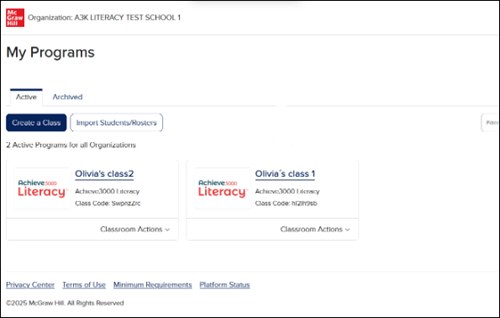
Administrators will be able to access Achieve3000 Literacy by clicking on the Achieve3000 link from the My Tools page in their Admin Tools.
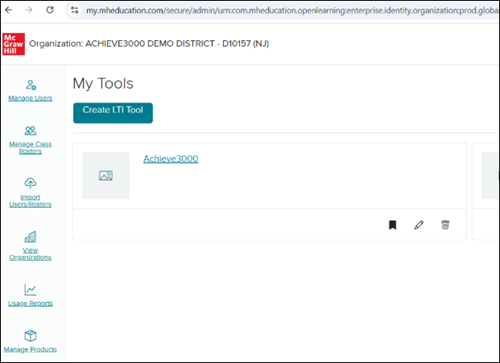
OneRoster
How it currently works on Achieve3000 Literacy:
District staff complete files in OneRoster format and send them to the Achieve SFTP server. OneRoster automatically syncs nightly and synchronizes the data with Achieve Literacy.
Users currently access the program from the Achieve3000 Literacy login page. If the district is set up via SAML SSO, users would log into their district portal and have a link accessibly with the login URL that links over to Achieve3000 Literacy.
How it will work with Open Learning:
District staff complete files in OneRoster format and send them to the McGraw Hill SFTP server. The roster data will be loaded each time the data is uploaded. Access Manager immediately processes the data after the files are successfully loaded from the SFTP site. District Administrators can manually upload the files by signing into Access Manager with their Administrator accounts.
Note: The districts that now use SAML SSO will be able to use it as well. They will need to set it up with McGraw Hill, and users will be able to SSO into Open Learning.
Users will be able to access Achieve3000 Literacy only from Open Learning.
Teachers and students will access Achieve3000 Literacy by clicking on the class from their Open Learning Dashboard.
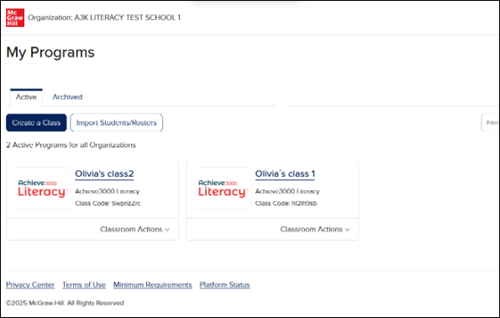
Administrators will be able to access Achieve3000 Literacy by clicking on the Achieve3000 link from the My Tools page in their Admin Tools.
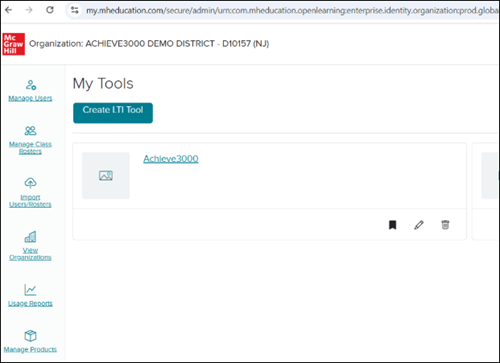
OneRoster API
How it currently works on Achieve3000 Literacy:
Districts keep their roster data in OneRoster format on a third-party site. OneRoster then automatically syncs nightly and synchronizes the data with Achieve3000 Literacy.
Users currently access the program from the Achieve3000 Literacy login page. If the district is set up via SAML SSO, users would log into their district portal and have a link accessibly with the login URL that links over to Achieve3000 Literacy.
How it will work with Open Learning:
Districts keep their data in OneRoster format on a third-party site. to use the API sync option, the district will need to enter the OneRoster® service URL, consumer key, and consumer secret on the Access Manager OneRoster® API Connection tab. Once the API sync has been set up, navigate to Access Manager, select "upload", and then "OneRoster® API Connection." To initiate the data pull, click on "Sync Data Now."
Note: The districts that now use SAML SSO will be able to use it as well. They will need to set it up with McGraw Hill, and users will be able to SSO into Open Learning.
Users will be able to access Achieve3000 Literacy only from Open Learning.
Teachers and students will access Achieve3000 Literacy by clicking on the class from their Open Learning Dashboard.
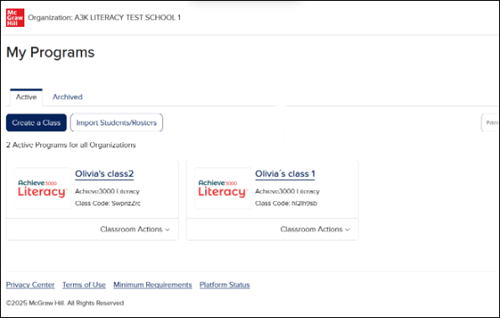
Administrators will be able to access Achieve3000 Literacy by clicking on the Achieve3000 link from the My Tools page in their Admin Tools.
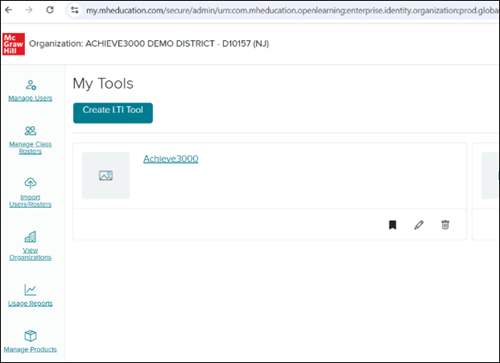
AutoUpload
How it currently works on Achieve3000 Literacy:
District staff completes a set of csv or txt files in a free format and sends them to the Achieve SFTP server. AutoUpload automatically syncs nightly and synchronizes with Achieve3000 Literacy.
Users currently access the program from the Achieve3000 Literacy login page. If the district is set up via SAML SSO, users would log into their district portal and have a link accessibly with the login URL that links over to Achieve3000 Literacy.
How it will work with Open Learning:
There's no alternative for McGraw Hill. Districts will need to use OneRoster type of rostering.
District staff complete files in OneRoster format and send them to the McGraw Hill SFTP server. The roster data will be loaded each time the data is uploaded. Access Manager immediately processes the data after the files are successfully loaded from the SFTP site. District Administrators can manually upload the files by signing into Access Manager with their Administrator accounts.
Note: The districts that now use SAML SSO will be able to use it as well. They will need to set it up with McGraw Hill, and users will be able to SSO into Open Learning.
Users will be able to access Achieve3000 Literacy only from Open Learning.
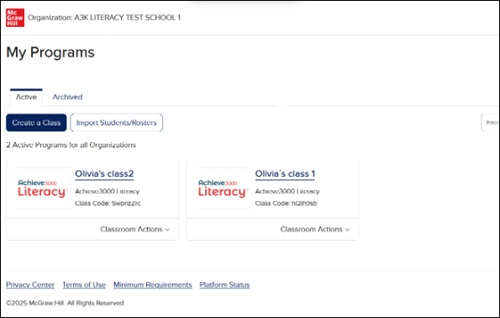
Teachers and students will access Achieve3000 Literacy by clicking on the class from their Open Learning Dashboard.
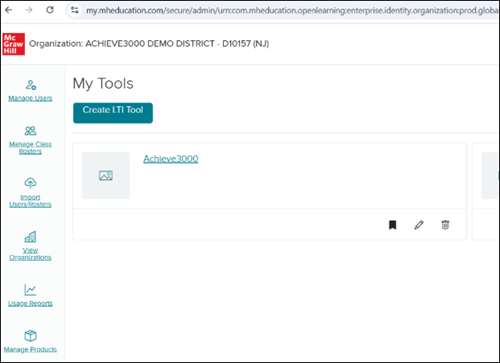
Administrators will be able to access Achieve3000 Literacy by clicking on the Achieve3000 link from the My Tools page in their Admin Tools.
Canvas On-Demand Rostering
How it currently works on Achieve3000 Literacy:
District keep and manage the data in the Canvas LMS.
When a teacher or students logs into Achieve3000 Literacy via Canvas SSO, the rostering for this user happens automatically. Teachers and students access Achieve3000 Literacy from the Canvas LMS via SSO by clicking on the Achieve3000 Literacy class.
How it will work with Open Learning:
There are no On-Demand types of rostering for McGraw Hill. These types of districts will need to use Single Sign-On (SSO) and Auto-Rostering services using IMS Global's OneRoster® standard.
District staff complete files in OneRoster format and send them to the McGraw Hill SFTP server. The roster data will be loaded each time the data is uploaded. Access Manager immediately processes the data after the files are successfully loaded from the SFTP site. District Administrators can manually upload the files by signing into Access Manager with their Administrator accounts.
Note: The districts that now use SAML SSO will be able to use it as well. They will need to set it up with McGraw Hill, and users will be able to SSO into Open Learning.
Users will be able to access Achieve3000 Literacy only from Open Learning.
Teachers and students will access Achieve3000 Literacy by clicking on the class from their Open Learning Dashboard.
Administrators will be able to access Achieve3000 Literacy by clicking on the Achieve3000 link from the My Tools page in their Admin Tools.
Schoology On-Demand Rostering
How it currently works on Achieve3000 Literacy:
Districts keep and manage the rostering data in the Schoology LMS.
When a teacher or students logs into Achieve3000 Literacy via Schoology SSO, the rostering for this user happens automatically. Teachers and students access Achieve3000 Literacy from the Schoology LMS via SSO by clicking on the Achieve3000 Literacy class.
How it will work with Open Learning:
There are no On-Demand types of rostering for McGraw Hill. These types of districts will need to use Single Sign-On (SSO) and Auto-Rostering services using IMS Global's OneRoster® standard.
District staff complete files in OneRoster format and send them to the McGraw Hill SFTP server. The roster data will be loaded each time the data is uploaded. Access Manager immediately processes the data after the files are successfully loaded from the SFTP site. District Administrators can manually upload the files by signing into Access Manager with their Administrator accounts.
Note: The districts that now use SAML SSO will be able to use it as well. They will need to set it up with McGraw Hill, and users will be able to SSO into Open Learning.
Users will be able to access Achieve3000 Literacy only from Open Learning.
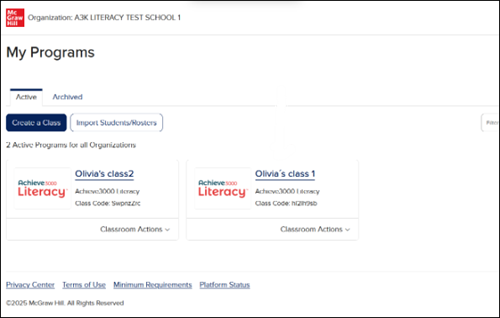
Teachers and students will access Achieve3000 Literacy by clicking on the class from their Open Learning Dashboard.
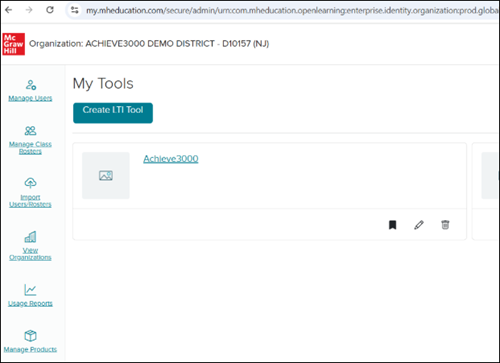
Administrators will be able to access Achieve3000 Literacy by clicking on the Achieve3000 link from the My Tools page in their Admin Tools.
Google On-Demand Rostering
How it currently works on Achieve3000 Literacy:
Districts roster data is stored on Google Classroom.
When a teacher or students logs into Achieve3000 Literacy via Google SSO, the rostering for this user happens automatically. Teachers and students access Achieve3000 Literacy from the login page by clicking on the Sign In with Google button.
How it will work with Open Learning:
There are no On-Demand types of rostering for McGraw Hill. These types of districts will need to use Single Sign-On (SSO) and Auto-Rostering services using IMS Global's OneRoster® standard.
District staff complete files in OneRoster format and send them to the McGraw Hill SFTP server. The roster data will be loaded each time the data is uploaded. Access Manager immediately processes the data after the files are successfully loaded from the SFTP site. District Administrators can manually upload the files by signing into Access Manager with their Administrator accounts.
Note: The districts that now use SAML SSO will be able to use it as well. They will need to set it up with McGraw Hill, and users will be able to SSO into Open Learning.
Users will be able to access Achieve3000 Literacy only from Open Learning.
Teachers and students will access Achieve3000 Literacy by clicking on the class from their Open Learning Dashboard.
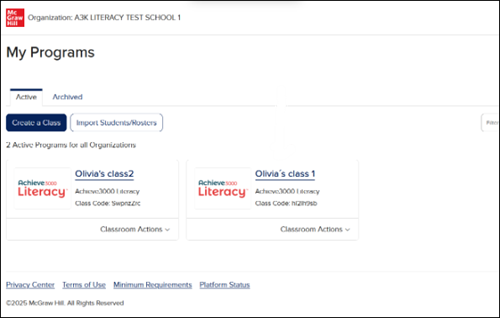
Administrators will be able to access Achieve3000 Literacy by clicking on the Achieve3000 link from the My Tools page in their Admin Tools.
Open Learning Rostering (Eventing + On-Demand SSO)
How it currently works on Achieve3000 Literacy:
Districts store roster data on Open Learning. Open Learning Eventing provides real-time, event-driven roster updates. This method ensures immediate and accurate synchronization of roster data.
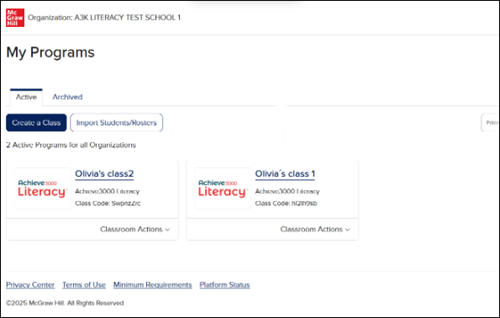
Teachers and students access Achieve3000 Literacy from Open Learning by clicking on one of the classes listed on their Dashboard.
How it will work with Open Learning:
There are no changes for this method and will work the same way as it currently does.
