Schedule or Reset Achieve3000 Literacy LevelSet Assessments
Use the LevelSet scheduler in Achieve3000 Literacy to plan and manage student placement assessments.
- Customer Support
- PreK-12
- Classroom Teacher
- Elementary School
- Middle School
- High School
- Direct Login & Auto-Rostering
- Direct Login & Manual-Rostering
- SSO & Auto-Rostering
- SSO & Manual-Rostering
- Supplemental
- Literacy
- Achieve3000 Literacy
- Online Assessments


Article Contents
Change Student Assessment Dates
View LevelSet Assessment Scores
Access the LevelSet Scheduler
1. Click to Open side menu.
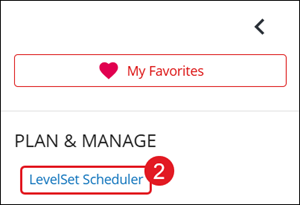
2. Click on LevelSet Scheduler.
3. Select English or Spanish depending on what needs to be scheduled.
4. Select the School Year from the drop-down.

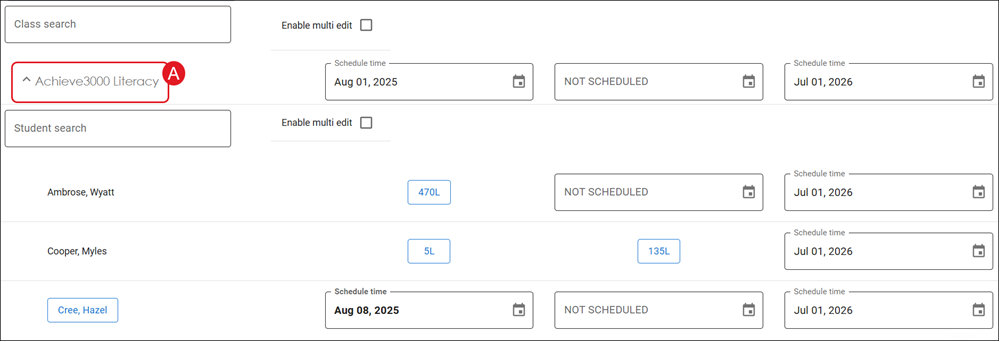
A. Click on a class name to expand the section.
Change Class Assessment Dates
LevelSet can be administered up to three times a year (Pre-Test, Interim, and Post-Test) to enhance the validity of students’ Lexile® reading scores and allow for greater precision in measuring reading gains and tracking progress toward College and Career Readiness targets and/or state proficiency targets.
Note: The date selected is when the assessment will become available for students to complete. Students will have to complete the test before they move on to their lessons, even if the date has passed.
1. Click on the calendar icon for the test you want to re/schedule.

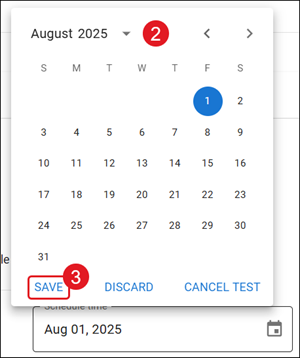
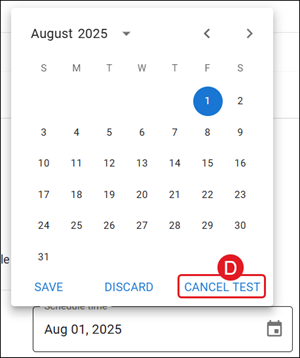
2. Click on a date from the pop-up calendar.
3. Click the Save button.
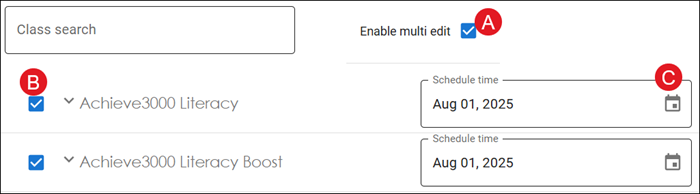
A. To change multiple class dates at once, check the Enable multi edit box.
B. Click the box next to each class.
C. Click the calendar icon to select a new date.
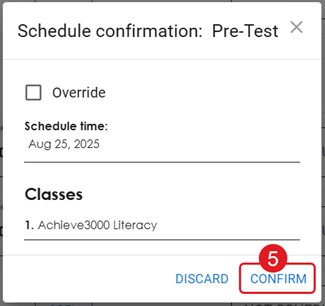
5. Click the Confirm button.
D. Click Cancel Test only if you do not want the class to take the assessment.
Change Student Assessment Dates
LevelSet can be administered up to three times a year (Pre-Test, Interim, and Post-Test) to enhance the validity of students’ Lexile® reading scores and allow for greater precision in measuring reading gains and tracking progress toward College and Career Readiness targets and/or state proficiency targets.
Note: The date selected is when the assessment will become available for students to complete. Students will have to complete the test before they move on to their lessons, even if the date has passed.
1. Click on the class name to expand the section to view the list of students.
2. Click on the calendar icon for the test you want to re/schedule.
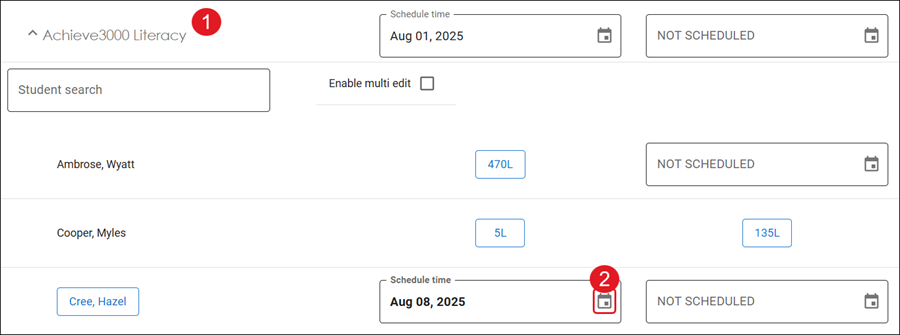
3. Click on a date from the pop-up calendar.
4. Click the Save button.
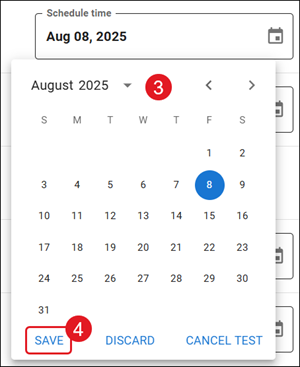
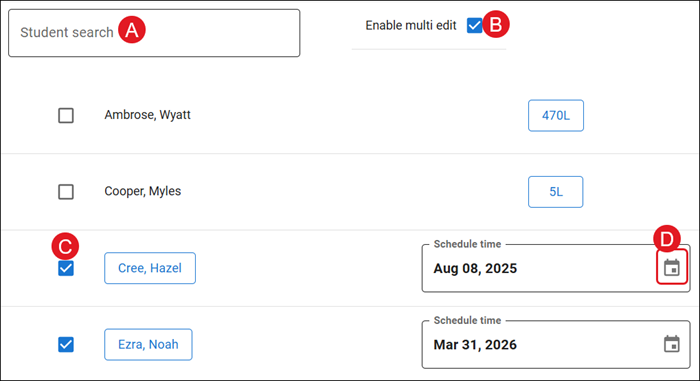
A. To easily locate a specific student, use the Student search field.
B. To change multiple student dates at once, check the Enable multi edit box.
C. Check the box next to each student.
D. Click the calendar icon to select a new date.
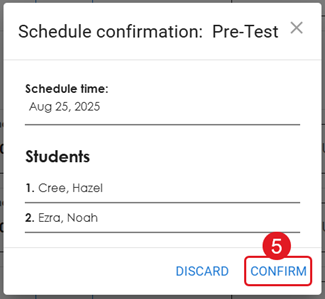
5. Click the Confirm button.
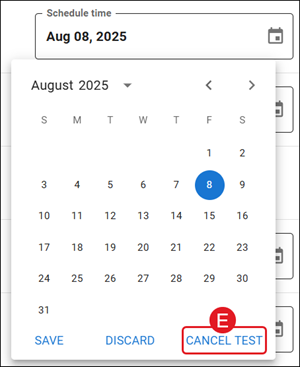
E. Click Cancel Test only if you do not want the student(s) to take the assessment.
LevelSet Not Appearing
There are a few reasons why students may not be receiving the test when they log in during your class period:
First, the test appears as a pop-up window, so pop-up blockers need to be disabled on the computers your students are working on while using the program. You may need to have a school tech disable the pop-up blockers, or create an exception for our website to allow pop-up windows to appear on the computers.
Second, the students need to log into the program during Supervised Student Work Time. If students are logging into the program outside of this window, the test will not appear for them.
Lastly, make sure that your students are logging into the same account that is associated to the class. Refer to the Open Learning - Manage Class Roster article for steps on viewing student logins for manual rostering districts.
If the student(s) are still not seeing the assessment, reach out to our PreK-12 support team for further assistance.
View LevelSet Assessment Scores
After your students have taken LevelSet, you should check their Lexile scores to be sure they are consistent with what is known about their reading abilities. When you review your students’ scores, look for results that match what you know about the student. A LevelSet test result that is lower or higher than other tests does not necessarily indicate an invalid administration.
As soon as one student in any of your classes finishes LevelSet, the Notification Center will display an alert with the following message: LevelSet scores are available! This message remains available as long as any student in any of your classes has taken LevelSet within the past three weeks.
You can review your students' test scores in the new LevelSet Scheduler tool as soon as they have completed their tests.
1. On the LevelSet Scheduler page, select English or Spanish depending on which was taken.
2. Select the school year.
3. Click on a class name to expand the section.
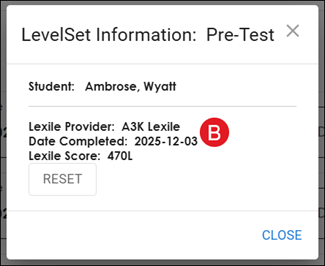
A. The Lexile score will show in that assessment's column for the student.

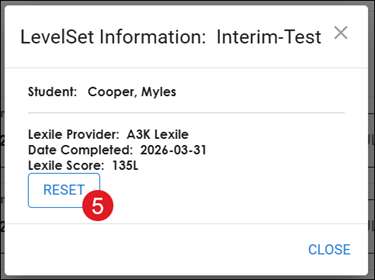
B. Click on the score to view the Date Completed.
You can also view students’ LevelSet scores using the Performance Report entitled How has Lexile reading measure performance changed over time? For steps on accessing Student Reports, refer to the Achieve3000 Literacy - Student Reports article.
Reset LevelSet Assessments
Teachers have 30 days after the administration of the test to reset a student's score and they will only be able to reset the most recent score (i.e. the Pre-test cannot be reset if the Interim was already completed). You may only re-administer LevelSet once per student per testing occasion. To help ensure the re-administered assessment results in a valid score, please prepare both the student and the testing environment.
Note: Resetting a LevelSet assessment cannot be undone so be sure that you want the student to retake the assessment.
1. On the LevelSet Scheduler page, select English or Spanish depending on which was taken.
2. Select the school year.
3. Click on a class name to expand the section.
4. The Lexile score will show in that assessment's column for the student.
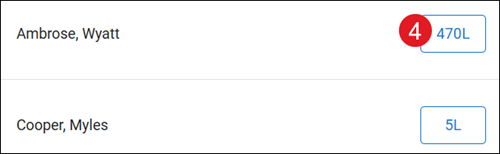
5. On the pop-up, click the Reset button.