Using the Achieve3000 Literacy Administrator LevelSet Scheduler
Use the administrator LevelSet scheduler in Achieve Literacy to manage placement testing.
- Customer Support
- PreK-12
- School Administrator
- Elementary School
- Middle School
- High School
- Direct Login & Auto-Rostering
- Direct Login & Manual-Rostering
- SSO & Auto-Rostering
- SSO & Manual-Rostering
- Supplemental
- Literacy
- Achieve3000 Literacy
- Online Assessments


Achieve3000 Literacy administrators have access to certain reports and assessment features, as well as have the ability to give other users access to management features.
To add or remove Administrator accounts, refer to the Manage User Accounts article.
Article Contents
Change District Assessment Dates
Change School Assessment Dates
Change Student Assessment Dates
LevelSet Scheduler Overview
To minimize practice effects for students who are administered the LevelSet multiple times, the LevelSet has been designed to prevent students from responding to the same items from one testing occasion to the next. However, there are instances, particularly when the LevelSet is reset and re-administered too many times, where students may respond to the same set of items that they have previously seen.
The LevelSet contains 11 grade-level versions ranging from Grades 2-12, and each grade-level version is unique in that the items only occur at one grade level and are not shared across grade levels. After the very first Pre-Test LevelSet that students ever complete, the grade-level version that they are assigned to is based on their Lexile measure. As such, if a student’s Lexile level increases between LevelSet administrations (i.e., within a school year, or even from one school year to the next), they will be assigned to a different LevelSet with a new set of items.
Within each grade level, there are three alternative forms of the LevelSet, and each alternative form is unique in that the items only occur on one alternative form and are not shared across alternative forms. The following logic is in place to ensure that students who complete the LevelSet up to three times at the same grade level within the same or following school year are assigned to different sets of items:
- The first time a student tests at a particular LevelSet grade level, they are randomly assigned to receive one of the three alternative forms.
- If a student tests at the same LevelSet grade level a second time, they are randomly assigned to receive one of the two remaining forms.
- If a student tests at the same LevelSet grade level a third, they are assigned to the remaining form.
If a student’s Lexile measure remains at the same grade level for up to 6 administrations of the LevelSet within the same or following school year, the following logic is in place to ensure that the student continues to be assigned to a different set of items on the fourth to sixth administrations. Note that this is accomplished by assigning the next higher grade-level version of the LevelSet:
- If a student is at the same LevelSet grade level a fourth time, they are randomly assigned to one of the three alternative forms of the LevelSet at the next grade level.
- If a student is at the same LevelSet grade level a fifth time, they are randomly assigned to one of the two remaining forms at the next grade level.
- If a student is at the same LevelSet grade level a sixth time, they are randomly assigned to the remaining form at the next grade level.
If a student’s Lexile measure remains at the same grade level for more than 6 administrations of the LevelSet within the same or following school year, they will then begin to receive items that they have previously seen, specifically:
- If a student is at the same LevelSet grade level a seventh time, they are re-assigned to one of the alternative forms of the LevelSet at that grade level.
- After the seventh time of testing at the same LevelSet grade level, the Achieve3000 Literacy system loops back to the same logic as is used for testing at the same level a second to sixth time.
In summary, if a student is tested at the same grade level up to six times within the same or the following school year, they will receive a different LevelSet with new items each time. However, for the fourth to sixth time, those items will be from the LevelSet at the next grade level. If a student is tested at the same grade level more than six times, they will begin to receive a version of the LevelSet to which they have previously been assigned.
Access the LevelSet Scheduler
1. Sign into your Administrator account.
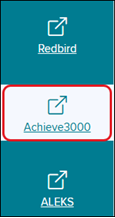
2. Launch Achieve3000 from the navigation menu.
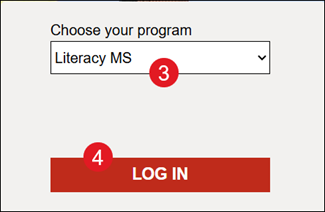
3. Select Literacy MS from the drop-down.
4. Click the Log In button.
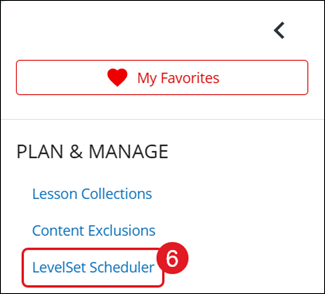
5. Click to Open side menu.
6. Click on LevelSet Scheduler.
7. Select English or Spanish depending on what needs to be scheduled.
8. Select the School Year from the drop-down.

Change District Assessment Dates
LevelSet can be administered up to three times a year (Pre-Test, Interim, and Post-Test) to enhance the validity of students’ Lexile® reading scores and allow for greater precision in measuring reading gains and tracking progress toward College and Career Readiness targets and/or state proficiency targets.
Note: The date selected is when the assessment will become available for students to complete. Students will have to complete the test before they move on to their lessons, even if the date has passed.
1. If associated to more than one district, Select a District from the drop-down.
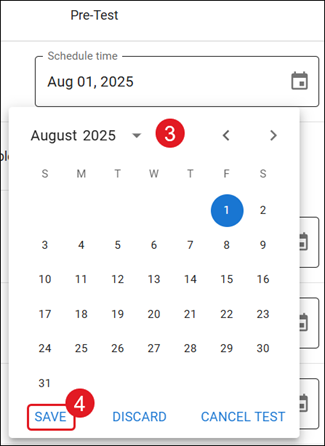
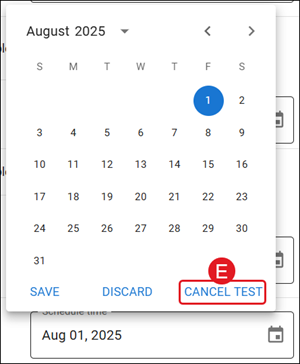
2. Click on the calendar icon for the test you want to re/schedule.

3. Click on a date from the pop-up calendar.
4. Click the Save button.
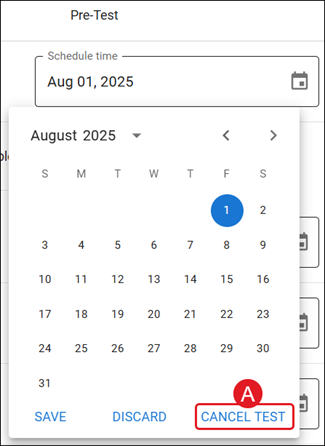
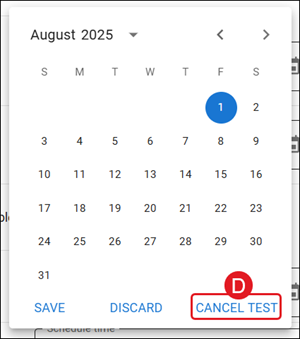
A. Click Cancel Test only if you do not want the students to take the assessment.
Change School Assessment Dates
1. If associated to more than one district, Select a District from the drop-down.
A. Enter a school name in the School search to locate a specific school easily.
B. To change dates for multiple schools at one time, check the Enable multi edit box and then select the check box next to each school.
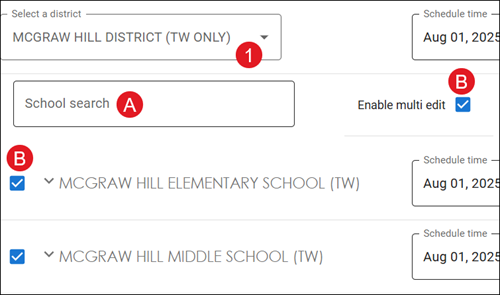
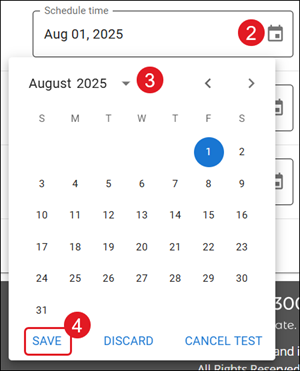
2. To the right of the school, click on the calendar icon for the test you want to re/schedule.
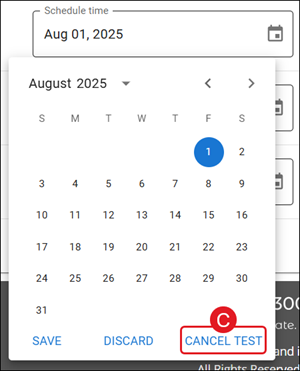
3. Click on a date from the pop-up calendar.
4. Click the Save button.
C. Click Cancel Test only if you do not want the students assigned to that school to take the assessment.
Change Class Assessment Dates
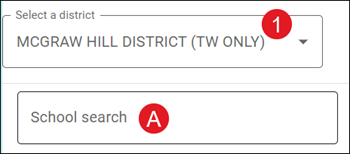
1. If associated to more than one district, Select a District from the drop-down.
A. Enter a school name in the School search to locate a specific school easily.
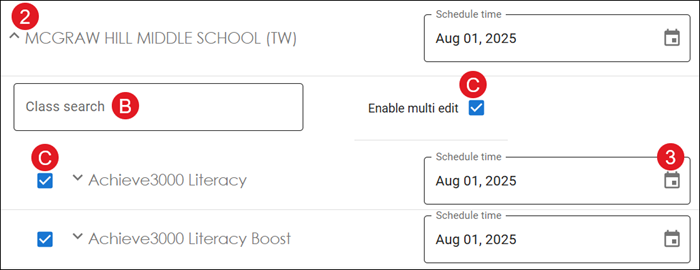
2. Click to expand the school to view the list of classes.
B. Enter a class name in the Class search to locate a specific class easily.
C. To change dates for multiple classes at one time, check the Enable multi edit box and then select the check box next to each class.
3. To the right of the class, click on the calendar icon for the test you want to re/schedule.
4. Click on a date from the pop-up calendar.
5. Click the Save button.
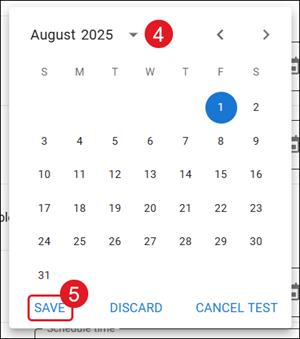
D. Click Cancel Test only if you do not want the students assigned to that class to take the assessment.
Change Student Assessment Dates
1. If associated to more than one district, Select a District from the drop-down.
A. Enter a school name in the School search to locate a specific school easily.
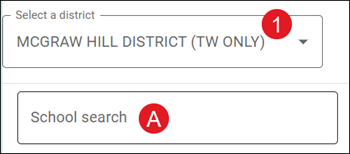
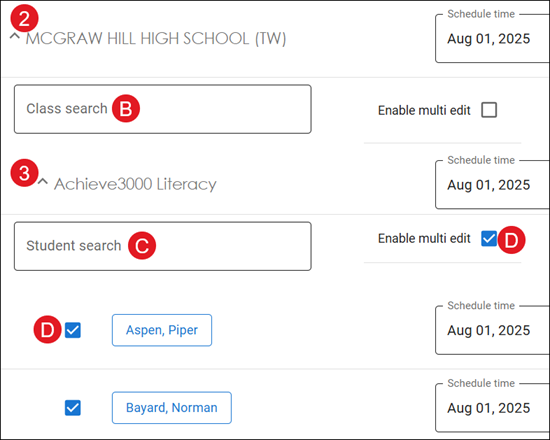
2. Click to expand the school to view the list of classes.
B. Enter a class name in the Class search to locate a specific class easily.
3. Click to expand the class to view the list of students.
C. Enter a student name in the Student search to locate a specific student easily.
D. To change dates for multiple students at one time, check the Enable multi edit box and then select the check box next to each student.
4. To the right of the student, click on the calendar icon for the test you want to re/schedule.
5. Click on a date from the pop-up calendar.
6. Click the Save button.
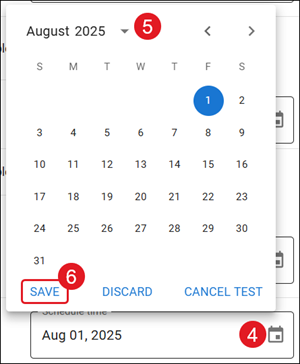
E. Click Cancel Test only if you do not want the student to take the assessment.
Reset LevelSet Assessment
Teachers and Administraotrs have 30 days after the administration of the test to reset a student's score and they will only be able to reset the most recent score (i.e. the Pre-test cannot be reset if the Interim was already completed). You may only re-administer LevelSet once per student per testing occasion. To help ensure the re-administered assessment results in a valid score, please prepare both the student and the testing environment.
Note: Resetting a LevelSet assessment cannot be undone so be sure that you want the student to retake the assessment.
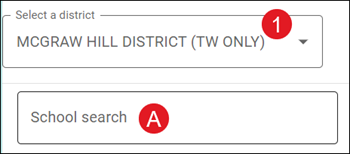
1. If associated to more than one district, Select a District from the drop-down.
A. Enter a school name in the School search to locate a specific school easily.
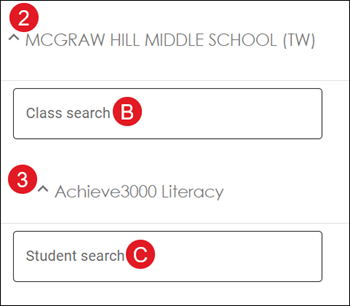
2. Click to expand the school to view the list of classes.
B. Enter a class name in the Class search to locate a specific class easily.
3. Click to expand the class to view the list of students.
C. Enter a student name in the Student search to locate a specific student easily.
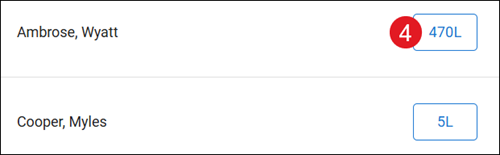
4. Click on the Lexile score for the student.
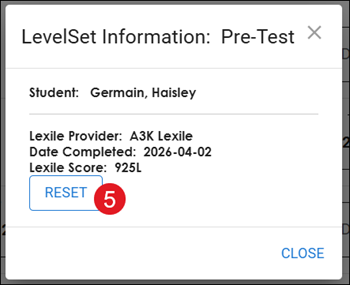
5. On the pop-up, click the Reset button.
If the button is grayed out, this means it is past the 30-day reset period.