Grade Written Responses in Achieve3000 Literacy Assignments
Instructions on how to manually grade written responses in Achieve3000 Literacy assignments.
- Customer Support
- PreK-12
- Classroom Teacher
- Elementary School
- Middle School
- High School
- Direct Login & Auto-Rostering
- Direct Login & Manual-Rostering
- SSO & Auto-Rostering
- SSO & Manual-Rostering
- Supplemental
- Literacy
- Achieve3000 Literacy
- Grades & Assignments
- Online Assessments


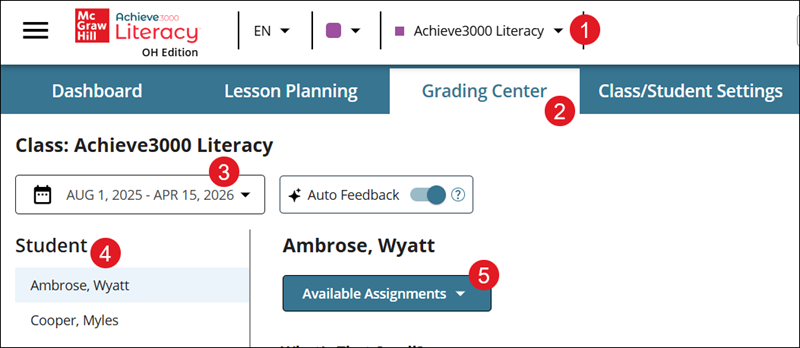
1. Select the class if there's more than one.
2. Click Grading Center from the home page.
3. Select the date range for the assignment.
4. Select the Student from the list.
5. Select the assignment from the Available Assignments list.
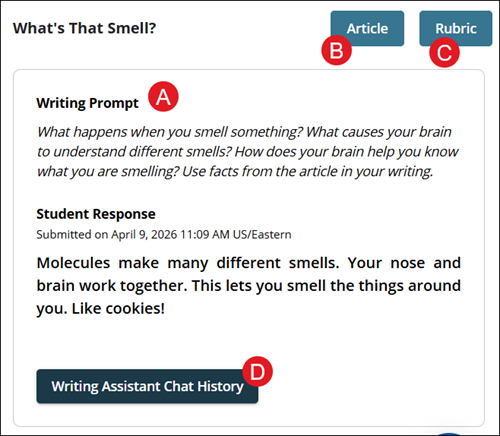
A. The Writing Prompt will show on the left with the Student Response.
B. Click the Article button to view the lesson in a new browser window.
C. Click the Rubric button to open a new browser window with the lesson rubric.
D. Click the Writing Assistant Chat History button to view what was entered into the tool by the student.
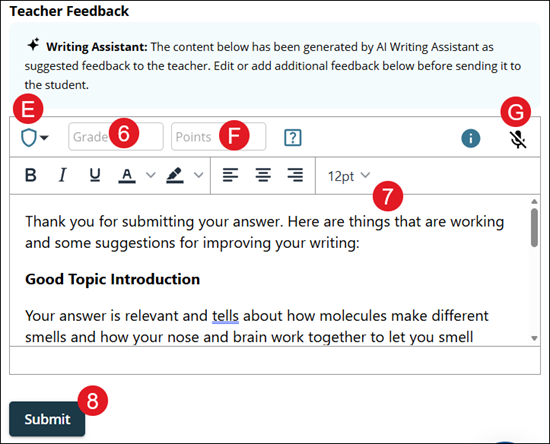
E. Click the Achievements drop-down to select an award. This is optional.
To view the list of Achievements and their meanings, click the Rules for Earning Points and Achievements question mark.
F. Enter the number of award Points for the student's response. This is optional.
G. Click the microphone icon to enable voice recognition.
6. Enter the Grade in the provided field.
7. Enter your teacher feedback.
If Auto Feedback is turned on, the Automatic Writing Assistant Feedback can be reviewed above the teacher feedback section.
8. Click the Submit button.