Achieve3000 Literacy - Grade Written Responses
Learn how to grade written responses in Achieve Literacy.
Tags
- Supplemental
- Getting Started & Orientation
- Literacy
- SSO & Manual-Rostering
- Customer Support
- Grades & Assignments
- Direct Login & Auto-Rostering
- Middle School
- Direct Login & Manual-Rostering
- High School
- Classroom Teacher
- SSO & Auto-Rostering
- PreK-12
- Preschool
- Achieve3000 Literacy
- Elementary School
There are two ways to navigate to the Grading page:
Option 1:
Click on the Side Menu, and select Student Work from the menu.
Option 2:
Click the A+ Gradebook icon at the top right of the Teacher Dashboard.
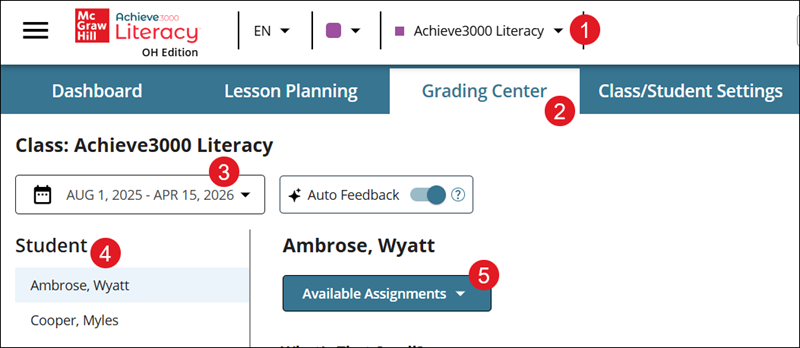
A. On the Grading page, select the Start and End Date to filter to select the date range for which you want to see submitted responses. You can select any dates within your school year. The default start date is one month back from today’s date and the default end date is today.
B. In the By Student column on the left, click on a student’s name to populate the main grading panel with the responses submitted by that student.
C. If the student has submitted written work for more than one lesson, the lessons will appear in a dropdown next to the student’s name, listed from the earliest date of submission to the most recent.
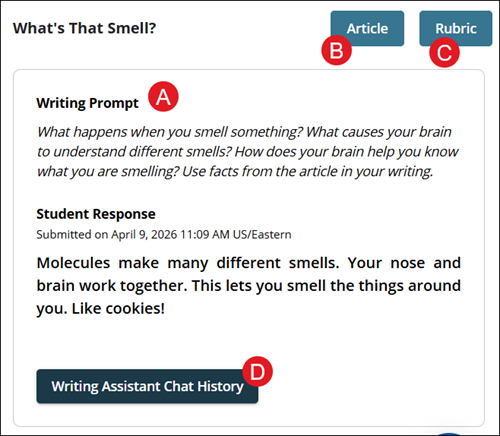
D. You can review the prompt the student responded to by clicking the arrow and expanding the Prompt blade.
E. The Student Response window contains the text submitted by the student. If the student has submitted more than one response for the same Write prompt, these will appear in numbered tabs (Response 1, Response 2…) from left to right in the grading panel, with the earliest response listed first.
F. You can refer to the Lexile-leveled version of the article the student read for that lesson by clicking the Article button at the top right side of the grading panel. This will open in a separate browser window.
G. View the rubric for the completed Lesson by clicking the Rubric button. This will open in a separate browser window.
H. Click the Print button to print the student's Thought Question response.
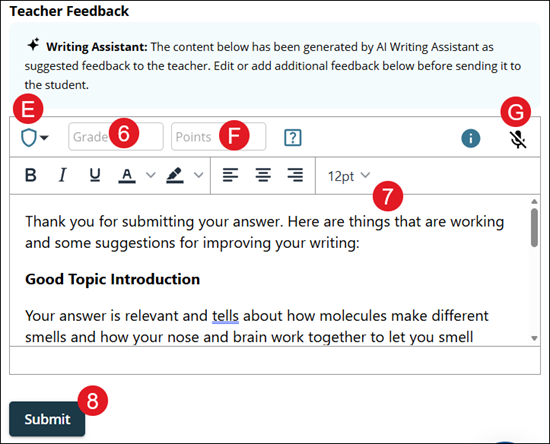
I. Use the Teacher Comments area to type any written feedback to the student on their submission.
J. Click the Microphone icon to allow voice recognition.
K. Select a badge from the drop-down if you want to award the student with an Achievement.
L. Enter a Grade in the provided field. This is optional.
M. Enter Points for the student response in the provided field. This is optional.
Note: At least one type of input (written feedback, grade, points, or achievement) is required before a submission is considered “graded”.
N. Once you have completed your input on a given submission, click the Send to Student button to finalize your input.
Option 1:
Click on the Side Menu, and select Student Work from the menu.
Option 2:
Click the A+ Gradebook icon at the top right of the Teacher Dashboard.
A. On the Grading page, select the Start and End Date to filter to select the date range for which you want to see submitted responses. You can select any dates within your school year. The default start date is one month back from today’s date and the default end date is today.
B. In the By Student column on the left, click on a student’s name to populate the main grading panel with the responses submitted by that student.
C. If the student has submitted written work for more than one lesson, the lessons will appear in a dropdown next to the student’s name, listed from the earliest date of submission to the most recent.
D. You can review the prompt the student responded to by clicking the arrow and expanding the Prompt blade.
E. The Student Response window contains the text submitted by the student. If the student has submitted more than one response for the same Write prompt, these will appear in numbered tabs (Response 1, Response 2…) from left to right in the grading panel, with the earliest response listed first.
F. You can refer to the Lexile-leveled version of the article the student read for that lesson by clicking the Article button at the top right side of the grading panel. This will open in a separate browser window.
G. View the rubric for the completed Lesson by clicking the Rubric button. This will open in a separate browser window.
H. Click the Print button to print the student's Thought Question response.
I. Use the Teacher Comments area to type any written feedback to the student on their submission.
J. Click the Microphone icon to allow voice recognition.
K. Select a badge from the drop-down if you want to award the student with an Achievement.
L. Enter a Grade in the provided field. This is optional.
M. Enter Points for the student response in the provided field. This is optional.
Note: At least one type of input (written feedback, grade, points, or achievement) is required before a submission is considered “graded”.
N. Once you have completed your input on a given submission, click the Send to Student button to finalize your input.