
Achieve3000 Literacy - Enable Auto-Adjustments After the Post-test (Administrator)
Enable automatic Lexile adjustments after post-tests in Achieve Literacy as an administrator.
Tags
- Supplemental
- Literacy
- SSO & Manual-Rostering
- Customer Support
- User Guides & Account Management
- Direct Login & Auto-Rostering
- Middle School
- Direct Login & Manual-Rostering
- High School
- SSO & Auto-Rostering
- PreK-12
- School Administrator
- Preschool
- Achieve3000 Literacy
- Elementary School


By default, the monthly Lexile adjustments are set to only occur prior to the
LevelSet Post-Test. However, if students will continue using the Achieve3000 Literacy program after they complete the LevelSet Post-Test, school administrators can set the monthly Lexile adjustments to continue after the LevelSet Post-Test.
As Achieve3000 administrators, you will have access to certain reports and features. Administrators have the ability to give users access to manager features, too!
Enable at District Level
1. From the
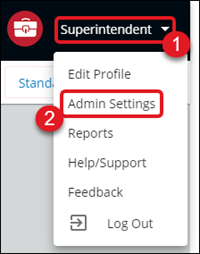
Dashboard, click on your name at the top right of the page.
2. Select Admin Settings from the menu.
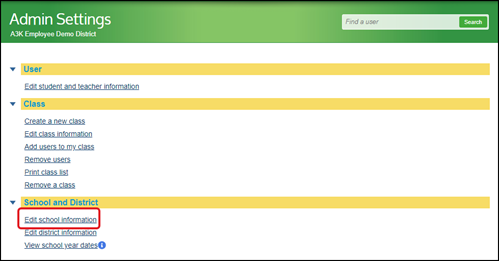
3. From the Admin Settings page, click the Edit school information link under the School and District blade.
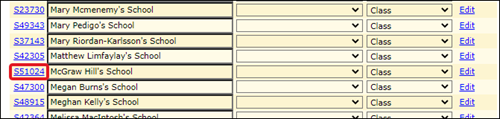
4. Click the School Code link next to the school you want to adjust.
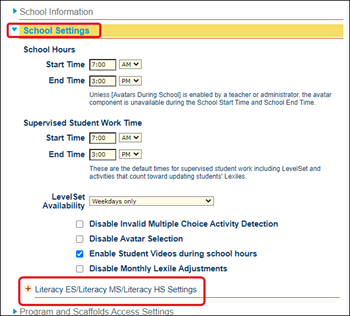
5. Under the School Settings blade, click on the Literacy ES/Literacy MS/Literacy HS Settings link to expand the section.
6. Check the box next to Continue Lexile Adjustments after post test.
7. Click Submit at the bottom of the page.
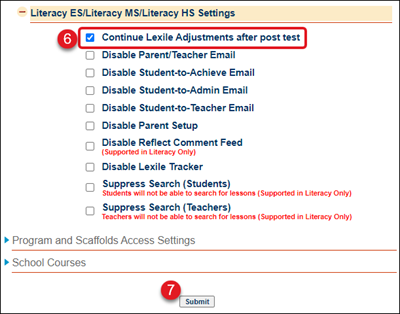
2. Select Admin Settings from the menu.
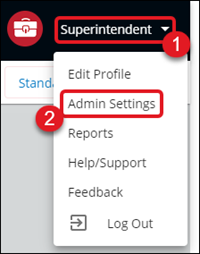
3. From the Admin Settings page, click the Edit district information link under the School and District blade.
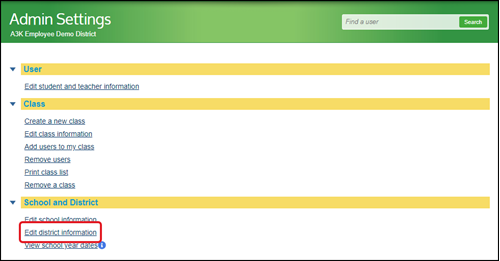
4. Under the District Settings blade, click on the Literacy ES/Literacy MS/Literacy HS Settings link to expand the section.
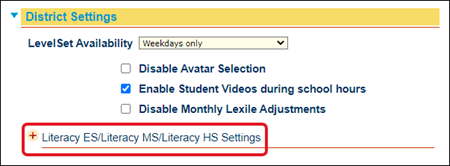
5. Check the box next to Continue Lexile Adjustments after post test.
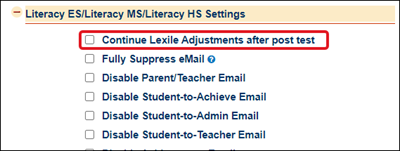
6. Click Submit at the bottom of the page.
As Achieve3000 administrators, you will have access to certain reports and features. Administrators have the ability to give users access to manager features, too!
Note: If you need administrator access in Actively Learn, you will need to reach out to our K-12 Technical Support team to have this activated. You will then receive direct login information for the Achieve3000 site.
Sections Covered
Enable at School LevelEnable at District Level
Enable at School Level
1. From the
Dashboard, click on your name at the top right of the page.
2. Select Admin Settings from the menu.
3. From the Admin Settings page, click the Edit school information link under the School and District blade.
4. Click the School Code link next to the school you want to adjust.
5. Under the School Settings blade, click on the Literacy ES/Literacy MS/Literacy HS Settings link to expand the section.
6. Check the box next to Continue Lexile Adjustments after post test.
7. Click Submit at the bottom of the page.
Enable at District Level
1. From the Dashboard, click on your name at the top right of the page.2. Select Admin Settings from the menu.
3. From the Admin Settings page, click the Edit district information link under the School and District blade.
4. Under the District Settings blade, click on the Literacy ES/Literacy MS/Literacy HS Settings link to expand the section.
5. Check the box next to Continue Lexile Adjustments after post test.
6. Click Submit at the bottom of the page.