
Achieve3000 Literacy - Edit Student Lexile Level
Learn how to edit a student's Lexile level in Achieve Literacy when adjustments are needed.
Tags
- Supplemental
- Getting Started & Orientation
- Literacy
- SSO & Manual-Rostering
- Customer Support
- Direct Login & Auto-Rostering
- Middle School
- Class Management
- Direct Login & Manual-Rostering
- High School
- Classroom Teacher
- SSO & Auto-Rostering
- PreK-12
- Preschool
- Achieve3000 Literacy
- Elementary School


A student's Lexile level may only be manually adjusted by a teacher or administrator within 3 weeks of the Pre-test LevelSet Assessment.
Please be aware that changing student Lexile Levels will impact growth calculations and future Lexile adjustments. After a student's Lexile has been manually adjusted, please allow a minimum of 4 weeks and the completion of 8 activities to pass before a student will be considered for their next automatic Lexile Level adjustment.
1. Launch your Achieve Literacy class.
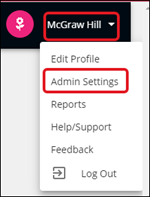
2. Click your name in the top right of the Teacher Dashboard.
3. Select Admin Settings from the menu.
4. There are two ways to access the Edit User page:
Option 1:
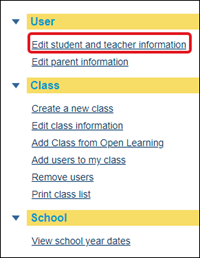
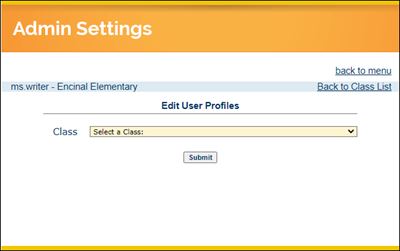
Click the Edit student and teacher information link from the User section. Select the Class from the drop-down. Click the Submit button.
Option 2:
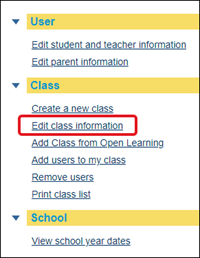
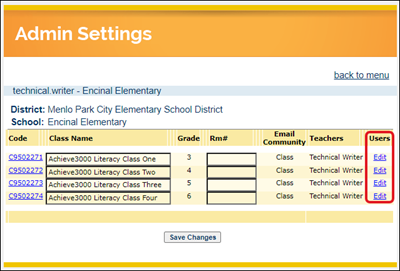
Click the Edit class information link from the Class section. Click the Edit link next to the class the student is assigned to.
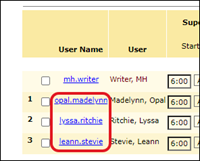
5. Click on the student's name you want to edit the Lexile level for.
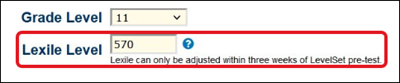
6. In the Lexile Level field, enter the Lexile you want the student to be assigned to.
If the current date is beyond the 3-week window, the student account will include the message indicated below:
7. Click the Submit button at the bottom to save.
Please be aware that changing student Lexile Levels will impact growth calculations and future Lexile adjustments. After a student's Lexile has been manually adjusted, please allow a minimum of 4 weeks and the completion of 8 activities to pass before a student will be considered for their next automatic Lexile Level adjustment.
1. Launch your Achieve Literacy class.
2. Click your name in the top right of the Teacher Dashboard.
3. Select Admin Settings from the menu.
4. There are two ways to access the Edit User page:
Option 1:
Click the Edit student and teacher information link from the User section. Select the Class from the drop-down. Click the Submit button.
Option 2:
Click the Edit class information link from the Class section. Click the Edit link next to the class the student is assigned to.
5. Click on the student's name you want to edit the Lexile level for.
6. In the Lexile Level field, enter the Lexile you want the student to be assigned to.
If the current date is beyond the 3-week window, the student account will include the message indicated below:
7. Click the Submit button at the bottom to save.