What are the guidelines for uploading my own content?
Review the guidelines for uploading your own content in Create, including formatting and permissions.
- Higher Education
- Customer Support
- Create
- User Guides & Account Management
- Instructor


Rights and Permissions: This service has been provided to allow you to include content you have authored or have full rights to copy and distribute. Please ensure you are in compliance with all copyright laws before uploading anything. McGraw Hill will not be held liable for the unlawful use of copyrighted materials. By checking the authorization box, you agree to indemnify the McGraw Hill Companies against any and all abuse of intellectual property and copyright laws relating to the file(s) you upload.
Portrait vs. Landscape: Only 8.5 x 11” portrait pages are supported. Your preview will present you with an exact replica of the document you uploaded (a landscape Excel document or a PowerPoint presentation will appear in landscape in your preview). However, these pages will not be rotated to portrait when including in the 8.5 x 11” custom book. The printer will cut off the image, producing unsatisfactory results. Print preview your original document on your computer before uploading to ensure the contents of each page appear in portrait.
Macros and Form Fields: Ensure your document does not have macros or form fields. To prevent software viruses, these files will not be uploaded or converted.
File format: Our PDF converter converts many of the most common file formats. Check our list of supported file formats below before attempting to upload a file.
Apple Users: The Apple operating systems do not require the use of three-letter file extensions. However, our PDF converter will not accept a file without a supported file extension. Before uploading, rename your file to conform to standard PC file naming conventions "filename.xxx," in which “filename” is the name of your content and ".xxx" is your file’s extension, usually dependent on what program you used to produce it. See the list of supported file formats above.
Page Dimensions: Our PDF converter resizes the image area of your page to 85% of the original to provide room for the custom book header. (You will see the header on your PDF when you preview it.) If your custom book page size has been set to 6 x 9”, you will not be able to use this feature without first converting your book to 8.5 x 11”.
File size: The larger the file, the greater the chance something will go wrong either with the upload or the conversion. If your conversion fails, consider breaking your document into smaller pieces and trying again with multiple files.
Images: Documents with many illustrations or photos can be very large and may cause conversion to fail. If your conversion fails, consider breaking your document in smaller pieces and trying again with multiple files.
Fonts: Our PDF converter has hundreds of the most common fonts. If your converted file shows strange character spacing or odd typeface substitutions, consider using a different font and try again.
Create allows you to upload your own custom content to use in a Project. Content can be text, spreadsheets, presentations, pictures, or graphics.
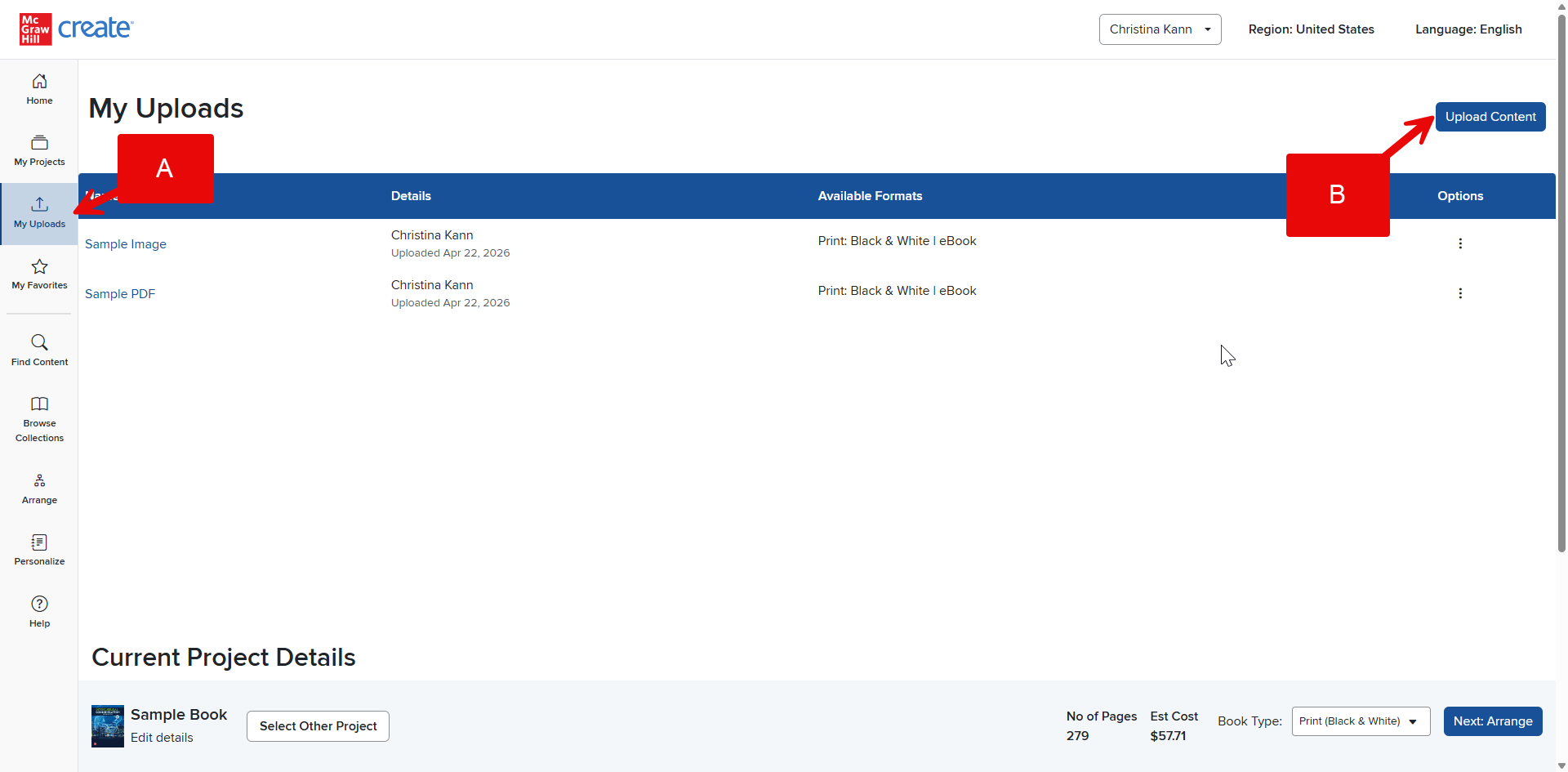
Step 1: Click My Uploads (A) in your Account Menu.
Step 2: Locate the file on your computer using the Upload Content button (B). Supported file types are listed to the right (C), so be sure the file you select is one of these.
Step 3: Input your file’s Display Title and Author Name, and be sure you have permission to use the upload before checking the Terms and Conditions verification box.
Step 4: Click Upload (D). Your My Uploads page will refresh, and a small message will confirm your upload.
Step 5: Once your content has been uploaded, you’ll see it listed in your My Uploads list where the uploader originally was. From here, you can click Add to Project as well as Edit, Favorite, or Delete it.