
Proctorio - Waiting for connect.mheducation.com
Troubleshoot the waiting screen when accessing connect.mheducation.com.
Tags
- Higher Ed Student
- Higher Education
- Proctorio
- Customer Support
- Connect


- Ensure the time zone and the time ( the time can not be fast or slow). The time zone on your computer should match the time zone of your current location. ( Steps below to update time zone ) If this does not resolve the issue do the following:
- Please try to disable the Proctorio extension by clicking on the three dots in the top right-hand corner of the browser > More tools > Extensions. Make sure that the little slider next to the Proctorio extension is gray. Once you are done with that, please go to your school account and try to take the exam once more. When you get a message that you need to have the Proctorio extension installed, please go to the extensions tab once more, re-enable the Proctorio extension and try to access the exam again.
- Click on the image for Google Account next to the three dots in the upper right corner, click on Add, (please choose the option continue without an account). Type in your name, choose the image, and click on Add. It will open a new window and you will need to go to https://getproctorio.com to install the extension again. Then open the exam in that new window and close the previous Google Chrome window.
- If you have an extension by the name of "Privacy Badger" please consider disabling it while trying to take your exam.
- Restart both your computer and router for approximately 60 seconds.
- Consider using a different browser to access the Proctorio Assignment
Note: Once it is installed make sure the Proctorio extension is being allowed on all sites. Go to the three-dot icon in the top right-hand corner of your browser > More tools > Extensions > Turn off any extensions other than Proctorio > select the Proctorio extension > click on Details > In the drop-down menu choose "On all sites".
For Chromebook Users:- If you're signed in to your Chromebook, sign out. On the bottom, click Add person. Enter the Google Account email address and password, then click Next. Follow the steps that appear.
Steps to change time zone:
macOS
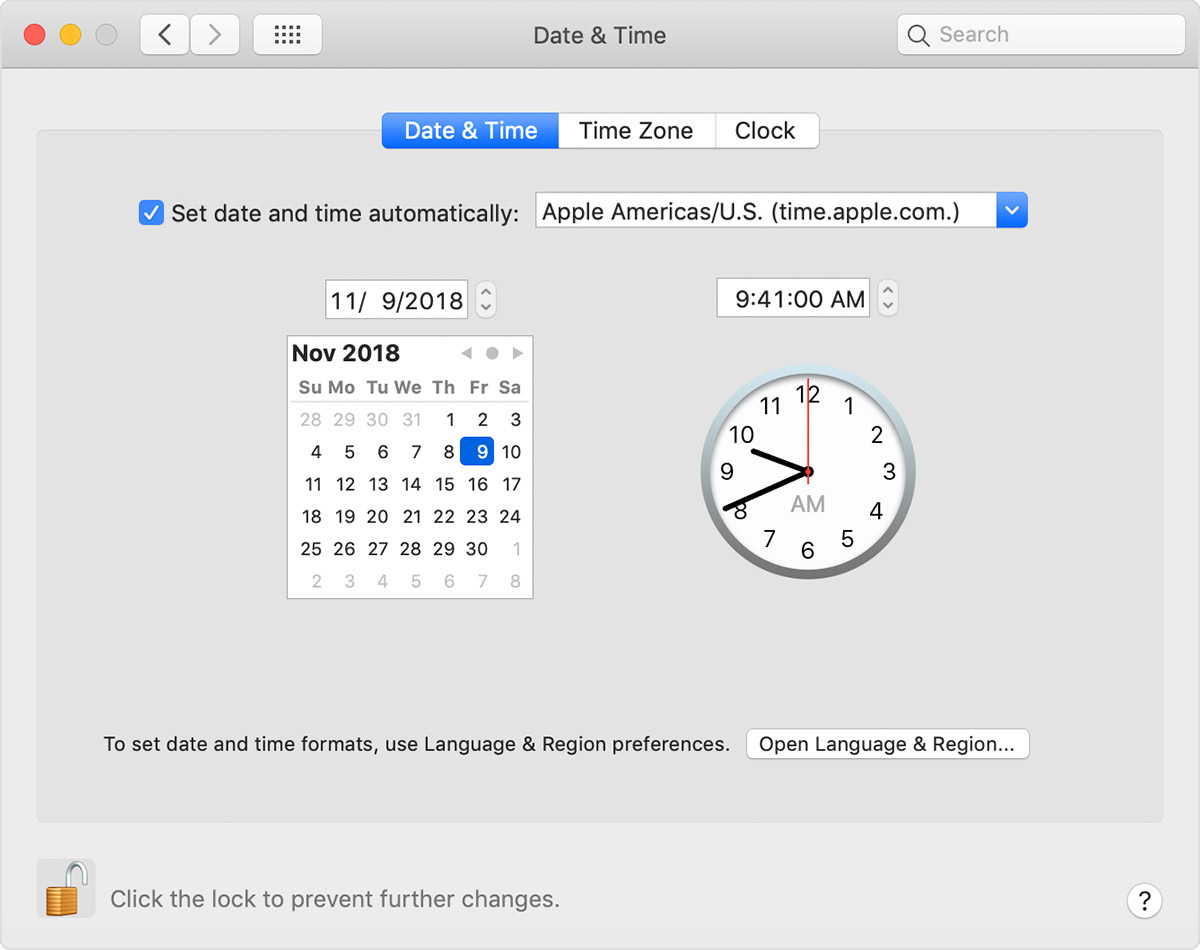
Choose Apple menu > System Preferences, then click Date & Time.
In the Date & Time pane, make sure that ” Set date and time automatically” is selected and your Mac is connected to the Internet. Your Mac can then get the current date and time from the network time server selected in the adjacent menu.
Windows OS
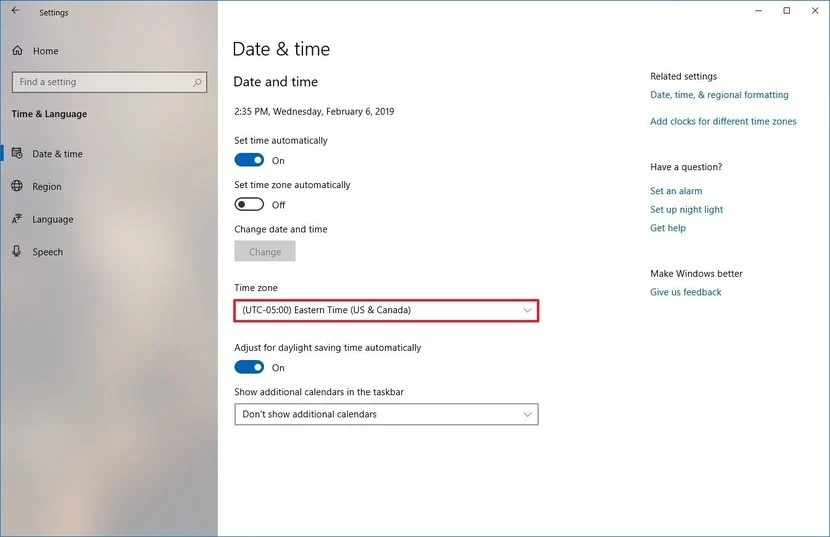
Quick tip: If you live in a region that uses daylight saving, make sure to turn on the " Adjust for daylight saving time automatically" toggle switch.- To make changes, you might need to click the lock
 , then enter your administrator password. If you don't have an Internet connection, or you want to set the date and time manually, deselect ”Set date and time automatically.” You can then click today’s date on the calendar, drag the clock’s hands to the correct time, or use the fields above the calendar and clock to enter the date and time. Then click Save.
 - To change the time zone settings manually on Windows 10, use these steps: Open Settings > Click on Time & Language >Click on Date & time >Turn off the Set time zone automatically toggle switch (if applicable).
- Use the "Time zone" drop-down menu and select the correct zone setting.
