
SIMnet D2L Migration Guide - LTI 1.1 to LTIA 1.3
Follow the SIMnet D2L migration guide to move from LTI 1.1 to LTI Advantage 1.3.
- Higher Ed Student
- Higher Education
- Customer Support
- Instructor


SIMnet D2L Migration tool guide: MH Campus (LTI 1.1) to McGraw Hill Integration (LTIA 1.3)
- SIMnet D2L Migration overview
- Part 1: Migration setup
- Part 2: The Migration Process
- Part 3: After Migration
- Migrating an LTI 1.1 course that is active
- McGraw Hill Higher Education Digital Support
SIMnet D2L Migration overview
Our SIMnet D2L Migration Tool streamlines the transition of SIMnet's LTI 1.1 assignment links to McGraw Hill Integration (MHI). Designed for efficiency and reliability, the tool ensures seamless migration with minimal disruption to instructors and students. By upgrading to MHI, users gain enhanced security, improved integration capabilities, and access to the latest features that foster a more intuitive and connected learning experience.
Part 1: Migration setup
Ensure all tools are installed and enabled
- Your course must be paired with LTI 1.1 with assignments linked.
- You must have a current LTI 1.1 consumer key.
- The McGraw Hill (MHI) LTIA 1.3 tool must be installed and enabled for your organization.
- The appropriate migration tool must be enabled for your organization.
- PIC team to meet with D2L Admin to verify the pre-requisites to the migration process (*this includes the review and enablement of D2L user and course permissions).
- If your course uses both SIMnet and Connect, multi-platform pairing support must also be enabled.
A member of the Platform Integrations (PIC) team will be able to assist with this.
Check your email address
- The email address being used in SIMnet needs to match the email address being used in your D2L profile.
Check your assignment links
- Your course needs to be in a paired state with assignments linked for the migration to be successful.
You will not see the migration interface when launching the MHI tool if there are no 1.1 assignment links in the LMS course.
Check for Student Activity
- If at least one student has a grade in the class, then the migration tool will still initiate if the section is paired. We do not want to migrate courses that are ‘active.ʼ However, we have steps below in cases where this is unavoidable.
Note this is different than Connect functionality which automatically blocks the migration if there is student activity detected.
Part 2: The Migration Process
- Within your D2L course, navigate to the content area. (You will already have the “McGraw Hill SIMnet LTI 1.1” Tool.)
- Add a module if needed or use the 3 dots to the right of any module to select the “McGraw Hill Integration” Tool.
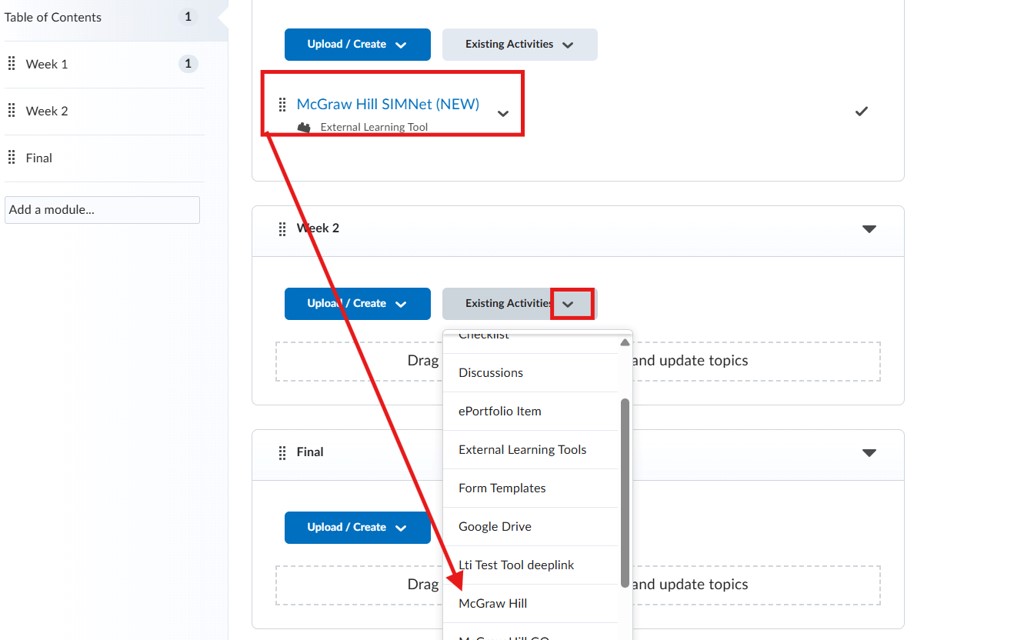
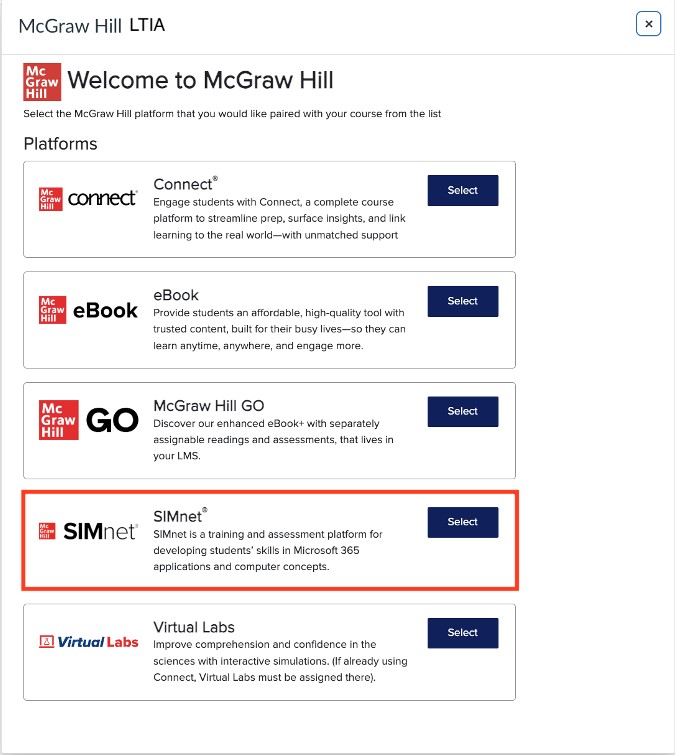
- Customers with access to more than one platform (e.g. Connect & SIMnet) may see an additional screen. In this screen, choose SIMnet.
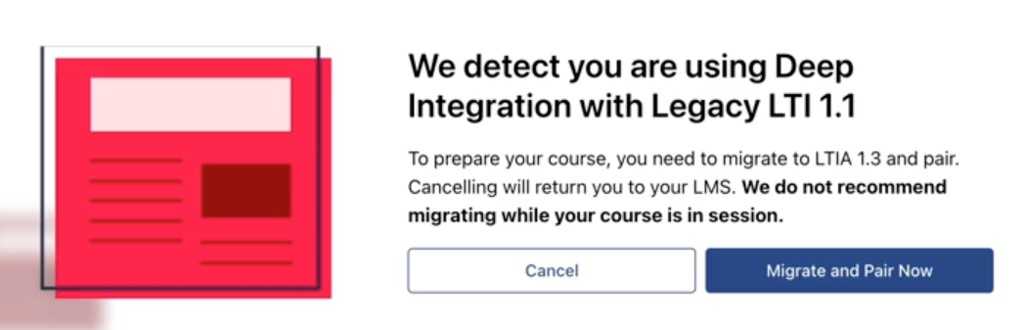
- If your course is ready for migration, you will see this window. Click Cancel to exit or Migrate and Pair Now.
- Check the Ready to migrate box and click Migrate and Pair Now.
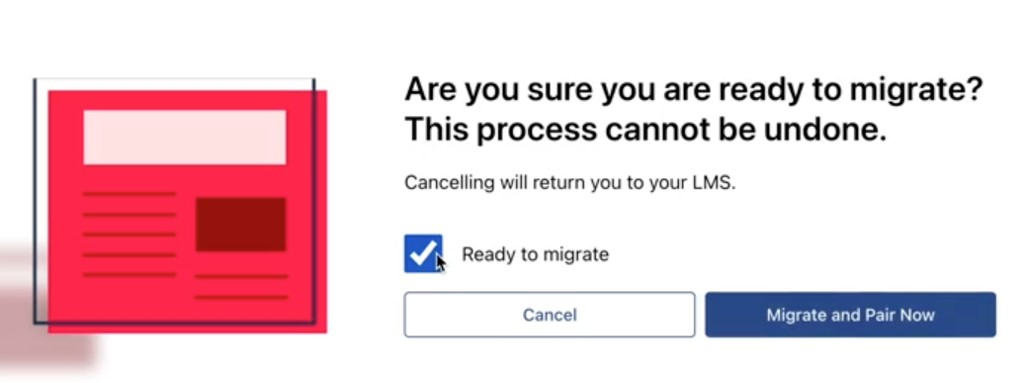
- Be sure to keep the migration window open until the process is complete.
The migration of a large number of assignments (over 100) will take a few minutes. Please be patient during the third step!
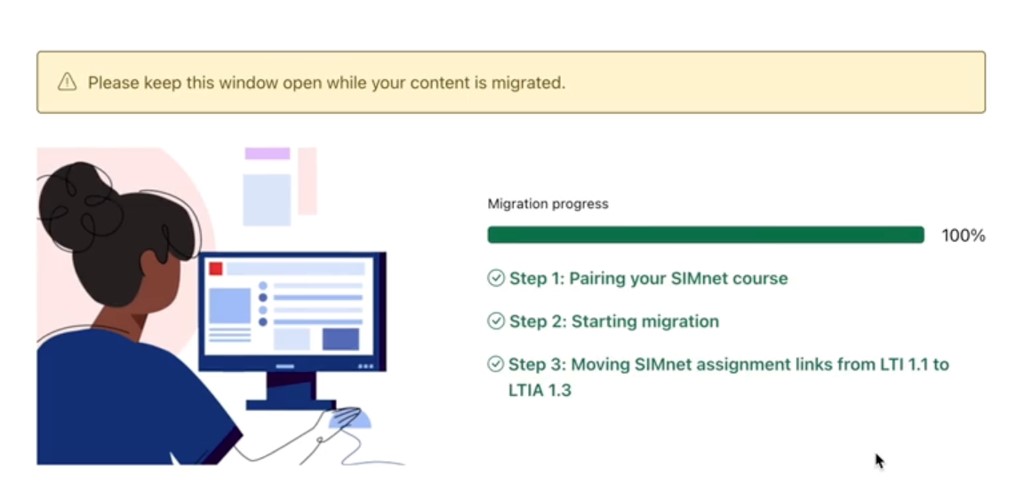
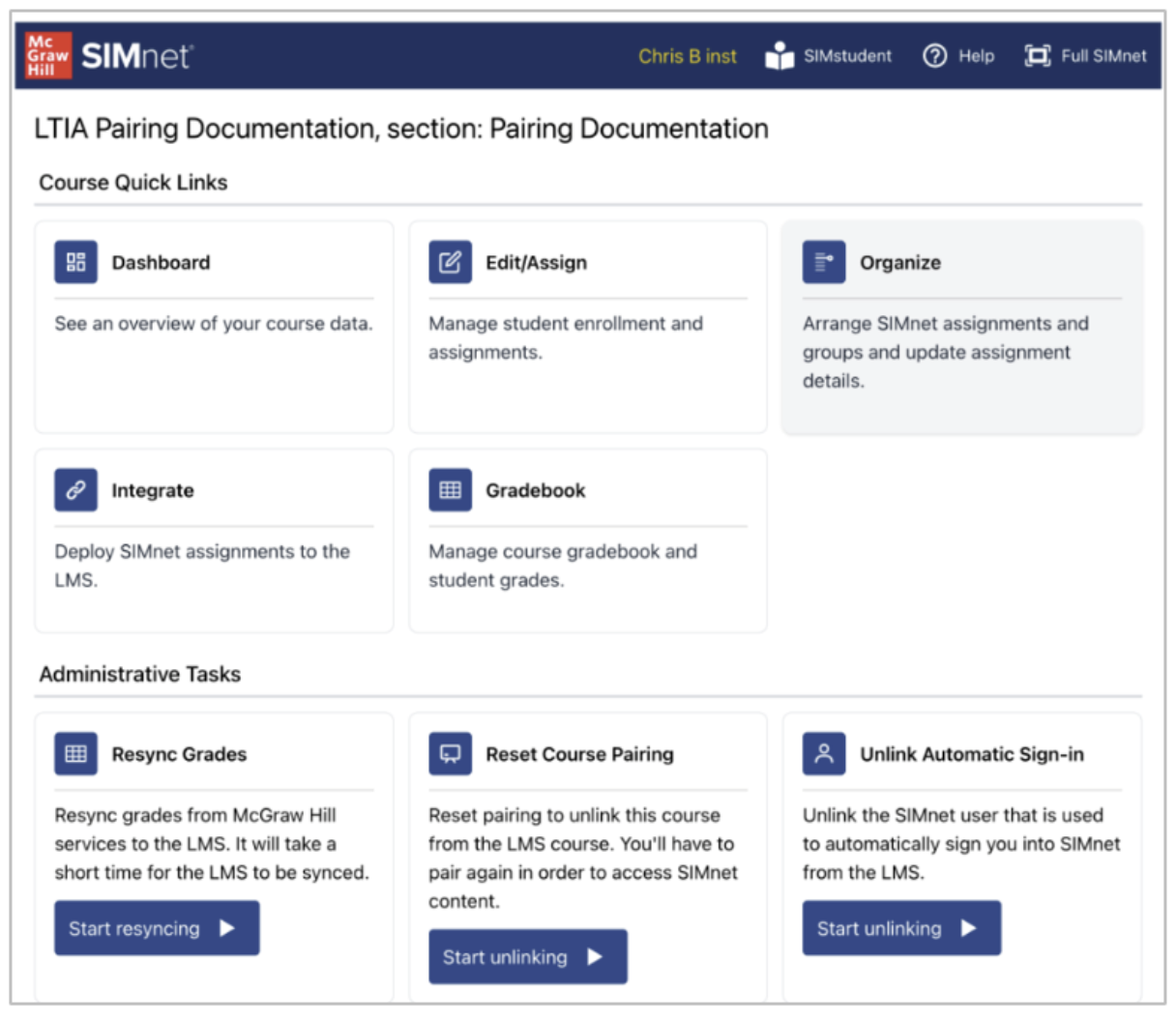
- When the process is complete, you will receive confirmation and be directed to the SIMnet Integration page.
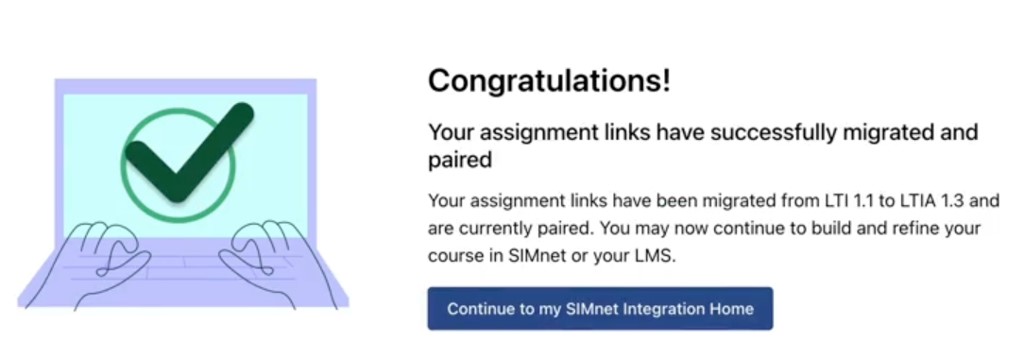
- Proceed with your normal integration activities.
Part 3: After Migration
Important note about post-migration
Once your LMS course has successfully migrated from SIMnet LTI 1.1 to McGraw Hill
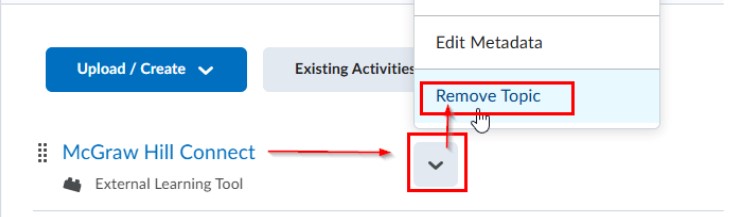
Integration, we recommend that you or your LMS admin disable the “McGraw Hill SIMnet” 1.1 tool in your LMS.
You can do this by navigating to your course content folder, locating the SIMnet 1.1 tool, click on the drop-down menu (right of tool link), and select Remove Topic.
Migrating an LTI 1.1 course that is active
Migration during an active course is not recommended. It can create confusion for instructors and students.
Follow the steps above and then check the following items.
Assignments
- Duplicate assignments may appear in some cases. Delete the old assignments (i.e. the assignments with broken links).
- For students, assignment links will appear broken. Students must launch SIMnet to pair their D2L and SIMnet accounts.
Grades
Upon migration, grades will disappear from the gradebook. These grades are not lost. Student must login to D2L and launch an assignment in order for grades to appear.
McGraw Hill Higher Education Digital Support
If you run into trouble with your migration or if you need any additional support, agents are standing by to assist.
Phone: 800.331.5094
