
Self Print from a McGraw Hill eBook
Learn how to self-print pages from a McGraw Hill eBook.
- Higher Ed Student
- Higher Education
- Customer Support


Self Print from a McGraw Hill eBook
A selection of (not all) McGraw Hill eBooks offer enhanced functionality, allowing students to print text content directly from the eBook either standalone or within McGraw Hill’s Connect® or GO platforms. With self-print enabled, students can easily access and print the most up-to-date material, including all Evergreen updates. The steps below outline the process.
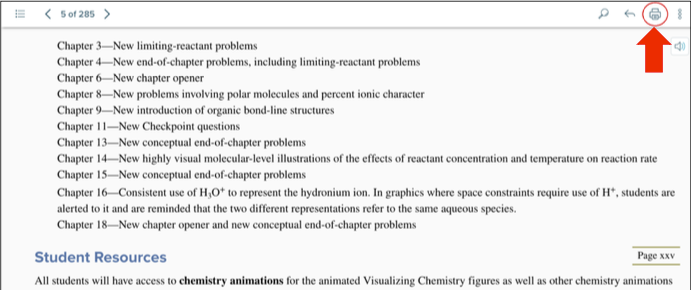
Step 1: Within the MH eBook, select the print button at the top right-hand corner of the screen
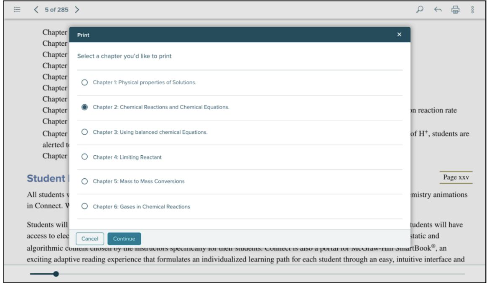
Step 2: From the “Print” dialog box, select the chapter you wish to print. Click Continue.
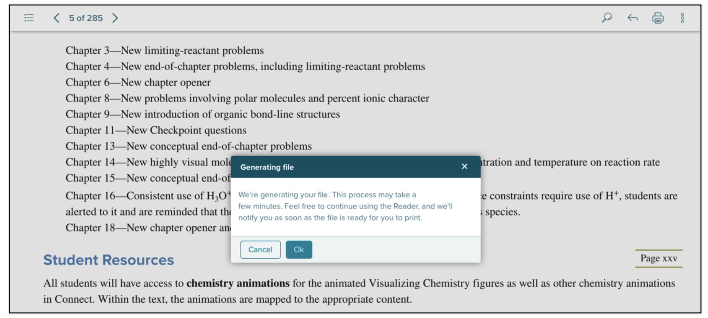
Step 3: The “Generating file” dialog box opens and shows that the PDF file is being generated.
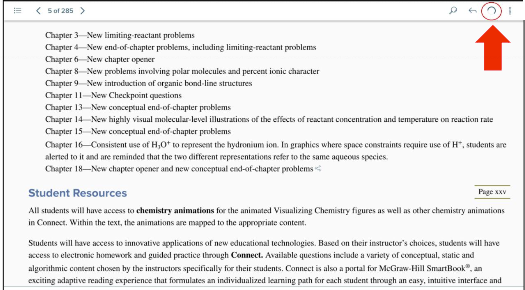
As the PDF File is generating, the Print button icon will appear as loading.

Step 4: Once the PDF file is ready, a notification at the top of the MH eBook will say the “printable file is ready.” Click on
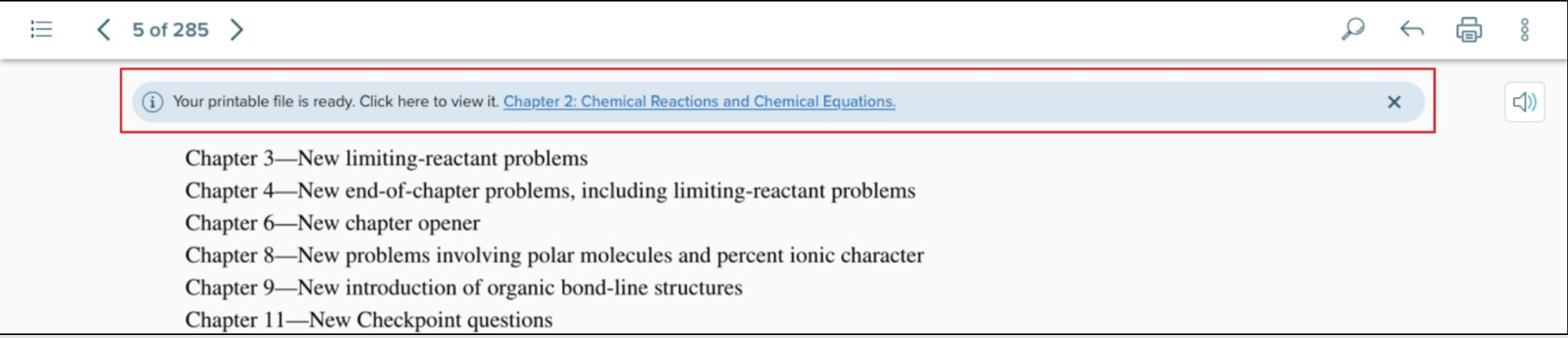
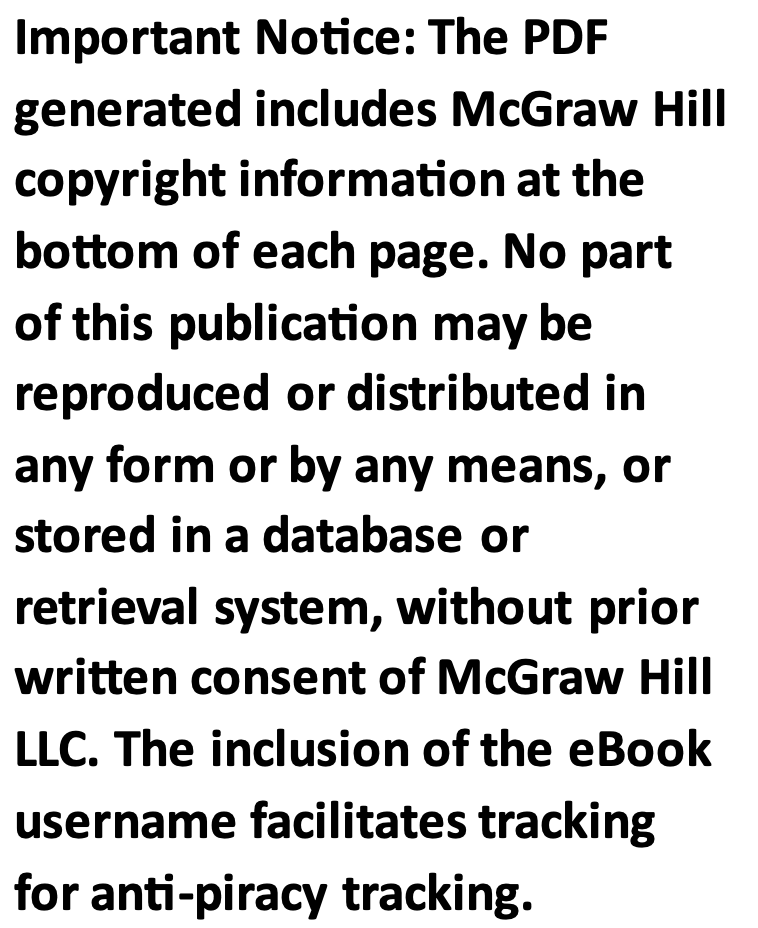
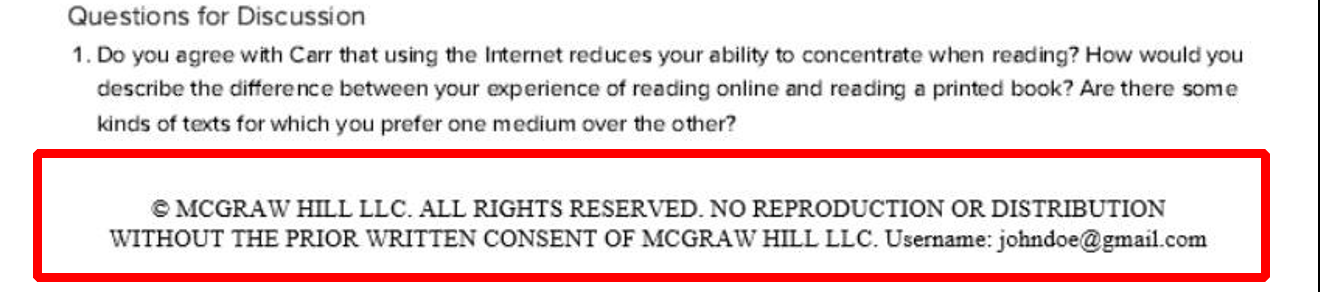
Once the PDF file is ready, a notification at the top of the MH eBook will say the “printable file is ready.” Click on the link within the message to view and/or print the PDF file. If you dismiss the notification, you will need to go through the process of regenerating the PDF file again.
WWW.MHHE.COM/SUPPORT
McGraw Hill Support
www.supportateverystep.com
Email and Live Chat Available
Call: (800)331-5094
