
Moodle LTI Advantage Integration
Learn how to integrate Connect with Moodle using LTI Advantage.
Tags
- Higher Ed Student
- Higher Education
- Customer Support
- Connect
- Instructor


Need assistance?
Schedule an appointment for a personalized 1-to-1 support from our implementation team, here .
Moodle LTI Advantage Integration – Instructor Workflow
- Login to Moodle
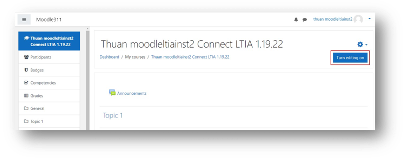
- Go into your course and select Turn editing on under the settings
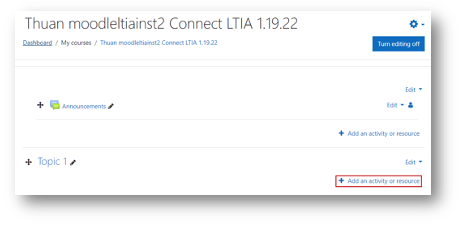
- Click on Add an activity or resource.
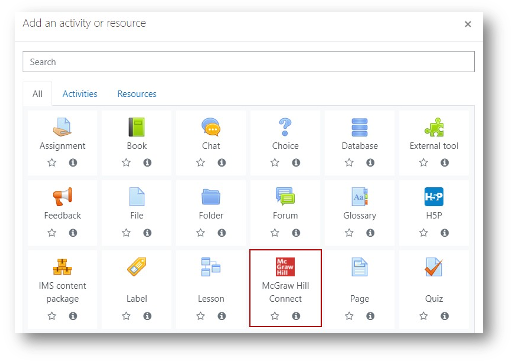
- Locate and select McGraw Hill Connect
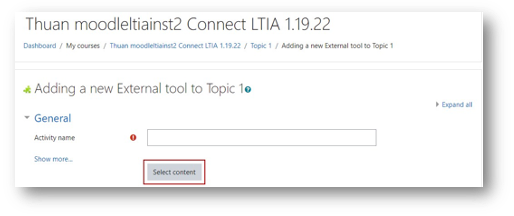
- Click Select Content
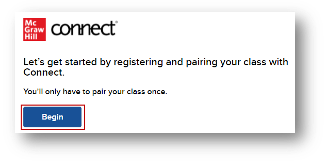
- Click Begin.
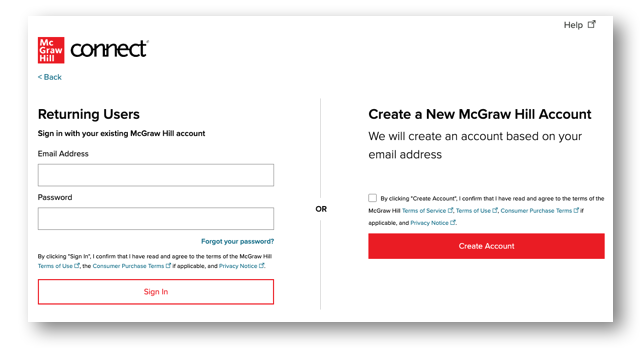
- The next screen will depend on whether or not you already have a McGraw Hill Account associated with your institution's email address. If you already have an account, you'll be asked to enter your password and log in. If you're new to Connect, click on Create Account.
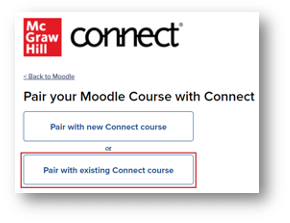
- Click Pair with existing Connect course if you already have a course in your account to pair or choose Pair with new Connect course if you'd like to create a new course.
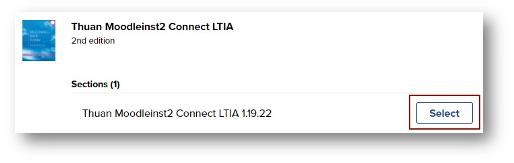
- Locate the Connect section you want to pair with and click Select or finish creating a new course.
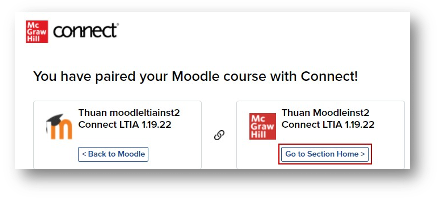
- Click Go to Section Home
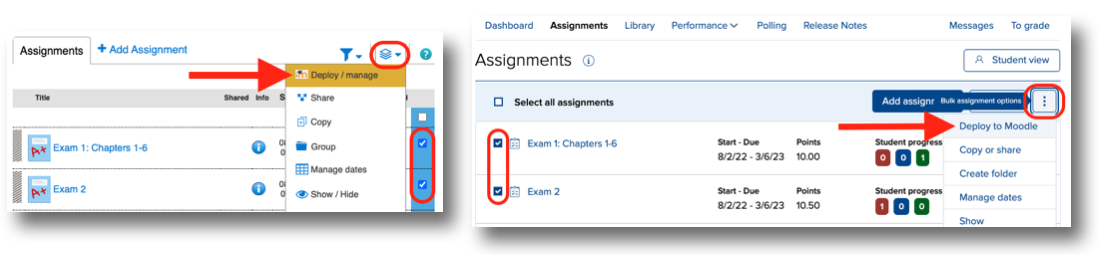
- Check the assignments you would like to deploy and click on Deploy from the options menu.
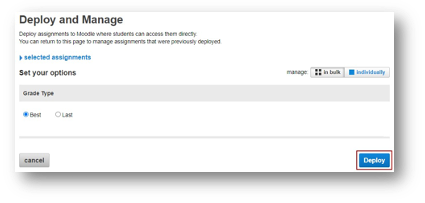
- You can set the grade type in bulk or individually. Click the Deploy button when done.
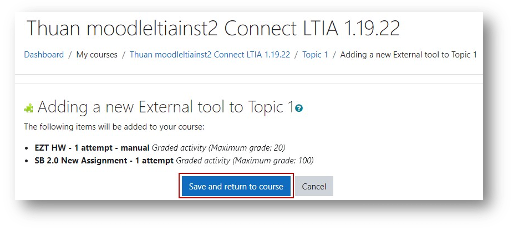
- Click Save and return to course
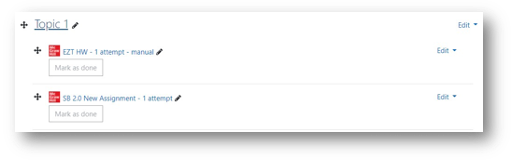
- The assignments that were deployed will show up under the topic folder. Click on the arrows to the left of the assignment to rearrange the order as needed. A gradebook column is automatically created for each for each non-zero point assignment in the course.
To allow quick access to Connect for you and your students, you can add a Connect LTI Advantage tool link to your course. However, assignments cannot be deployed when accessing Connect using this link. Please see this article for instructions.
