Managing your Favorites
Learn how to manage your Favorites in Create to quickly access frequently used content.
- Higher Education
- Customer Support
- Create
- User Guides & Account Management
- Instructor


You may bookmark content you’re interested in to reference at a later time in Favorites.
Adding Favorites
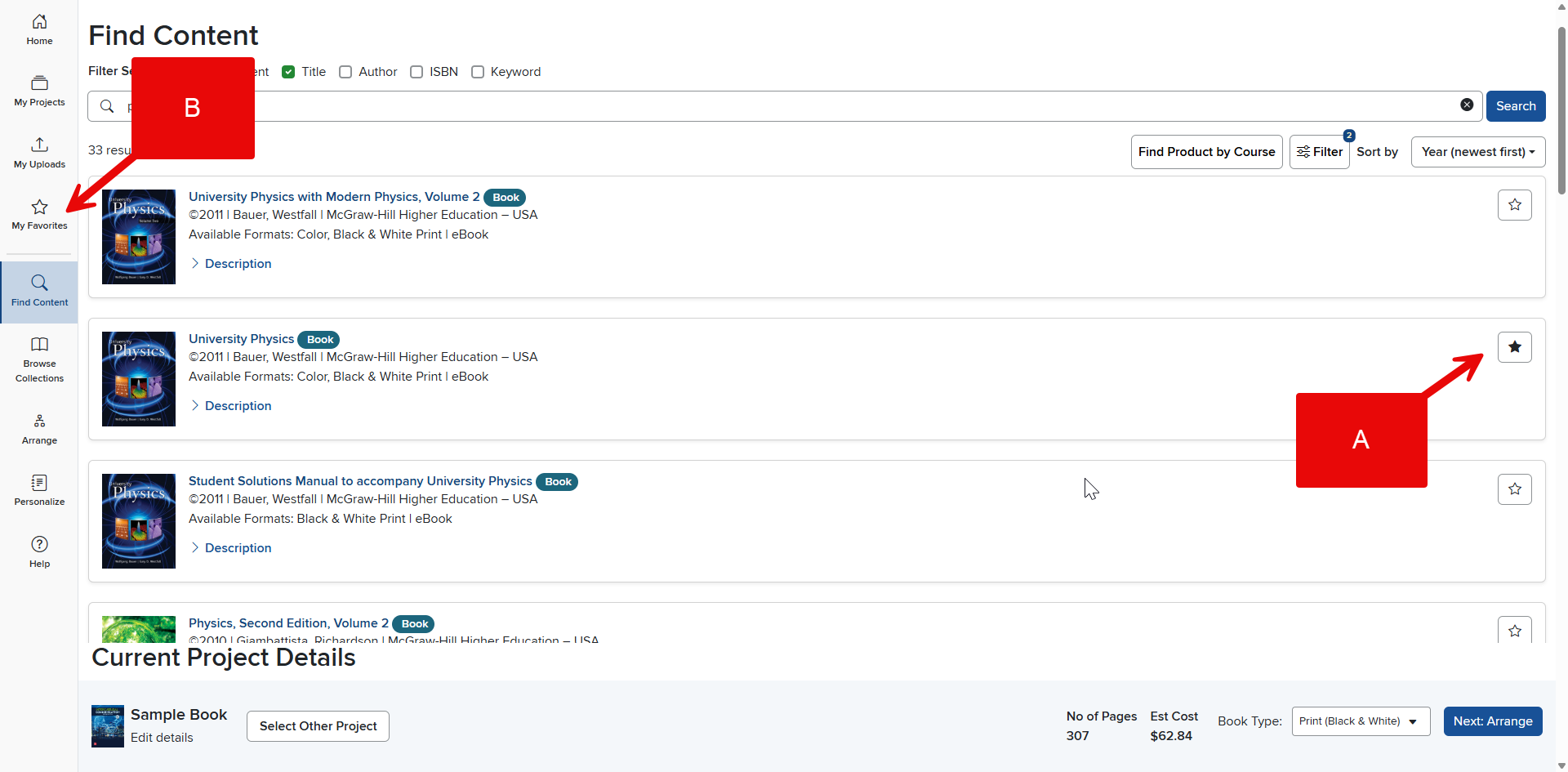
While you are browsing content, you can mark content as a Favorite by clicking the star icon in the content listing (A). The star will change from gray to dark blue, indicating the content has been successfully marked as a Favorite.
Viewing Favorites
To view your Favorites, click My Favorites in your Account Menu in the upper right of the page (B).
Removing Favorites
To remove Favorites, click the dark blue star on any content item you wish to remove. The star will gray out, indicating the content is no longer Favorite. If you refresh the page, the item will not be listed in your Favorites.