
LTI Advantage - Updating Dates from Connect to D2L
Learn how to unlock student activities in Wonders and Maravillas.
Tags
- Higher Ed Student
- D2L Brightspace
- Higher Education
- Customer Support
- Connect
- Instructor


Updating Dates from Connect to D2L

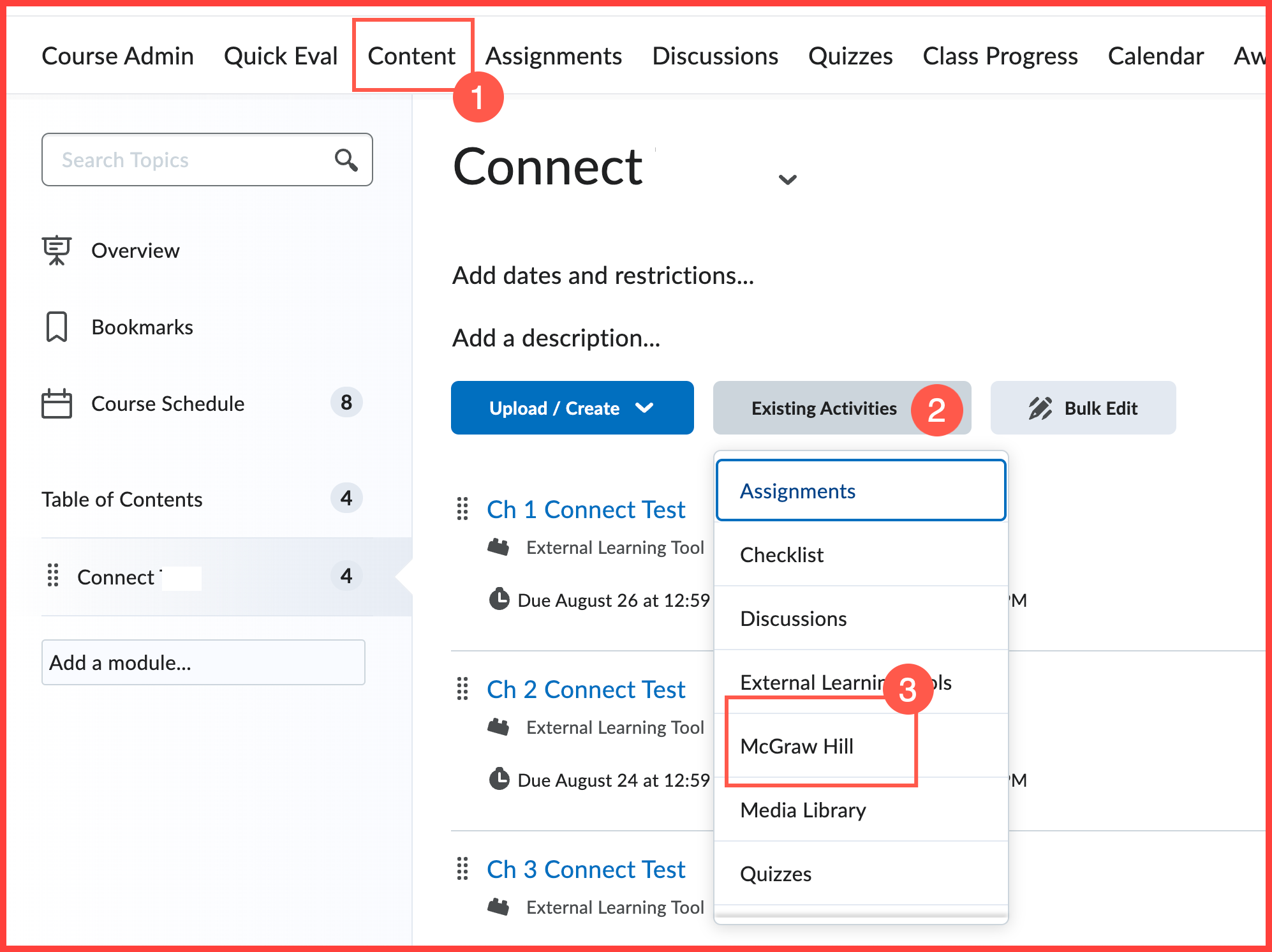
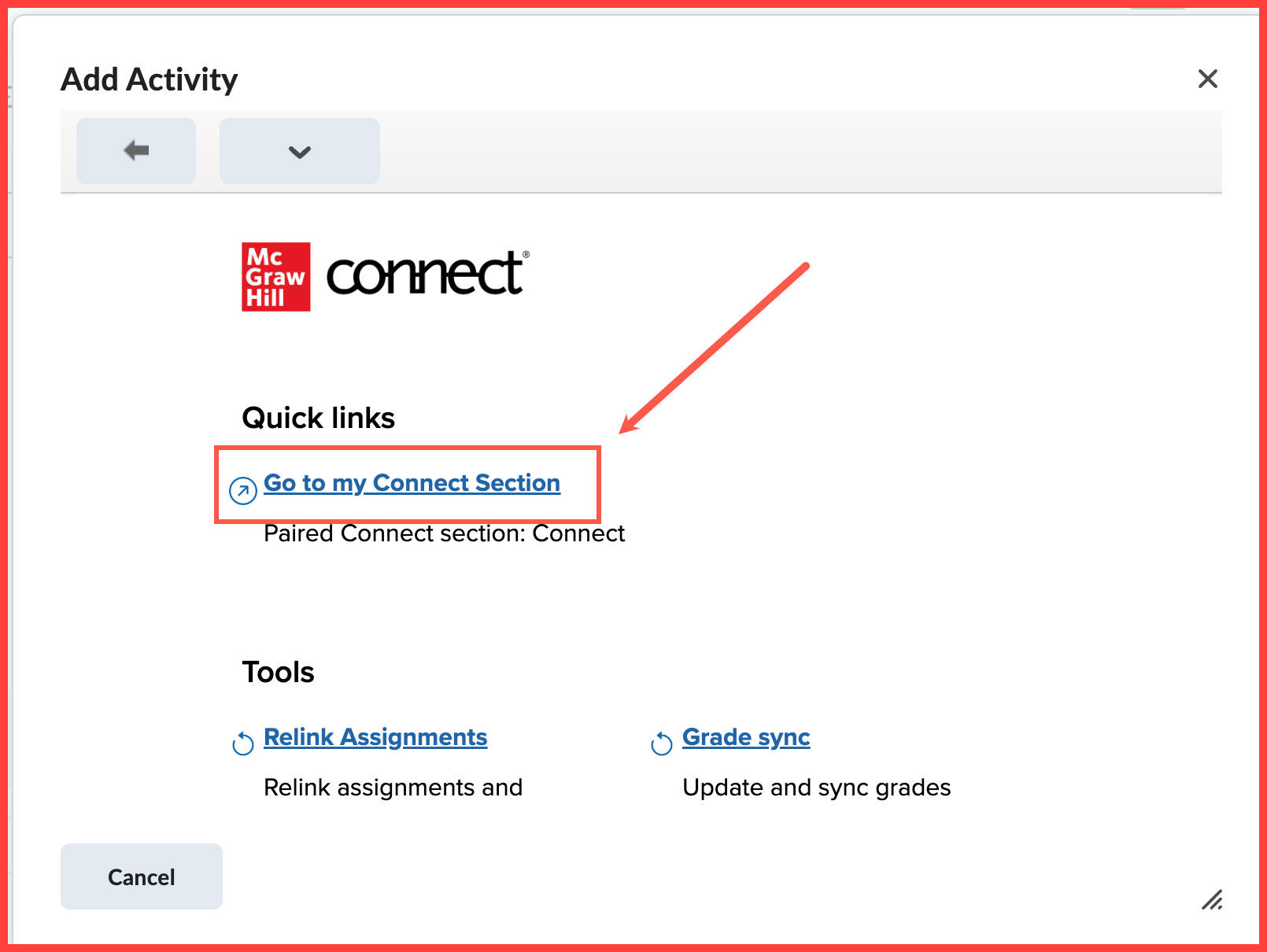
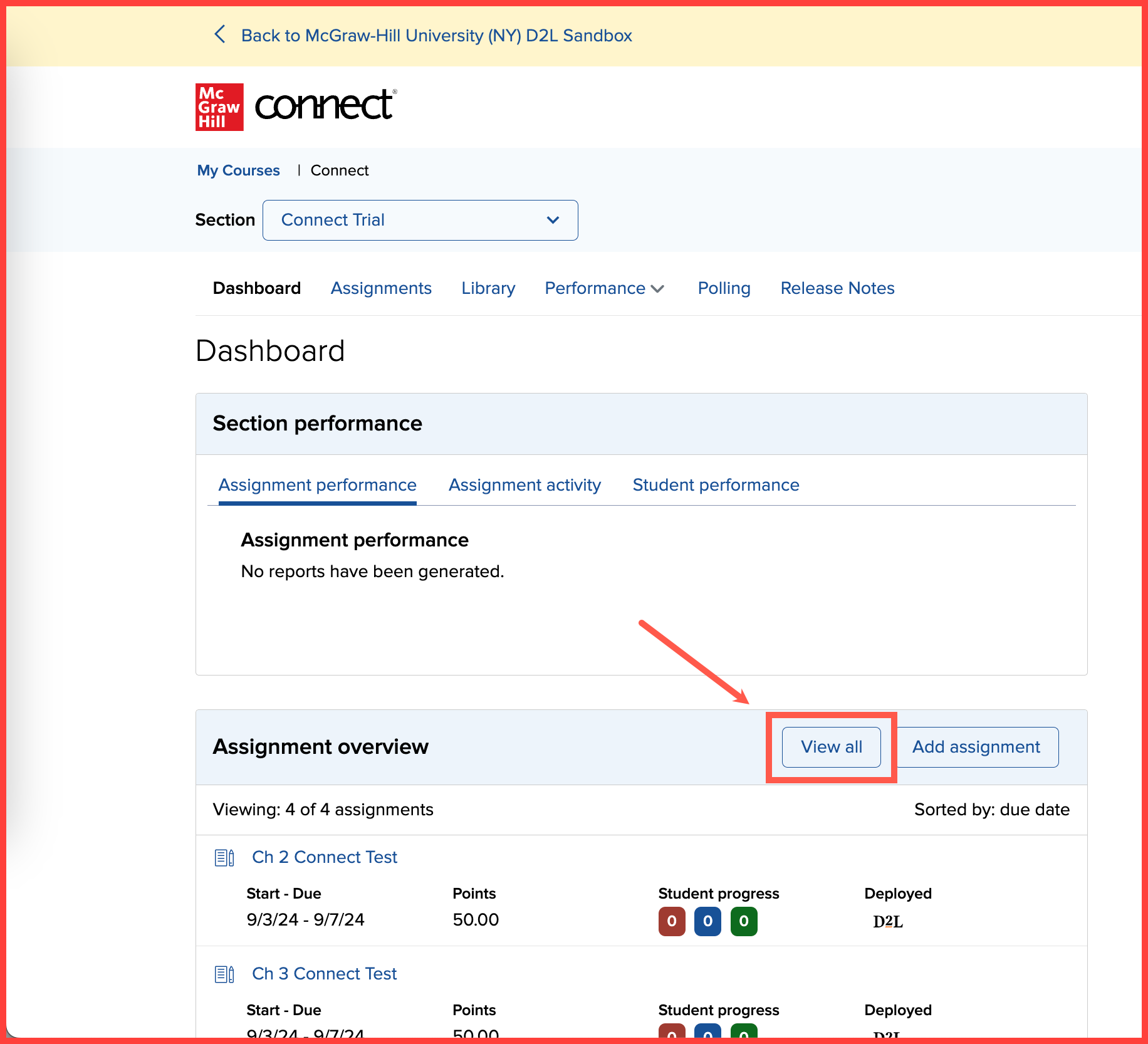
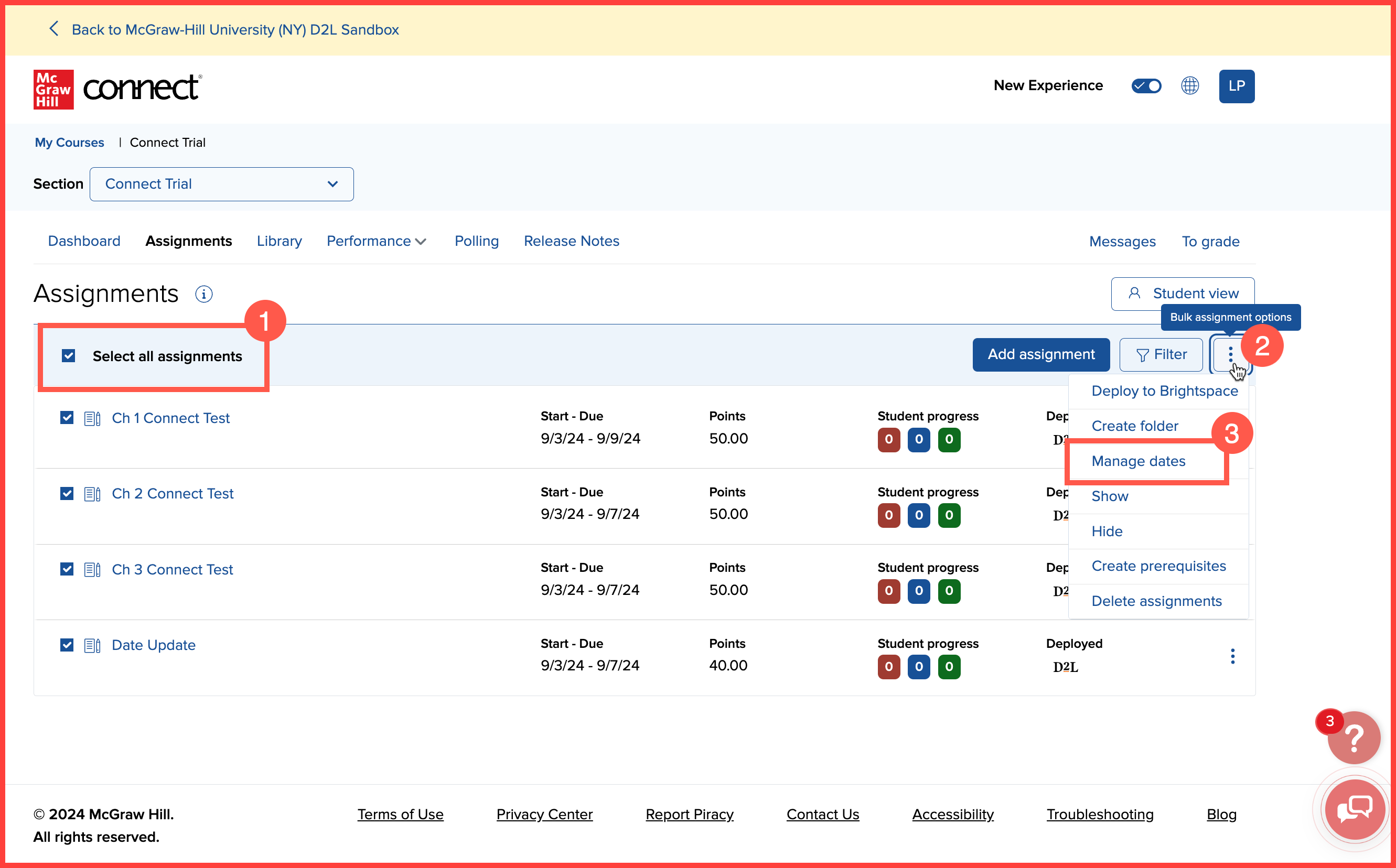
- First navigate to the “Content” (1) section of your D2L course.
- Once in the “Content” (1) section of your D2L course, navigate to the “Add Existing Activities” (2) and select “McGraw Hill” (3) (or whatever your Connect access point is named).
- Once in the Connect landing page, select “Go to my Connect Section.”
- When you are in your Connect Course, select “View All” from the Assignment Overview.
- Once in the Assignment tab, you will need to “Select All Assignments” (1) and then navigate to the three dots (2). Once in the menu, you will select “Manage Dates” (3).
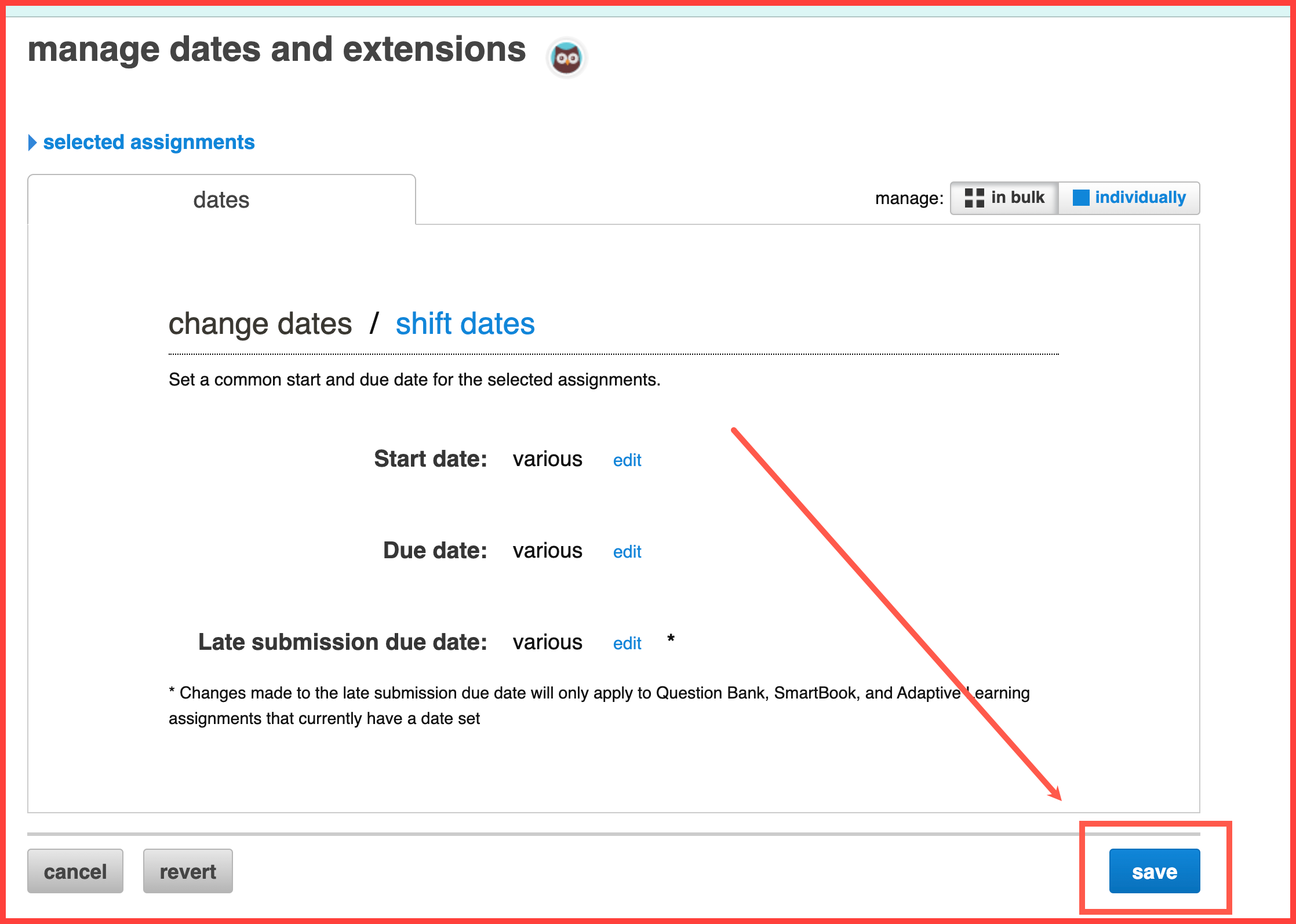
- In the “Manage Dates and Extensions” page, you will select the blue “Save” button.
- When you return to your Connect Course, you can then return to your D2L course and click refresh in your browser. This will reload your page and your dates will be updated.
