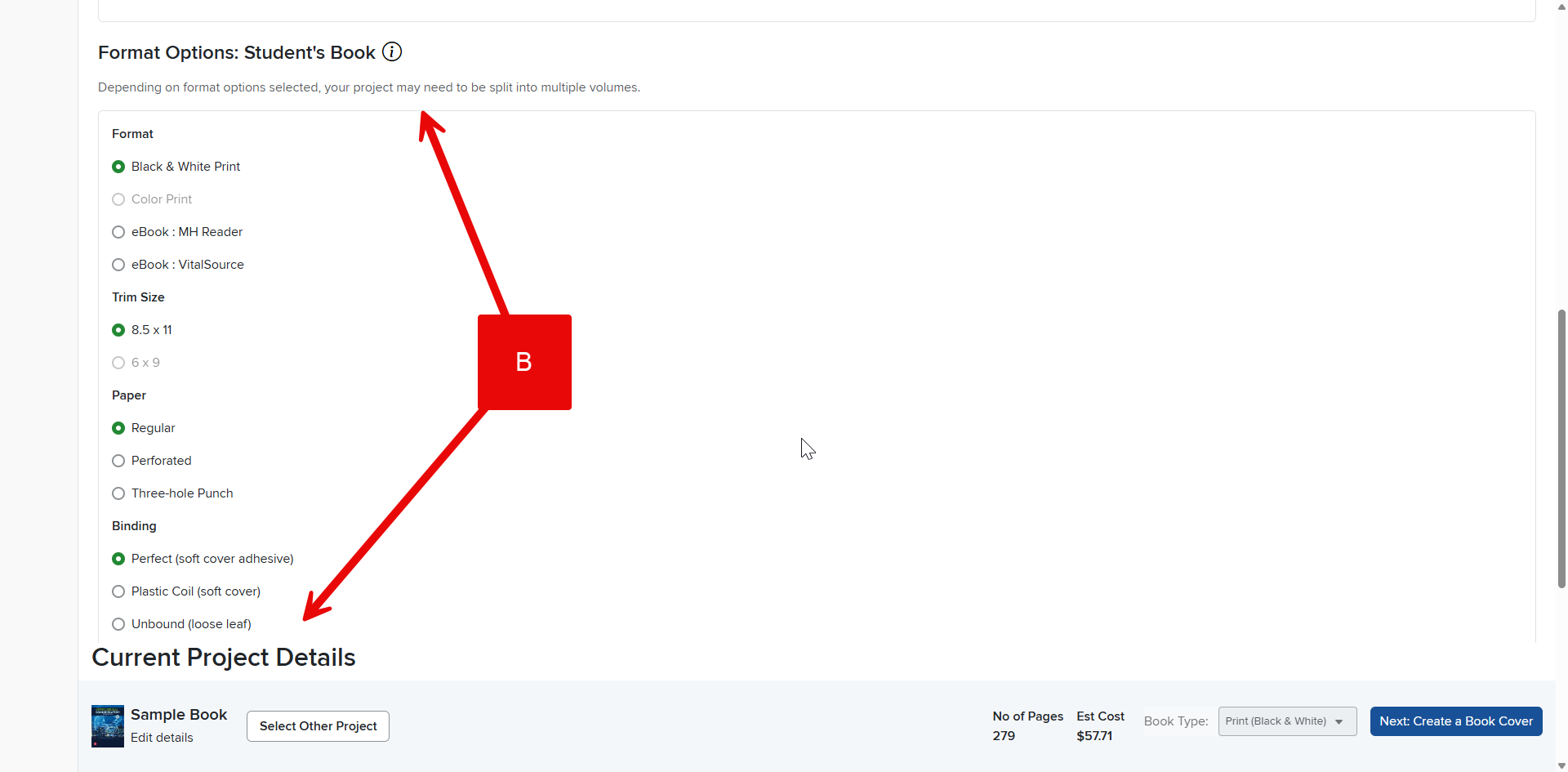
How do I change the order of my content?
Find out how to reorder chapters and sections in Create to structure your project exactly how you want.
- Higher Education
- Customer Support
- Create
- User Guides & Account Management
- Instructor


Step 1: Click the Arrange tab in the Create Menu (A).
Step 2: To move a content row, position your cursor over the row you want to move, click, and drag the row to the new position (B).
All your content will be renumbered automatically.
Note: If you move a main chapter row that includes sections, all the sections will move with it.
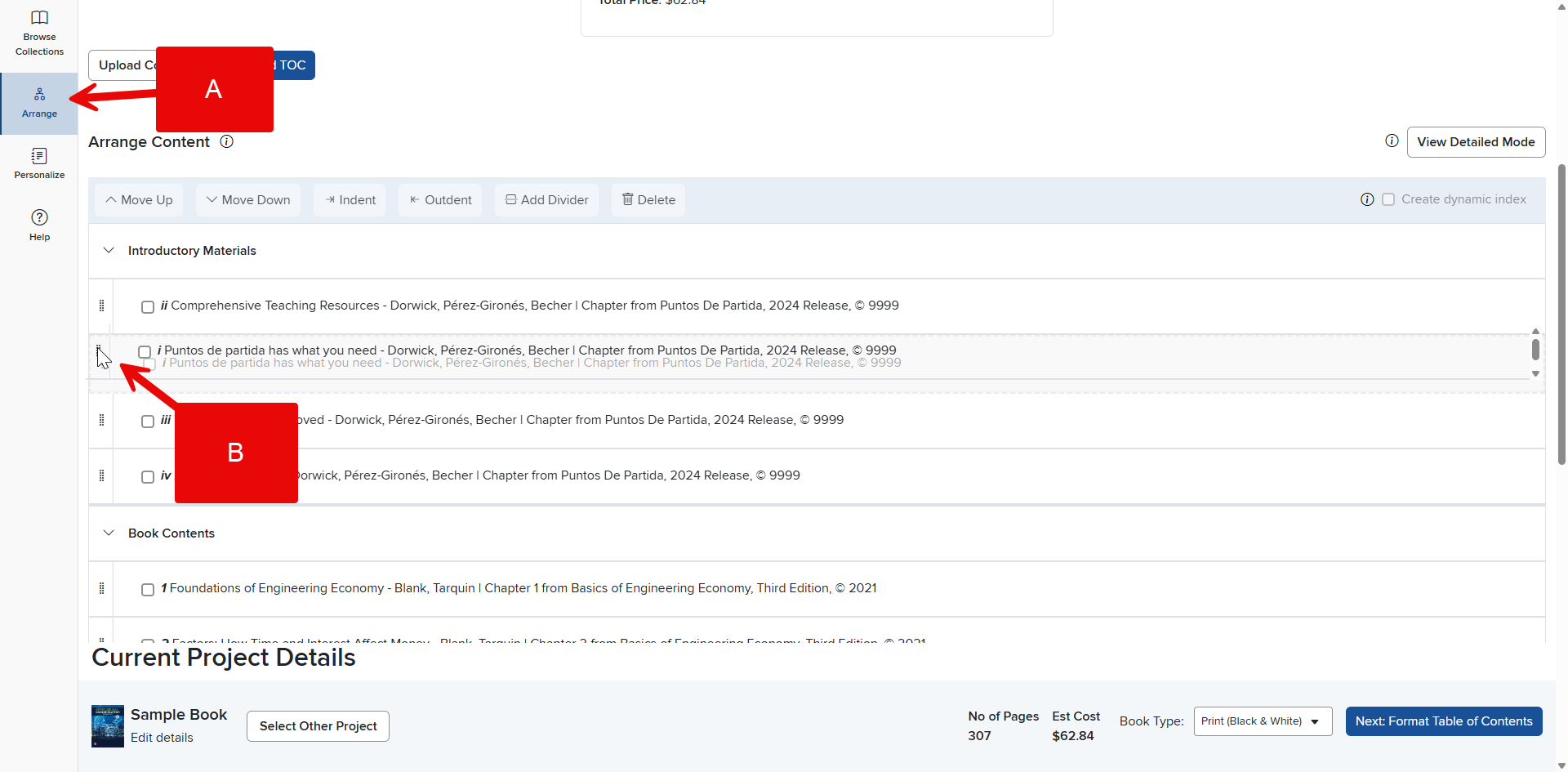
Hint: Dragging and dropping works best or short moves. To move something from the bottom all the way to the top, you’ll probably want to use the Move button (below).
Alternative Move Method
Step 1: While viewing the Arrange page, click inside the check box to the left of the name of the section you want to move (C).
Step 2: Click "Move up" or “Move down” (D).