
How do I add a book cover?
Learn how to add or customize a book cover in Create to complete your custom textbook project.
- Higher Education
- Customer Support
- Create
- User Guides & Account Management
- Instructor


With McGraw Hill Create™, you can select from a variety of book cover types and add your own custom text. You will need to have a Project created with content before you can add a cover.
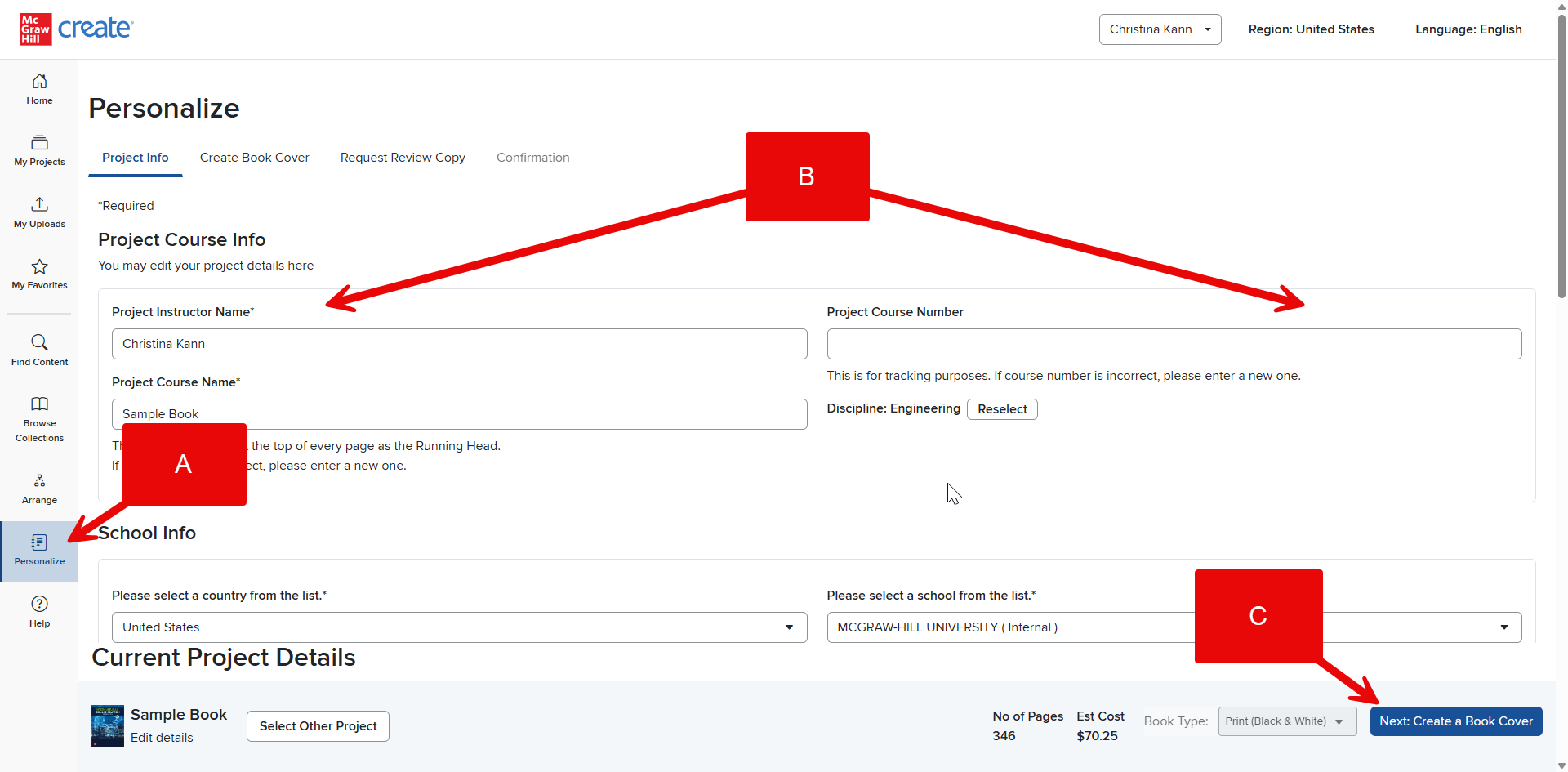
Step 1: Click Personalize in the Create Menu (A). Enter your Project Course Info (B) and then click Next: Create a Book Cover (C).
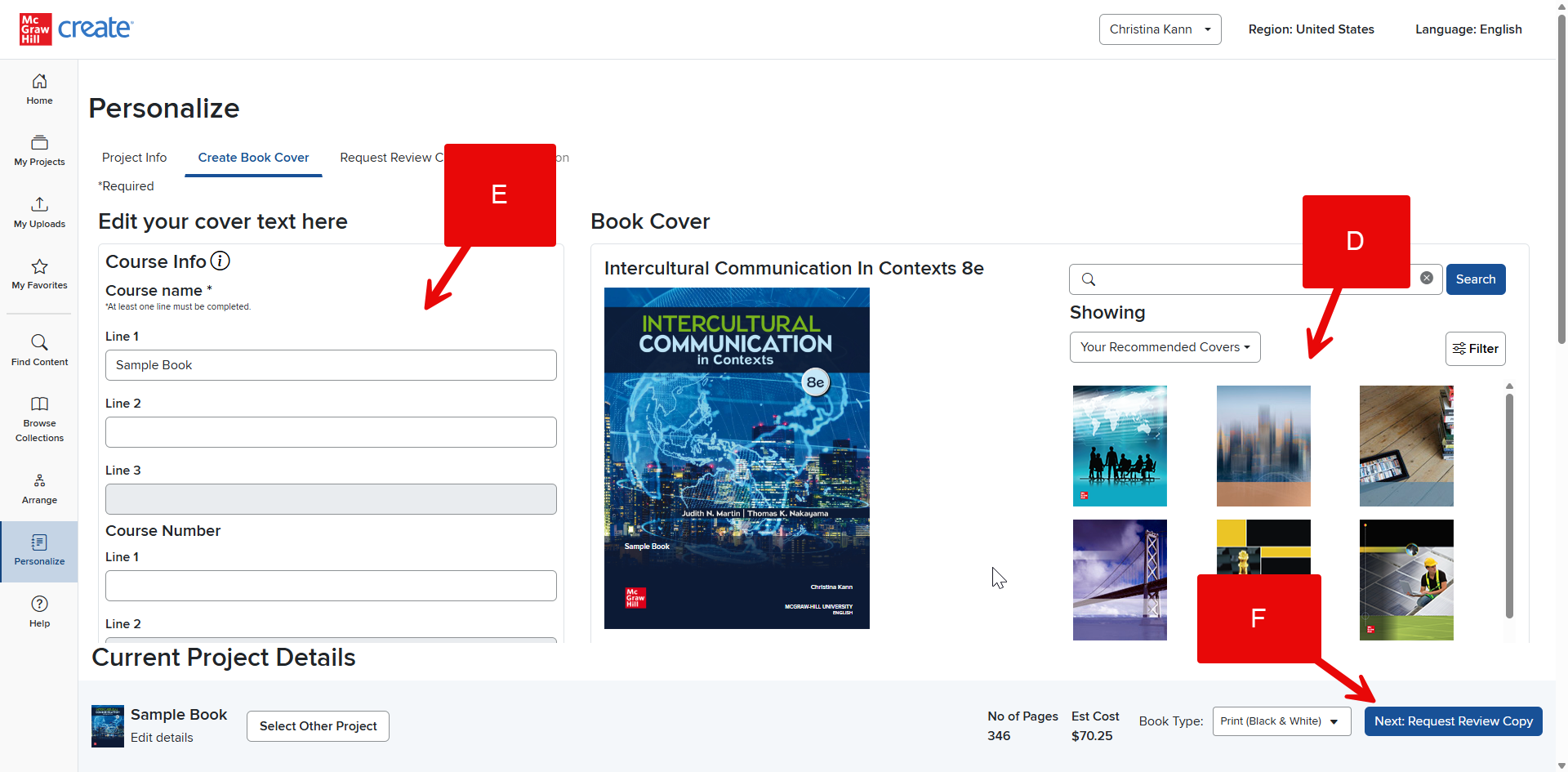
Step 2: Choose a cover by clicking on one of the cover style options (D).
Step 3: Enter custom cover information for your course name, course number, instructor name, school, and department (E). As you enter this information, the cover preview will update with your custom text.
Step 4: Finalize your book by clicking Next: Request Review Copy (F). For more help with this, visit How do I order a review copy?
Note: When you order a print review copy, it may arrive with a generic die-cut cover. However, the student version of your book will include the custom cover you select.
