
How can I order a student copy with teaching notes included?
Learn how to order a student copy with teaching notes included when using Create for your custom course materials.
Tags
- Higher Education
- Customer Support
- Create
- User Guides & Account Management
- Instructor


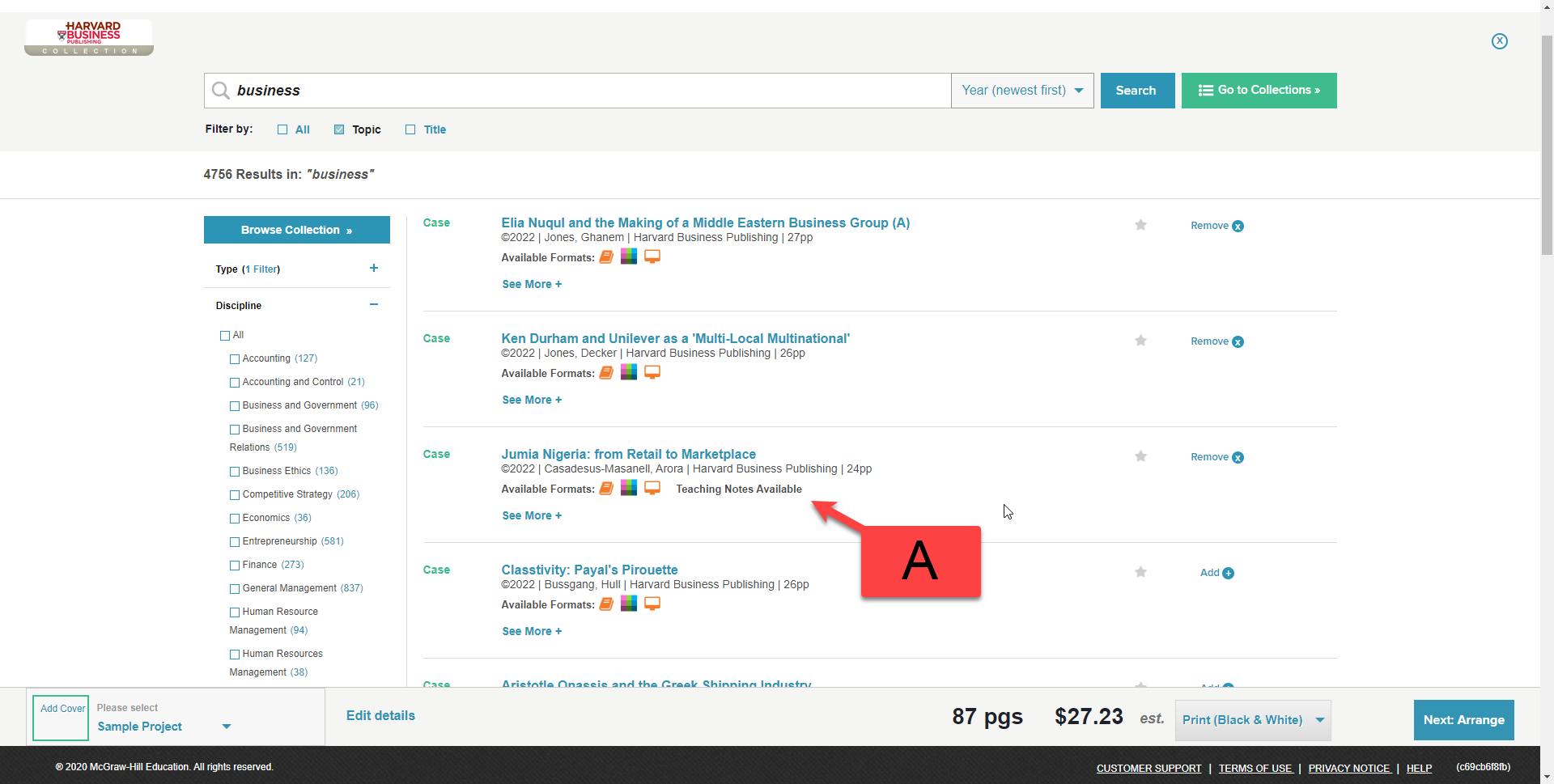
To create a student copy of your book with teaching notes, you first must add content to your Project that contains teaching notes. Not all available content contains teaching notes. Content will note if teaching notes are available (A).
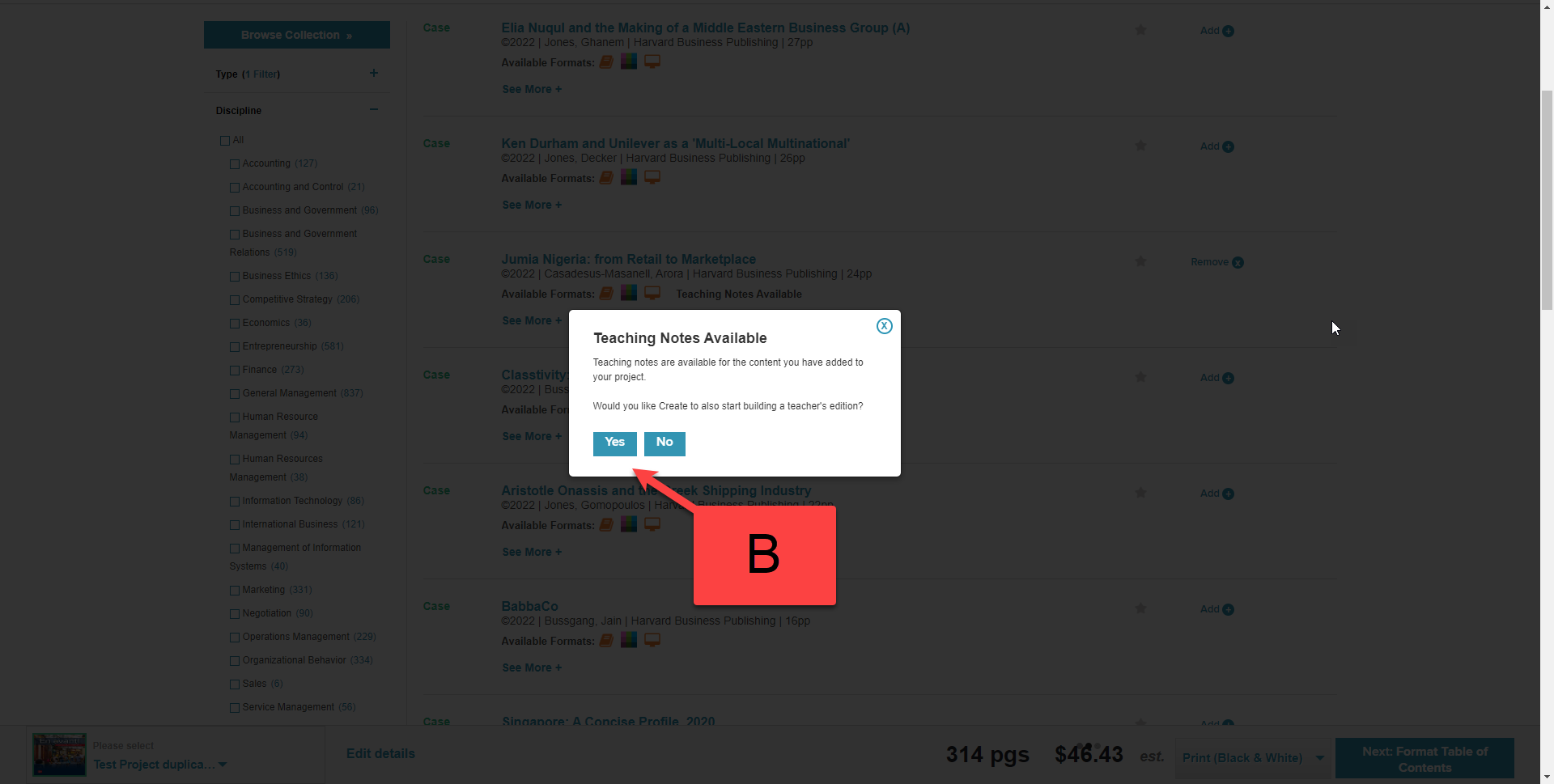
Create will inform you that teaching notes are available for the content you selected when you add it to your Project. You will also be asked if you want Create to start building a Teacher’s Edition. Click “Yes” (B).
Step 1: Click the Personalize tab.
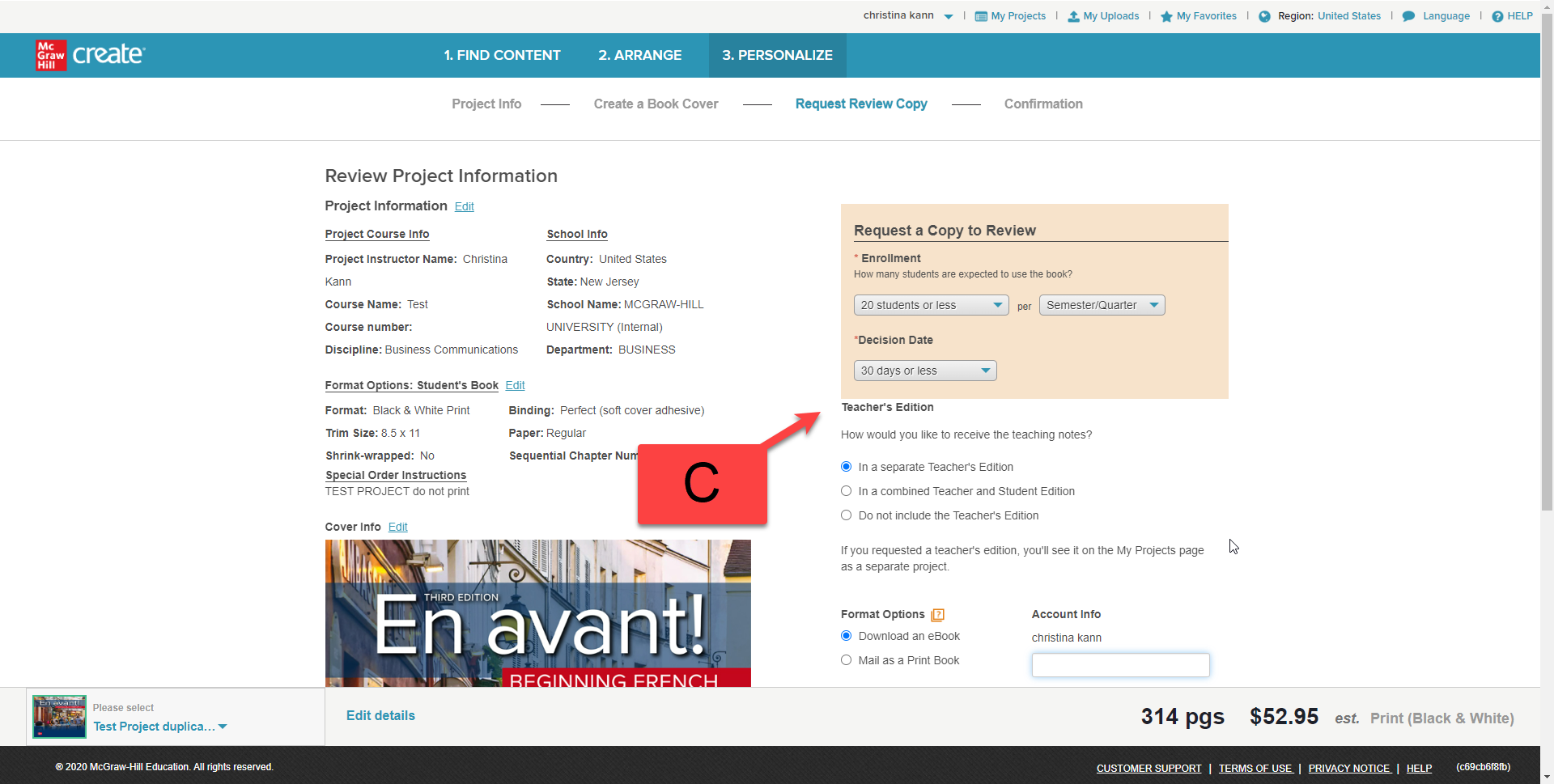
Step 2: Select all format options you want for you book. Be sure to select "In a combined Teacher and Student Edition " under the Teachers Edition section (C).
Step 4: Click “Next - Order Your Review Copy” to fill out the order form information and place your order.
Create will inform you that teaching notes are available for the content you selected when you add it to your Project. You will also be asked if you want Create to start building a Teacher’s Edition. Click “Yes” (B).
Step 1: Click the Personalize tab.
Step 2: Select all format options you want for you book. Be sure to select "In a combined Teacher and Student Edition " under the Teachers Edition section (C).
Step 4: Click “Next - Order Your Review Copy” to fill out the order form information and place your order.
