
Connect - Unpair Blackboard and Connect
Learn how to unpair a Blackboard course from Connect safely.
Tags
- Higher Ed Student
- Higher Education
- Customer Support
- Connect
- Instructor


- Login to your Blackboard account and select the course you want to unpair.
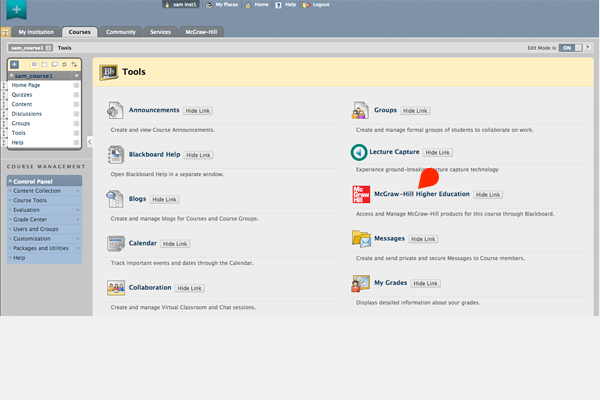
- Click Tools in the left navigation menu.
- Click McGraw-Hill Higher Education from the list of available tool
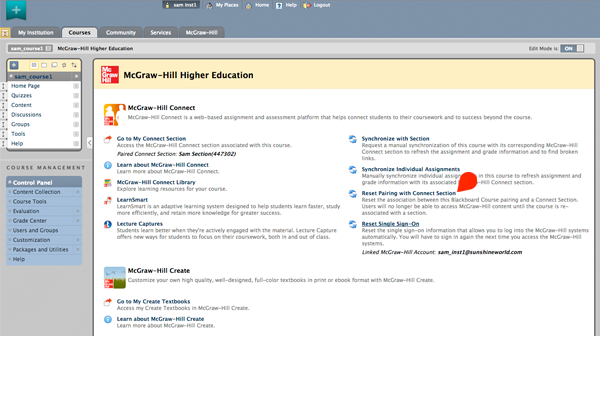
- On the McGraw-Hill Higher Education page, scroll down to the bottom and click Reset Pairing with Connect Section located under the My Connect Section area.
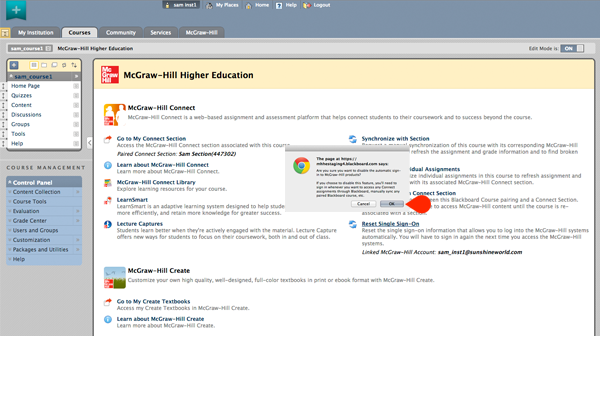
- You’ll be asked to verify you want to unpair your course. Click OK.
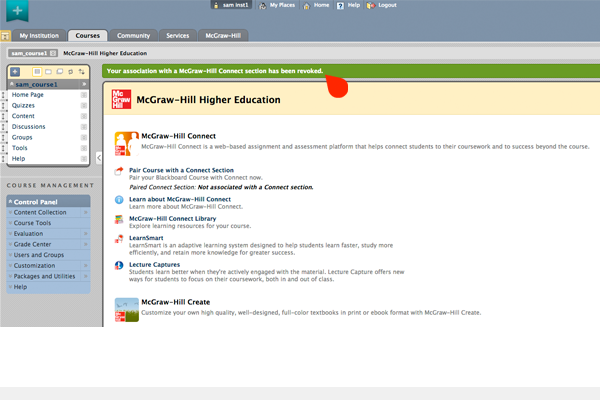
- A confirmation message will appear toward the top of the page confirming your course was unpaired successfully. The next time you want to access your Connect section from Blackboard you will have to pair your Connect section again.
Best Practices:
- By unpairing your Blackboard course and Connect Section, any Connect assignments that you have deployed to your Blackboard course will no longer be available. However, grades will remain in the Blackboard Grade Center.
