Connect - Setting and Locking Assignment Points
Set and lock assignment points to control grading in Connect.
- Higher Education
- Customer Support
- Connect
- Instructor


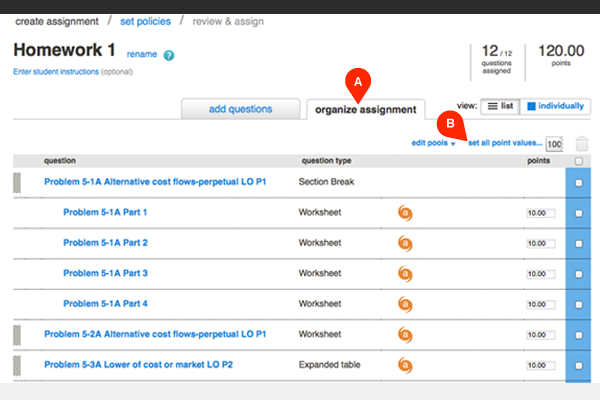
Locking your assignment points allows you to add or remove questions during the assignment-creation process, or while editing an inactive assignment, in order to keep the total points the same for the entire assignment. To lock the total points for your assignment, select the organize assignment tab (A). Then select set all point values (B).
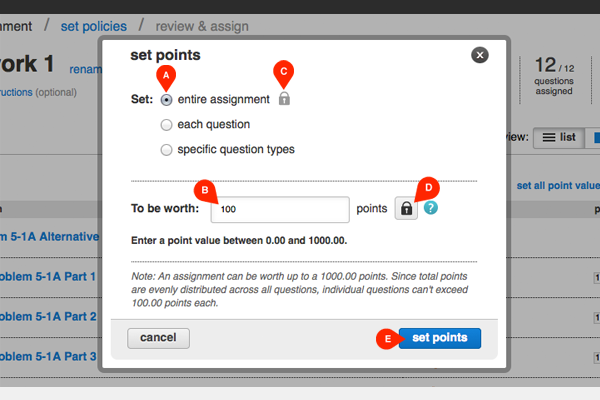
Select "entire assignment" to set total points (A). Enter the point value (B) you want the assignment to be worth. A lock icon will appear (C), indicating that the points you set for the entire assignment are locked. If you want to unlock the points for the assignment, select the lock button (D). Select set points (E) to save your changes.
Note: Removing questions from an active assignment — after students have begun taking it — will automatically unlock your total assignment points. This also applies to shared assignments: the assignment becomes active if students in other sections have begun taking it, and removing questions will unlock your total points.