
Connect - Set up and manage the gradebook in Connect
Set up and manage the Connect gradebook, including categories, weighting, and score visibility.
- Higher Education
- Customer Support
- Connect
- Instructor


Note: The Connect Gradebook is only available in a few World Languages titles.
- From your instructor dashboard, launch your course.
- From the Performance menu, select Gradebook.
- To create the gradebook, add weights to each of the smart categories you want to use (A) and select whether you want to drop up to five of the lowest scores from each category (B). To total weight, or combined weight of all categories, must equal 100 percent.
If you choose to drop scores, select the date and and time after which you want gradebook to begin dropping them (C).
You can also create custom categories. Name the categories (D) and click +add custom category (E) to add more.
- Next, you have several choices to make.
Decide whether you want to apply a letter-grading scheme to your course (A). This is turned off by default. If you turn on letter grades, you can use pre-established percentages ranges Connect provides for you, which is shown by default, or set your own percentage ranges. Please note that this view has been truncated for space purposes.
Choose which attempt you want to record in your gradebook (B). The best attempt is selected by default.
Choose whether to apply your gradebook settings to all sections of your course (C). The default selection is yes , but if you want customize categories and weights for each section, select no.
Decide whether you want to make the gradebook available to students (D). Choosing On will allow students to see their individual gradebooks. Choosing Off will make the gradebook visible only to you.
- If you applied letter grades to your gradebook, you'll have the option to choose whether to make the letter grades visible to students (E). If you choose On letter grades will be visible in the students' individual gradebooks. This will also automatically make the gradebook visible to students. Choosing Off makes the letter grades visible only to you.Click Create gradebook (F).
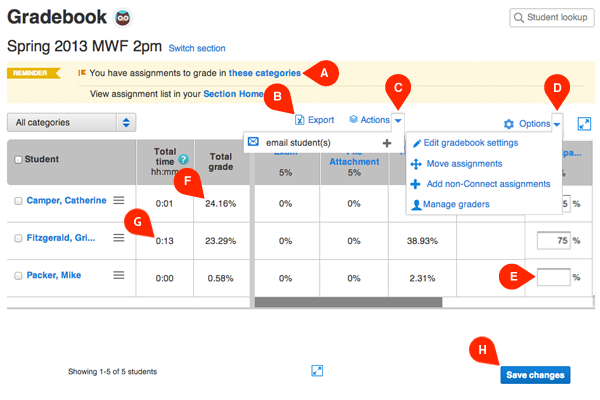
- Once your gradebook is set up and there are assignments to grade, you'll begin receiving notifications at the top of the screen (A) and on your Section Home.
What can you do within the gradebook?
Export gradebook data at any time (B).
Use the Actions menu (C) to directly email students.
From the Options dropdown (C):
Edit gradebook settings
Move assignments between categories
Add non-Connect assignments
Manage graders
- Score for assignments in smart categories will be automatically entered in the gradebook once scored. If there are no assignment in custom categories, you'll have to manually enter scores there (E). Students' total grade (F) and total time spent (G) on assignments in Connect are listed next to their names.
Remember to Save changes (H) if you make any.
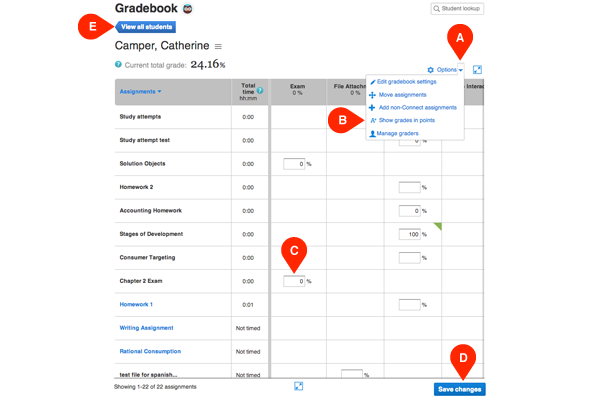
8. To view an individual student's gradebook information, simply click on the student's name. You'll see all the scores and assignments that make up the student's grade. Note that grades are automatically shown as percentages. If you want to see the grades in points, click Options (A) and select Show grades in points (B) from the dropdown.
You can edit any grade by clicking the score box (C) and entering the new grade. Remember to Save changes (D) if you make any.
To return to the gradebook main view, click View all students (E) at any time.
The Connect gradebook makes it easy to calculate your students’ final grades directly in Connect. You can weigh scores by assignment type, arrange your assignments into categories, and add your own custom categories.
Currently only available for World Language and math titles.
Best Practices:
- Blackboard instructors may want to use Blackboard Grade Center instead of the Connect gradebook, because grades entered into this gradebook can’t be directly exported to Blackboard.
- To export the gradebook, first export it to Excel and then, in Excel, select file and then click save as. Save the document as a .csv (Comma Separated Values) file and then you can upload the document to your school's learning management system.
- To grade your class on a curve, simply choose which percentage values (out of 100%) respond to each letter grade. This has to be done offline.
