
Connect - Set assignment dates in bulk
Set assignment start and due dates in bulk in Connect to save time when managing courses.
Tags
- Higher Ed Student
- Higher Education
- Customer Support
- Connect
- Instructor
- Assignment Management


This article explains how to manage your assignment dates in bulk.
- Access your course/section.
- Below the section name, click "Assignments"
- Check the box next to the assignments you wish to manage assignment dates for or click the Select all assignments box.
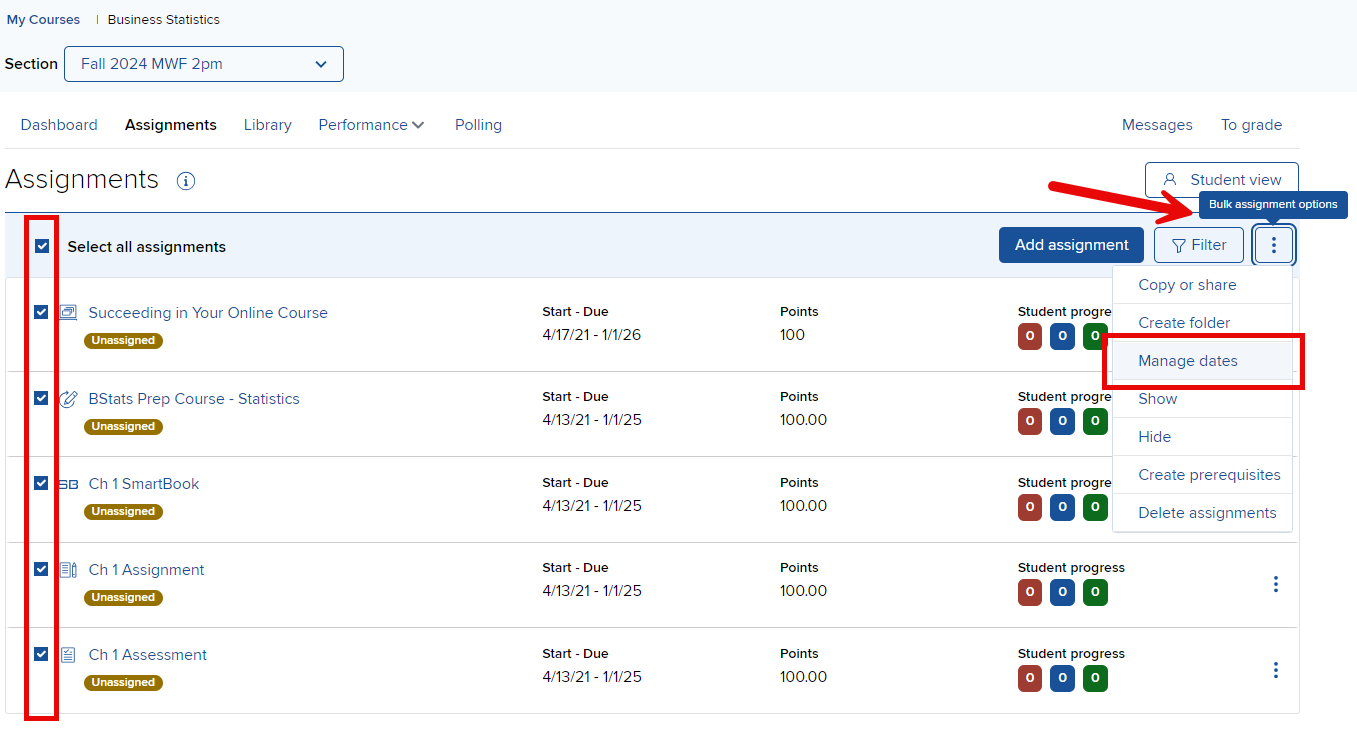
If your assignments are grouped, expand the group to select the desired assignment
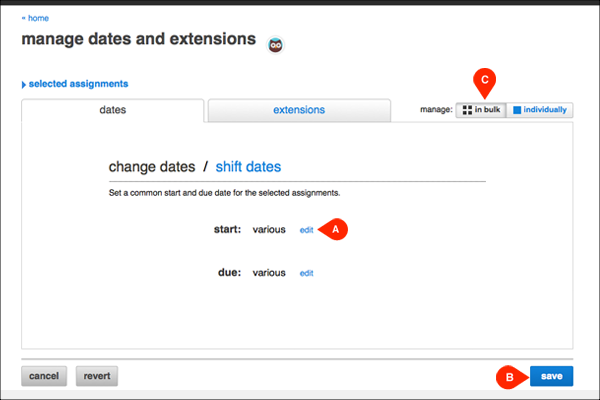
To change the dates of all selected assignments, click edit (A) next to the start or due date, enter the new date and click save (B).
Note that the in bulk tab (C) is automatically selected.
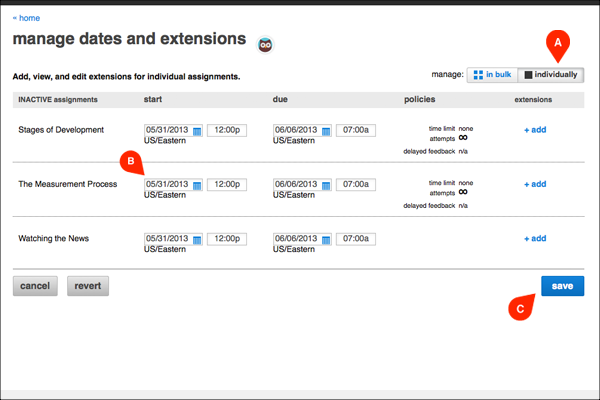
To change each assignment’s dates separately, click the individually tab (A), enter the new dates for each assignment (B) and click save (C).
Best Practices:
- The start and due dates you set for an assignment upon creation are applied to the assignment when it’s shared across multiple sections of your course.
- You may need to change the start and due dates in some of your sections, depending on class schedules and meeting times. Connect allows you to customize the start and due dates in each section individually.
- The due date can be changed to be either due later or earlier, so long as the due date is after the current date and time.
