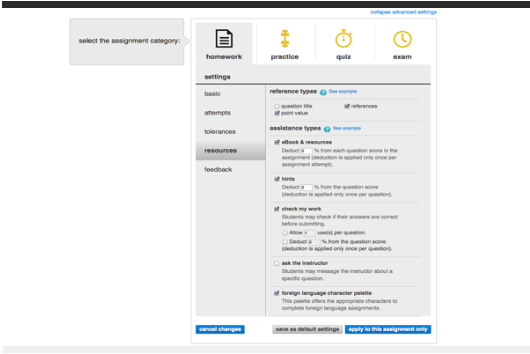
Connect - Resource assistance types
Find out about resource assistance types available to students in Connect assignments.
Tags
- Higher Education
- Customer Support
- Connect
- Instructor


Numerous assistance types are available to offer your students some help as they complete the assignment. (But not all of the assistance types are available for every question.) Most of the assistance types are already selected for you, but you can deselect any you don’t want to allow.
- eBook & resources- The students who purchased the eBook for this course will be able to access it during the assignment by clicking the eBook Links icon that appears with each question. A student who uses this will see relevant readings that may help the student answer that question. This is a good option for practice and homework assignments, or open-book quizzes and tests.
You can apply a percent deduction for using the eBook by replacing the “0” with the percent you want deducted. Applying a deduction will reduce the student’s overall score once if the eBook is used throughout the assignment. (Once a student uses the eBook, that student has unlimited access to it for the rest of the assignment without further deduction.)
- Hint- If a student is unsure of how to go about answering a question, the View Hint link will offer a suggestion. You can apply a percent deduction for using a hint by replacing the “0” with the percent you want deducted. Applying a deduction will reduce the student’s question score once per question. (Once a student uses a hint on a question, that student has unlimited access to hints on that specific question without further deduction.)
- Allow students to check their work- When a student clicks the “check my work” link after answering a question, a “check” icon will appear if the answer is correct, or an “x” icon if the answer is incorrect. The actual answer won’t be given, but be aware that on multiple choice questions, students can use this feature to determine the correct answer through process of elimination.
There are two ways to encourage students not to rely on checking their work. The first is setting a limit on the number of times your students can check their work on each question. The second is applying a percent deduction on each question where a student checks the answer. (The deduction is only applied one per question, regardless of how many times a student checks their work on that one question.) You can apply either or both of those options by selecting the boxes to the left of them.
- Allow students to ask the instructor- Your students can ask you questions about the assignment. You’ll receive a message in your section homepage with the student’s question, and an image of the activity in question, for reference. You can respond directly to that student, or to the entire class if the information is relevant to everyone.
- Show special character palette- Select this if the course is a foreign language, so that your students can answer the questions using the appropriate characters.
- Show the solutions with the answer- This option appears for certain science, math and engineering questions. On those questions, students will be able to see the solutions. If a question is algorithmic, they can try answering it again with new algorithmic values.
- Guide students to the answer- This option appears for certain science, math and engineering questions. On those questions, students can follow step-by-step guides to the solutions and can try answering the questions again with new algorithmic values.
- Practice questions- This option is for available for most science, math and engineering algorithmic questions. It allows your students to practice non-scored versions of the assignment questions, with different values. This is best used on assignments intended for increased exposure to, and understanding of, the concepts (rather than assignments meant to assess understanding).